


How to deploy Windows patches using Trinetri Autonomous Platform
Content and decisions travel separately. Microsoft Update supplies binaries and metadata to your distribution server; Trinetri supplies the policy that decides who receives them and when. Endpoints only ever pull content from the distribution server, so branch bandwidth stays predictable.
Overview:
Why the patch gap is the attack surface
Most Windows compromises do not exploit an unknown flaw. They exploit a known one that was fixed months earlier and never installed. The distance between a patch shipping and a patch landing is the entire exposure window, and in a manually managed estate that distance is measured in weeks: long enough for a proof of concept to become a commodity exploit kit.
The operational reason is familiar to anyone who has run a monthly cycle by hand. Someone reviews the release notes, someone else builds a collection, a change ticket goes to a board that meets on Thursdays, a pilot group gets it, and by the time broad deployment is approved the next cumulative update has already shipped. The work is not difficult. It is repetitive, it is unforgiving of small mistakes, and it does not scale past a few thousand endpoints.
Trinetri Autonomous Platform closes the gap by treating patching as a policy problem rather than a monthly task queue. You define the rule once (which products, which severities, which rings, which windows, which reboot behaviour) and EndpointOps executes it every cycle, reports on it continuously, and repairs the devices that fall out of line without anyone opening a ticket.
This guide walks the full production workflow end to end. By the end you will have a repository synchronized against Microsoft Update, a rule-based patch policy bound to deployment rings, a maintenance window and reboot policy that respect your change calendar, a live view of the rollout, exportable compliance evidence, and autonomous remediation watching for drift.
- Reduce vulnerabilities: critical CVEs close in hours rather than change cycles, cutting mean time to remediate and shrinking the window in which a public exploit is useful against you.
- Prove compliance: continuous, per-device evidence for CIS, ISO 27001, HIPAA, PCI DSS and internal audit, captured as a record rather than reconstructed at audit time.
- Increase security posture: ring-based rollout means a defective update reaches a pilot group, not the estate. Rollback is a policy action, not an emergency project.
- Remove manual work: policies inherit last cycle's approval logic, so there is no monthly approval marathon and no spreadsheet reconciling what actually installed.
- Deploy autonomously: the platform detects missing or reverted patches on its own and reinstalls them inside the next approved window, without a ticket or an engineer.
Prerequisites
Confirm all five before beginning. A missing prerequisite usually surfaces at step 7, when patches are already released and the failure is far more disruptive to diagnose.
- Administrator access: your account holds the Patch Administrator or Tenant Administrator role in the Trinetri console. Read-only operators can view policies but cannot approve or release them.
- Agent installed: the Trinetri agent is deployed, registered and reporting healthy on every target endpoint. Devices in a Pending registration state are not evaluated by any policy.
- Internet connectivity: the distribution server can reach Microsoft Update endpoints, and endpoints can reach the distribution server on the configured content port. Proxy exceptions are in place.
- Repository sync configured: an upstream catalog source is selected with the product scope and classifications you intend to manage. Step 1 covers this if it is not yet done.
- Device groups defined: endpoints are organised into groups that map to deployment rings, typically pilot, early adopter, broad, and critical infrastructure. Dynamic groups by OS, site or tag are recommended over static membership.
Architecture: how a patch reaches an endpoint
Content and decisions travel separately. Microsoft Update supplies binaries and metadata to your distribution server; Trinetri supplies the policy that decides who receives them and when. Endpoints only ever pull content from the distribution server, so branch bandwidth stays predictable.
| Stage | Component | Role |
|---|---|---|
| Source | Microsoft Update | Upstream catalog: binaries, metadata, CVE references, supersedence |
| Cache | Distribution server | Downloads and caches approved content on your network; enforces bandwidth caps |
| Control | Trinetri Autonomous Platform | Evaluates rules, schedules waves, tracks state, drives remediation |
| Rule | Patch policy | Selection criteria, maintenance window, deadline, reboot behaviour |
| Target | Device groups & rings | Pilot to broad, released in sequence with soak time between waves |
| Action | Deployment | Agent downloads, installs, reports result codes and reboot state |
| Proof | Compliance dashboard | Live posture, exception list, exportable audit evidence |
Pro tip: Place one distribution server per network site with more than 50 endpoints. A single central server across a WAN is the most common cause of slow rollouts and saturated branch links.
Step 1: Synchronize patch repository
Connect EndpointOps to Microsoft Update and pull a complete catalog, so every later decision is made against current metadata rather than a stale snapshot.
Instructions
- Open the EndpointOps console and go to Patch Management → Repository.
- Select Configure source and choose Microsoft Update as the upstream catalog.
- Narrow the product scope to the Windows editions you actually run. A tighter scope syncs faster and keeps every downstream report clean.
- Set classifications to Security Updates, Critical Updates and Cumulative Updates at minimum. Add Definition Updates only if you are not using a separate antimalware pipeline.
- Schedule the sync daily, offset one hour after your distribution server's own download window.
- Select Sync now and wait for the job to report complete.
Path: Console / Patch Management / Repository / Configure source
Verify
# Confirm the agent sees the synchronized catalog
Get-TrinetriPatchCatalog -Source "MicrosoftUpdate" |
    Select-Object LastSyncTime, UpdateCount, Status
Console: repository sources
| Source | Classification | Products | State |
|---|---|---|---|
| Microsoft Update | Security | Windows 10, 11, Server 2019/2022 | Synced |
| Microsoft Update | Critical | Windows 10, 11, Server 2019/2022 | Synced |
| Microsoft Update | Cumulative | Windows 11 23H2, 24H2 | Downloading |
| Microsoft Update | Drivers | Excluded from scope | Disabled |
Result: The repository reports Sync complete with a populated update count and a timestamp inside the last hour. Patches now carry severity, CVE references, supersedence chains and affected device counts.
Pro tip: A first sync can pull several gigabytes. Run it outside business hours and cap bandwidth on the distribution server so branch links stay usable.
Best practice: Review product scope quarterly. Decommissioned Windows editions left in scope inflate sync time and clutter every downstream report.
Warning: If the distribution server cannot reach Microsoft Update, endpoints fall back to direct download and ignore your bandwidth policy entirely. Confirm proxy rules before the first sync.
Step 2: Review available patches
Triage the synchronized catalog by severity, CVE and affected device count so you know what this cycle actually contains before committing anything to a policy.
Instructions
- Go to Patch Management → Patches.
- Filter by Severity: Critical, Important and State: Not installed to see only what matters this cycle.
- Sort by Devices affected to surface the updates with the widest blast radius first.
- Open any update to read its CVE list, supersedence chain, restart requirement and known issues.
- Flag anything that touches a business-critical application stack for extended pilot soak time.
Path: Console / Patch Management / Patches / Filter
Console: available patches
| Update | Severity | CVE | Devices | Restart |
|---|---|---|---|---|
| KB5041585 | Critical | CVE-2026-31445 | 1,284 | Required |
| KB5041581 | Critical | CVE-2026-31402 | 1,190 | Required |
| KB5040442 | Important | CVE-2026-30977 | 942 | Required |
| KB5039895 | Important | CVE-2026-30812 | 631 | Not required |
| KB5039211 | Moderate | - | 288 | Not required |
Result: You have a short, ranked list of the updates that matter this cycle, each with its CVE references, device count and restart requirement.
Pro tip: Cross-reference the CVE list against your vulnerability scanner's findings. Updates that close an actively exploited CVE should skip the standard soak time and go out on an expedited ring.
Important: A superseded update does not need separate approval. Approving the latest cumulative update in a chain covers everything beneath it and keeps the policy small.
Step 3: Create patch policy
Define a reusable rule-based policy so each monthly cycle inherits the same approval logic instead of being rebuilt by hand.
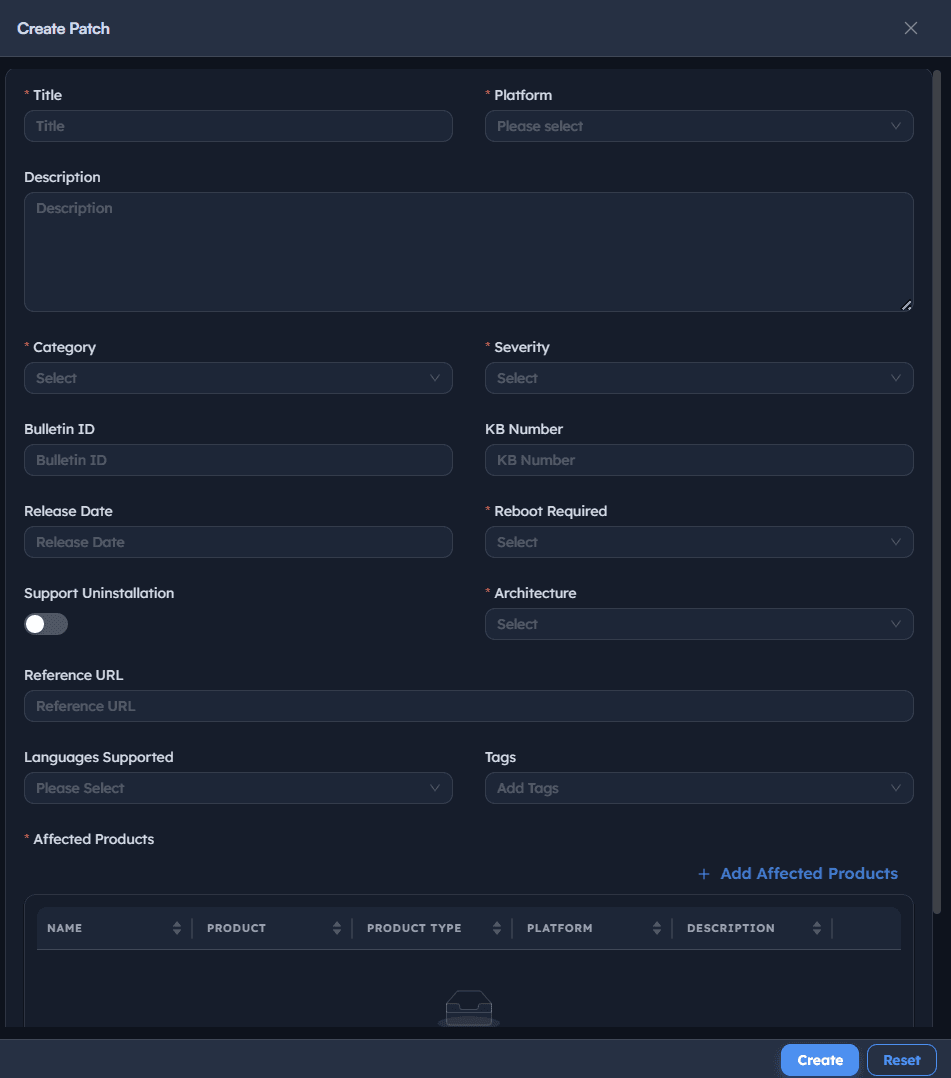
Instructions
- Go to Patch Management → Policies and select New policy.
- Name it for what it does, not when it was made: Windows Security Monthly reads better in an audit than July patch v2 final.
- Choose Rule-based selection rather than picking individual KB articles. Rules survive next month; manual selections do not.
- Set the criteria: classification Security and Critical, severity Critical and Important, product scope Windows, released more than three days ago.
- Enable Auto-approve superseded chains so the newest cumulative update replaces older members automatically.
- Add an exclusion rule for any KB your application owners have flagged, and record the reason in the description field.
- Save the policy as a draft. It has no targets yet, so nothing deploys.
Path: Console / Patch Management / Policies / New policy
Console: policy definition
| Field | Value |
|---|---|
| Name | Windows Security Monthly |
| Selection | Rule-based |
| Classification | Security, Critical |
| Severity | Critical, Important |
| Product | Windows 10, 11, Server |
| Age filter | Released > 3 days ago |
| Supersedence | Auto-approve chains (on) |
| Exclusions | KB5039211: ERP vendor hold |
Matches 27 updates across 1,412 devices, evaluated live.
Result: A saved draft policy showing a live match count. Next month's updates will fall into the same rule without any rework.
Best practice: Keep the age filter at three to seven days. It costs you almost nothing in exposure and catches the updates Microsoft revises or pulls shortly after release.
Pro tip: Write the exclusion reason in the policy description, not in a side document. Six months later nobody remembers why KB5039211 was held, and the exclusion quietly becomes permanent.
Step 4: Configure deployment
Set the maintenance window, bandwidth limits, download behaviour and installation deadline that govern how and when the policy reaches endpoints.
Instructions
- Open the draft policy and select the Deployment tab.
- Define the maintenance window: the only period in which installation may begin. Two to four hours on a fixed weeknight is typical for workstations; servers usually follow the change calendar.
- Set download behaviour to pre-cache. Content lands on the endpoint ahead of the window so installation starts immediately rather than competing for bandwidth.
- Apply a bandwidth cap per site. Branch offices on constrained links should throttle to a fixed ceiling rather than a percentage.
- Set an installation deadline. After it passes, the patch installs at the next opportunity regardless of window: this is what stops a device deferring indefinitely.
- Enable Wake on LAN if your network supports it, so machines powered off overnight still receive the wave.
Path: Console / Policies / Windows Security Monthly / Deployment
Console: deployment settings
| Field | Value |
|---|---|
| Window | Wed 22:00 – 02:00 (device local) |
| Download | Pre-cache before window |
| Bandwidth | 12 Mbps per site |
| Deadline | 7 days after release |
| Wake on LAN | On |
| Retry | 3 attempts, 4 h apart |
Result: The policy now carries a schedule. Endpoints will pre-cache content ahead of the window and begin installing only inside it, with a hard deadline as backstop.
Important: Maintenance windows are evaluated in device local time by default. If you need a single global cutover instead, switch the window to UTC explicitly: otherwise a follow-the-sun estate will patch across a 24-hour spread.
Best practice: Keep the deadline at seven days for workstations and align it to your change calendar for servers. A deadline shorter than the soak time defeats ring-based rollout entirely.
Step 5: Configure reboot policy
Decide how restarts are handled: forced, deferred, user-prompted, or suppressed for servers under change control. Reboot behaviour causes more user complaints than patching itself.
Instructions
- On the same policy, open the Restart tab.
- Choose a mode. Prompt with deferral suits workstations, Suppress suits servers whose restarts are governed by a change ticket, and Force suits kiosks and shared devices with no interactive user.
- Set the number of permitted deferrals and the interval between prompts. Three deferrals at four-hour intervals is a reasonable default.
- Set the forced restart deadline: the point at which deferrals stop being offered.
- Enable active hours protection so a restart never interrupts a working day, and presentation detection so it never interrupts a full-screen session.
- For server groups, enable restart only with approved change record and bind it to your ITSM integration.
Path: Console / Policies / Windows Security Monthly / Restart
Console: restart behaviour
| Field | Value |
|---|---|
| Mode | Prompt with deferral |
| Deferrals | 3 × 4 h |
| Hard deadline | 48 h after install |
| Active hours | 08:00 – 18:00 protected |
| Presentation | Detection on |
| Servers | Suppress: change record required |
Result: Restarts follow a defined, predictable rule. Users get warning and a bounded number of deferrals; servers restart only under an approved change record.
Warning: Suppressing restarts indefinitely leaves a patch installed but inactive. The vulnerability stays open until the machine restarts, and the compliance dashboard will correctly report the device as non-compliant. Suppress with a plan, not as a default.
Pro tip: Ship a short internal note before the first cycle explaining the prompt and the deferral limit. Nearly all patch-related helpdesk tickets are about unexpected restarts, not failures.
Step 6: Assign device groups
Attach the policy to deployment rings so patches move from pilot to broad production in controlled waves with soak time between them.
Instructions
- Open the Targets tab on the policy.
- Add your rings in order: Ring 1 (Validation), Ring 2 (Pilot), Ring (Controlled), Ring (Production).
- Set soak time between rings: 24 hours from Ring 1 to Ring 2, 48 hours from Ring 2 to Ring 3, and a change window for Ring 4.
- Define the promotion gate: a minimum success rate that must be met before the next ring is released. Ninety-five percent is a common threshold.
- Confirm each ring uses dynamic membership so new devices inherit a ring automatically instead of sitting unmanaged.
Path: Console / Policies / Windows Security Monthly / Targets
Console: deployment rings
| Ring | Group | Devices | Soak | Membership |
|---|---|---|---|---|
| Ring 1 | Validation | 24 | - | Dynamic |
| Ring 2 | Pilot | 146 | 24 h | Dynamic |
| Ring 3 | Controlled | 1,108 | 48 h | Dynamic |
| Ring 4 | Production | 134 | Change window | Static |
Result: The policy targets four sequential rings covering 1,412 devices, with soak time and an automatic promotion gate between each wave.
Best practice: Ring 1 should include at least one device from every hardware model and application profile you support. A pilot made entirely of IT laptops will not catch a driver conflict on the finance team's docking stations.
Important: Devices in no ring receive nothing. Audit for unassigned endpoints after any group restructure: silently unmanaged machines are the most common source of long-tail non-compliance.
Step 7: Deploy patches
Release the policy to the first ring and confirm the distribution server is actually serving content to endpoints.
Instructions
- Review the policy summary one last time: selection rules, window, restart behaviour, rings.
- Select Release and choose Ring 1 only. Never release all rings simultaneously: that is deployment without staging.
- Confirm the change record reference if your tenant requires one.
- Watch the distribution server's content status until the required packages show as cached and available.
- Confirm the first endpoints move from Scheduled to Downloading within the pre-cache period.
Path: Console / Policies / Windows Security Monthly / Release
Verify
# Check policy state and ring release status
Get-TrinetriPatchPolicy -Name "Windows Security Monthly" |
    Select-Object Name, State, ReleasedRings, NextWindow
Result: The policy state changes to Active: Ring 1. Endpoints in the pilot group begin pre-caching content ahead of the maintenance window.
Warning: Releasing to all rings at once removes every safeguard you configured in step 6. If a defective update ships, it reaches the whole estate in one window and rollback becomes an incident rather than a policy action.
Pro tip: Release Ring 0 early in the week. A pilot released on Friday soaks over a weekend where nobody is watching the telemetry.
Step 8: Monitor deployment
Watch live install telemetry, failure codes and pending-reboot counts as the wave progresses, and stop the rollout if the pattern looks wrong.
Instructions
- Go to Patch Management → Deployments and open the active deployment.
- Track the four states that matter: Succeeded, Failed, Pending reboot, and Not started.
- Group failures by result code. A single code repeating across many devices is a systemic problem; scattered one-off codes are usually device-specific.
- Investigate the common codes:
0x80070643indicates a failed installer,0x8024402Ca connectivity or proxy problem,0x80070005a permissions issue. - If the success rate falls below the promotion gate, select Halt deployment before the next ring releases.
Path: Console / Patch Management / Deployments / Live view
Console: live deployment
| Ring | Rate | State |
|---|---|---|
| Ring 1 | 100% | Complete |
| Ring 2 | 97% | Complete |
| Ring 3 | 64% | Installing |
| Ring 4 | 0% | Scheduled |
Succeeded 1,186 · Failed 14 · Pending reboot 78 · Not started 134.
Result: A live, per-ring picture of the rollout with failures grouped by cause, so remediation targets a root cause rather than individual machines.
Pro tip: Treat pending-reboot count as a leading indicator. A large and growing figure means your deferral limits are too generous, not that patching failed.
Best practice: Set an alert on failure-rate threshold rather than watching the dashboard. The platform can halt a wave automatically faster than a person monitoring it can.
Step 9: Verify compliance
Confirm patch state against the compliance baseline and export the evidence your auditors will ask for.
Instructions
- Go to Compliance and select the Windows patch baseline.
- Read the posture summary: compliant, non-compliant, pending reboot, and unreachable device counts.
- Open the exception list and classify each entry: genuinely failed, awaiting restart, offline, or excluded by policy.
- Export the report as PDF or CSV for the audit record. Schedule it monthly so evidence is captured rather than reconstructed.
- Confirm the compliance percentage meets your internal SLA before declaring the cycle closed.
Path: Console / Compliance / Windows patch baseline / Export
Verify
# Export compliance evidence for the audit record
Get-TrinetriCompliance -Baseline "Windows Patch Baseline" |
    Export-Csv -Path "C:\Audit\patch-compliance-2026-07.csv" -NoTypeInformation
Console: compliance exceptions (98.4% compliant · 1,389 compliant · 9 non-compliant · 11 pending reboot · 3 unreachable)
| Device | Missing | Reason | State |
|---|---|---|---|
| WS-FIN-0231 | KB5041585 | Install failed 0x80070643 | Non-compliant |
| WS-ENG-1102 | KB5041585 | Awaiting restart | Pending |
| SRV-DB-04 | KB5040442 | Change record not approved | Deferred |
| WS-SAL-0788 | - | Offline since 18 Jul | Unreachable |
Result: A compliance figure backed by a per-device evidence trail, and an exception list short enough to work through individually.
Important: Pending-reboot devices are not compliant. The patch is on disk but the vulnerable code is still running in memory until the machine restarts. Report them separately from genuine failures, but do not count them as done.
Best practice: Schedule the compliance export monthly and send it to a location auditors can reach. Evidence gathered on request is always weaker than evidence gathered on schedule.
Step 10: Enable autonomous remediation
Hand recurring drift to the platform so missing or reverted patches are detected and reinstalled inside the next approved window, without a ticket.
Instructions
- Go to Policies → Autonomous remediation and create a rule bound to the Windows patch baseline.
- Set the trigger: a device drifting from compliant to non-compliant, or a patch reverting after a system restore or image refresh.
- Set the action to reinstall the missing update at the next maintenance window, respecting the same restart policy as the parent deployment.
- Set a retry ceiling (typically three attempts) after which the device escalates to a ticket rather than looping.
- Start in recommend mode for one full cycle so you can see what the platform would have done, then switch to autonomous once the actions look right.
- Route escalations to your ITSM queue so the exceptions that need a human still reach one.
Path: Console / Policies / Autonomous remediation / New rule
Console: remediation activity
| Device | Detected | Action taken |
|---|---|---|
| WS-ENG-0442 | KB5041585 reverted | Reinstalled 02:14 |
| WS-MKT-0119 | Agent drift | Reinstalled 02:31 |
| WS-FIN-0231 | Install failed ×3 | Escalated to ITSM |
Result: Drift is corrected on its own between cycles. Your compliance figure stops sagging in the weeks after each deployment, and only genuine exceptions reach an engineer.
Best practice: Run one full cycle in recommend mode before enabling autonomous actions. Reviewing what the platform would have done builds far more confidence than reading the configuration.
Warning: Autonomous remediation respects maintenance windows and restart policy, but it does not respect an absent retry ceiling. Without one, a device with a genuinely broken installer will retry indefinitely and never surface as a ticket.
Best practices for Windows patch management
The configuration above works on day one. These practices are what keep it working in month twelve, when the person who built it has moved on and the estate has grown.
| Practice | Why it matters | Recommended setting |
|---|---|---|
| Ring-based rollout | Contains a defective update to a small population and gives you real-world soak data before broad release. | Four rings, 24–48 h soak, 95% promotion gate |
| Rule-based selection | Manual KB selection has to be rebuilt monthly and quietly drifts from the documented standard. | Classification and severity rules with a 3–7 day age filter |
| Maintenance windows | Keeps installation and restarts outside working hours and inside the change calendar. | 2–4 h weeknight window in device local time |
| Installation deadline | Prevents indefinite deferral. Without one, a small population never patches at all. | 7 days for workstations; change-aligned for servers |
| Rollback readiness | Turns a bad patch from an incident into a policy action taken in minutes. | Test the uninstall path on Ring 0 each quarter |
| Pending-reboot tracking | An installed but un-restarted patch is not protecting anything. | Report separately; hard restart deadline at 48 h |
| Scheduled evidence | Audit evidence gathered on schedule is stronger and cheaper than evidence reconstructed on request. | Monthly automated export to the audit share |
| Autonomous remediation | Compliance decays between cycles through reimaging, restores and drift. Automation catches it silently. | Enable after one cycle in recommend mode |
Rollback strategy
Decide the rollback path before you need it. In EndpointOps, a rollback is an action on the deployment rather than a new policy: halt the wave, select the affected update, and issue Uninstall scoped to the ring where the problem appeared. The agent removes the update and reports the device as non-compliant by design, which is the correct state: it makes the exception visible instead of hiding it.
Two constraints are worth knowing in advance. Some cumulative updates cannot be uninstalled once a subsequent servicing-stack update has been applied, so rollback windows are narrower than people assume. And an update removed on a device still inside the policy scope will be reinstalled at the next window unless you add it to the exclusion list first. Exclude, then uninstall: in that order.
Troubleshooting: common issues and resolutions
| Issue | Cause | Resolution |
|---|---|---|
| Patches download but never install | The maintenance window is too short for the package size, or the window closed before installation could begin. | Enable pre-caching so content lands ahead of the window, and widen the window to at least two hours for cumulative updates. |
| Install fails with 0x80070643 | A corrupted component store or a failed prior servicing-stack update on the endpoint. | Run a component store repair, apply the latest servicing-stack update, then let the policy retry on the next cycle. |
| Endpoints report 0x8024402C | The endpoint cannot reach the distribution server, usually a proxy exception or firewall rule blocking the content port. | Add the distribution server to the proxy bypass list and confirm the content port is open from the endpoint subnet. |
| Compliance stuck below target | A population of devices deferring restarts indefinitely, or endpoints assigned to no ring at all. | Enforce the restart deadline and audit for unassigned devices after any group restructure. |
| Ring 2 never releases | The previous ring did not meet the promotion gate, so the platform correctly held the wave. | Resolve the failures in the earlier ring, or override the gate deliberately with a recorded justification. |
| Repository sync times out | Product scope is too broad, or the distribution server has insufficient bandwidth to the upstream catalog. | Narrow scope to supported Windows editions only and schedule the sync outside business hours. |
Frequently asked questions
Between 30 and 90 minutes for a Windows-only scope, depending on which classifications you selected and the bandwidth available to the distribution server. Incremental syncs afterwards typically finish in under five minutes.
Yes. Set the restart mode to suppress and the patch installs but stays pending until the next approved window. EndpointOps tracks pending-reboot devices separately, so they are never counted as fully compliant.
Halt the rollout at the current ring, add the update to the policy exclusion list, then issue an uninstall scoped to affected devices. Because rings are sequential, a defective update reaches a pilot group rather than the whole estate.
Four covers most estates: IT pilot, early adopters, broad production, and critical infrastructure. Fewer than three removes meaningful soak time; more than five slows the cycle without adding much safety.
It replaces the approval, targeting, scheduling and reporting layers entirely. The distribution server performs the content caching role that WSUS provided, and most organisations decommission WSUS once ring-based deployment is stable.
You can, but it is rarely a good idea. Servers need change-record-bound restarts and different windows. Use one policy per device class with a shared selection rule.
They are marked as not started and retried at the next opportunity. Once the installation deadline passes, the patch installs at the first moment the device is reachable regardless of window.
It compares the success rate of the completed ring against your threshold once the soak period ends. Below threshold, the wave holds and notifies the policy owner; at or above, the next ring releases automatically.
Yes. Third-party patching uses the same policy, ring and window model with a different catalog source. Keep it in a separate policy so a browser update is not gated behind a Windows cumulative update.
Run one full cycle in recommend mode first. The platform logs every action it would have taken without performing it, which lets you validate the behaviour against your own estate before granting it authority.
Add the specific KB to the policy exclusion list with the reason recorded in the description, and review holds quarterly. Undocumented exclusions become permanent by accident.
The per-device evidence supports CIS Controls, ISO 27001, HIPAA, PCI DSS and SOC 2 patching requirements. Auditors generally want the schedule and the exception handling as much as the percentage.
Yes. Create an expedited policy with a zero-day age filter, a short deadline and rings collapsed to two. Reserve this for actively exploited CVEs, since it trades soak time for speed.
A cumulative update is typically 300 MB to 1.5 GB per device, but endpoints pull from the local distribution server rather than the internet, so WAN usage is roughly one copy per site plus metadata.
Deferred means a rule intentionally postponed the action, such as a server awaiting a change record. Non-compliant means the patch should be installed and is not. Both appear in the exception list, with different reason codes.