


How to Configure Software Automation
Software Automation: Configure how to add a custom application to the App Catalog, publish an App Deployment to specific endpoints, and confirm the install succeeded.
How to Configure Software Automation
Overview:
Why a catalog of installers isn't the same as software actually landing on a machine
Most fleets need more than the handful of applications a platform ships by default. A team might standardize on an internal tool, a specific version of a utility, or something as ordinary as a VM tool that isn't in anyone's default catalog. Without a way to add it, every install goes back to a technician copying a file to a machine by hand.
Software Automation splits that problem into three pieces: an App Catalog of every installable application (built-in or custom, across Windows, Linux, and macOS), an App Bundle for grouping applications together, and App Deployment for actually pushing an app (or bundle) to a chosen scope of endpoints. Like other automation modules, adding an application to the catalog changes nothing by itself - nothing happens until it's deployed, and every deployment breaks down into a per-endpoint task with its own status.
This guide walks the full workflow end to end: opening Software Automation, adding a custom application to the App Catalog, publishing an App Deployment for that application to a specific endpoint, and confirming from the task status that the install actually succeeded.
- Catalog first, deploy second: an application in the App Catalog is just a definition - Application details, Platform & package, and install/uninstall/upgrade Commands - until it's targeted by a deployment.
- Three application file sources: Application Location Type supports Local Directory (upload), Shared Directory, or a Public URL, not just a direct file upload.
- Self installation is optional: Allow Self Installation controls whether an end user can trigger the install themselves, separate from a pushed deployment.
- Deployment targets one app, a bundle, or a mix: Deployment Type supports Application or Application Bundle, with a dual-pane picker to move specific catalog items into the deployment.
- Retry and notify are built in: a deployment can specify a Retry Count and a Notify To list, so a failed attempt isn't silently dropped and the right people hear about the outcome.
Prerequisites
Confirm these before adding a custom application. An unconfirmed install command or a missing package file are common reasons a deployment completes without actually installing anything.
- Administrator access: your account holds a role permitted to manage the Automation -> Software Automation module.
- Agent installed and reporting: the endpoint agent is installed, registered, and reporting healthy on every target device.
- Installer file ready: have the application's installer file (exe, msi, zip, or script) available locally, on a shared directory, or at a public URL before starting.
- Install/uninstall commands known, if required: for silent or scripted installs, know the exact command and any required switches ahead of time.
Architecture: how a custom application reaches an endpoint
An App Catalog entry defines the application itself. An App Deployment binds that catalog entry (or a bundle of entries) to a scope of endpoints. The endpoint agent runs the install and reports back a per-task status.
| Stage | Component | Role |
|---|---|---|
| Definition | App Catalog entry | Name, icon, description, OS/architecture/version, package type, file source, install/uninstall/upgrade commands |
| Grouping (optional) | App Bundle | Groups multiple catalog applications for deployment together |
| Binding | App Deployment | Scope, endpoints, Application or Application Bundle selection, deployment policy, retry count, notification list |
| Execution | Endpoint agent | Downloads and installs the application, reports per-endpoint task status |
| Proof | Task Status | Per-endpoint In Progress/Success status with a last-updated timestamp |
Pro tip: The App Catalog search and dual-pane picker in App Deployment both work by the application's SWP-identifier as well as its name - useful once the catalog has more than a handful of entries.
Step 1: Open Software Automation
Get oriented before adding anything, so you know where the catalog, bundles, and deployments each live.
Instructions
- From the main console, go to Automation in the left sidebar, then select Software Automation from the submenu (alongside Configuration Automation).
- Note the sections in the left sidebar: App Catalog, App Bundle, and App Deployment.
Path: Console / Automation / Software Automation
Result: You're in the Software Automation module with visibility into the existing App Catalog before adding a new entry.
Step 2: Add a custom application to the App Catalog
Define the application: its identity, its platform and package details, and how it's installed.
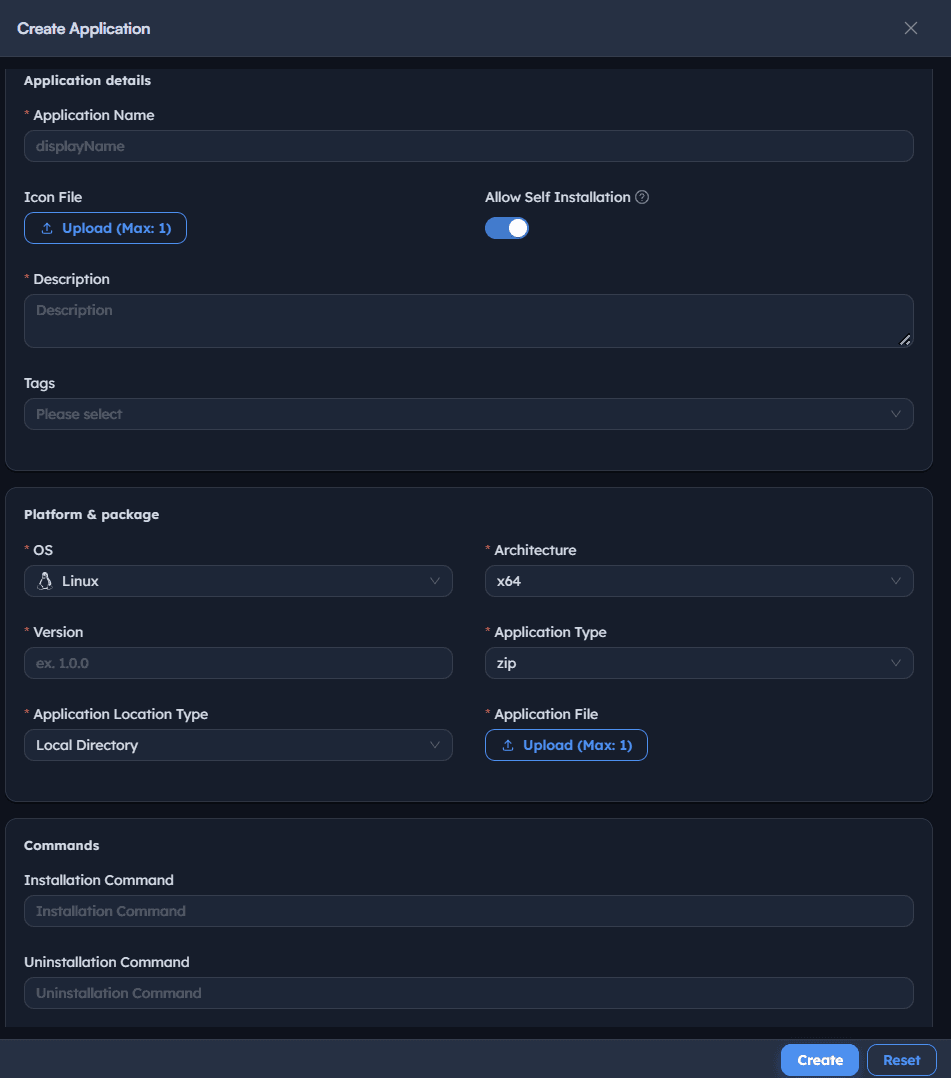
Instructions
- Go to App Catalog -> Create.
- Enter an Application Name, e.g. Virtual VM.
- Optionally upload an Icon File (max 1).
- Toggle Allow Self Installation if end users should be able to trigger the install themselves.
- Enter a Description.
- Optionally set Tags.
- Under Platform & package, set OS (
Windows,Linux, ormacOS) and Architecture. - Set Version and Application Type (
exe,msi,zip, orscript). - Set Application Location Type to
Local Directory,Shared Directory, orPublic URL, then upload or link the Application File. - Under Commands, optionally set the Installation Command, Uninstallation Command, and Upgrade Command.
- Select Create.
Path: Console / Automation / Software Automation / App Catalog / Create
Console: application definition
| Field | Value |
|---|---|
| Application Name | Virtual VM |
| Allow Self Installation | On |
| OS | Windows |
| Architecture | x64 |
| Version | 6.1.50 |
| Application Type | exe |
| Application Location Type | Local Directory |
| Application File | VirtualBox-6.1.50-161033-Win.exe |
Result: The application appears in the App Catalog grid alongside the built-in entries (e.g. Chrome, AnyDesk, Zoom, WinRAR, VLC, Slack, Office 365, Notepad++, Teams, Firefox, FileZilla), each tagged with an SWP- identifier, OS, version, and package format. It has no targets yet - that's set in the deployment step.
Important: Application Type and Application Location Type work together - a zip type paired with Local Directory expects a single uploaded archive, while Public URL expects a reachable download link instead of a local file. Mismatching these is a common reason an otherwise-valid entry fails to deploy.
Step 3: Publish an App Deployment to endpoints
Bind the catalog application to a scope of endpoints so it's actually installed, rather than just defined.
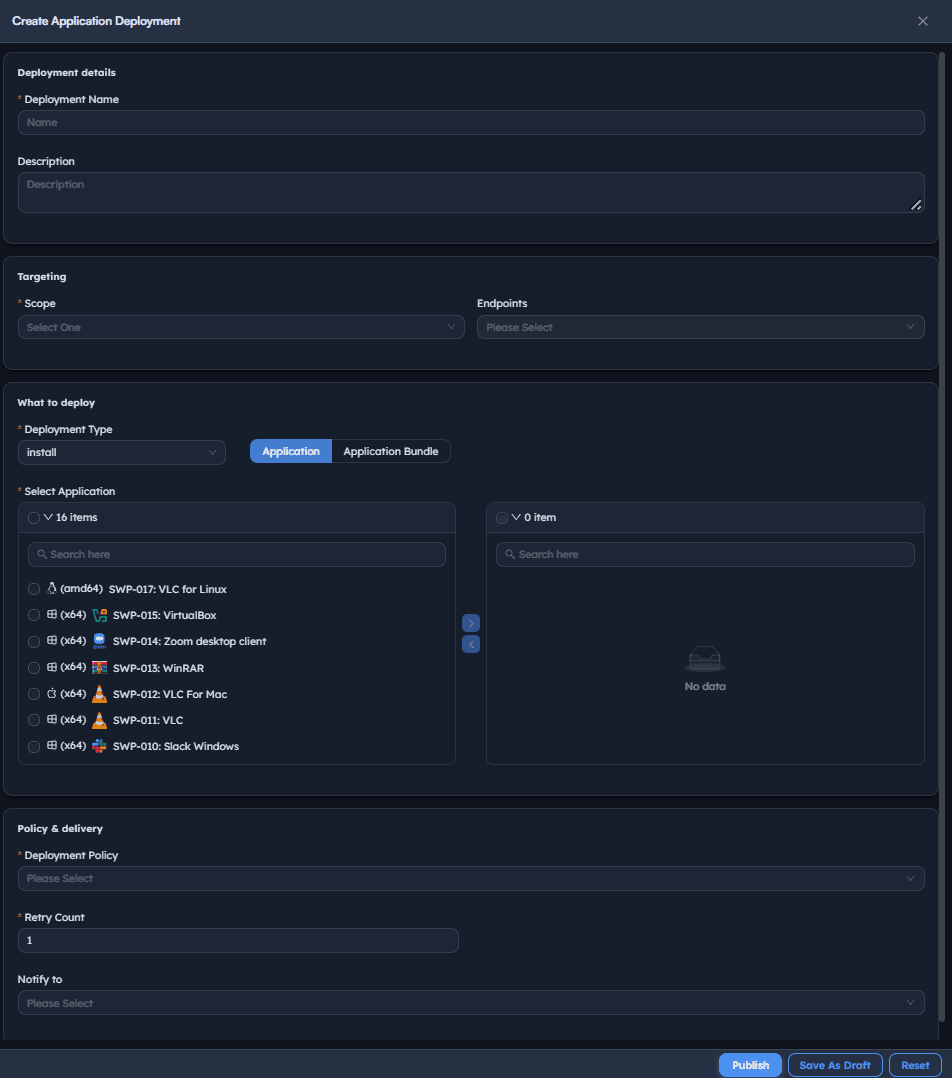
Instructions
- Go to App Deployment -> Create.
- Enter a Deployment Name, e.g. Install VM.
- Add an optional Description.
- Under Targeting, set Scope to
Specific Endpoints(or another available scope) and select the target Endpoints. - Under What to deploy, confirm Deployment Type is
install, and choose the Application tab (or Application Bundle for a group). - In Select Application, check the application(s) to include - they move into the selected pane on the right.
- Under Policy & delivery, set Deployment Policy (e.g.
OOB Instant deployment policy, typeInstant). - Set Retry Count (defaults to
1). - Optionally set Notify to for completion alerts.
- Select Publish (or Save As Draft to finish later).
Path: Console / Automation / Software Automation / App Deployment / Create
Console: deployment definition
| Field | Value |
|---|---|
| Deployment Name | Install VM |
| Scope | Specific Endpoints: <ENDPOINT-HOSTNAME> |
| Deployment Type | install |
| Selected Application | SWP-018: Virtual VM |
| Deployment Policy | OOB Instant deployment policy (Instant) |
| Retry Count | 1 |
Result: A deployment task is created (e.g. ADR-068: Install VM) with stage Initiated, moving to In Progress, then Completed with progress 1/1, visible in the App Deployment list alongside prior deployments.
Warning: Retry Count only governs automatic retries of a failed install attempt - it doesn't retroactively fix an application entry with the wrong install command or a missing dependency. If a deployment keeps failing after retries, check the catalog entry itself before increasing the count further.
Step 4: Confirm the deployment with per-endpoint task status
Verify the application actually installed on the endpoint, rather than assuming from the deployment stage alone.
Instructions
- Go to App Deployment to see every deployment with its Type (
Install), Stage (Initiated,In Progress,Completed), Progress, and Policy. - Select the view icon on a deployment row to open its Tasks panel, showing Endpoint, Name, Status, and Last Updated.
- Refresh to see Status move from
In ProgresstoSuccess(orFailed) as the agent completes the install.
Path: Console / Automation / Software Automation / App Deployment
Console: task status
| Endpoint | Name | Status | Last Updated |
|---|---|---|---|
| <ENDPOINT-HOSTNAME> | Virtual VM | SUCCESS | 2026/07/06 01:23:16 PM |
Result: Confirmation that the deployment is not just Completed at the task level, but actually Success at the individual endpoint level - the application was installed, not just scheduled.
Best practices for software automation
| Practice | Why it matters | Recommended setting |
|---|---|---|
| Match Application Type to the real installer | A mismatched type (e.g. exe selected for a .msi file) can deploy without actually installing correctly | Confirm the real file extension before saving the catalog entry |
| Set explicit install/uninstall commands for silent installs | Without them, the agent may fall back to interactive install behavior that a headless endpoint can't complete | Provide the exact silent-install command and switches your installer supports |
| Use Specific Endpoints while validating a new application | A broad scope makes it harder to confirm a new catalog entry installs cleanly before wider rollout | Test on one or two endpoints first, then expand |
| Keep Allow Self Installation intentional | Enabling it lets any user with catalog access trigger the install themselves, bypassing a scheduled deployment | Enable only for applications appropriate for self-service |
| Check task Status, not just deployment Stage | A Completed deployment and a Success task are different facts | Confirm Success per endpoint before considering a rollout done |
| Set a Notify To list for unattended deployments | Without it, a failed install can go unnoticed until someone checks manually | Add relevant recipients for any deployment run outside business hours |
Troubleshooting: common issues and resolutions
| Issue | Cause | Resolution |
|---|---|---|
| Deployment shows Completed but the application isn't installed | Installation Command is missing or incorrect for a silent/scripted install | Re-open the App Catalog entry and confirm the Installation Command matches the installer's actual silent-install syntax |
| Task Status shows Failed | Agent lost connectivity mid-deployment, or the application file failed to download | Confirm agent health, then check Retry Count and re-publish if needed |
| Application File upload is rejected | File exceeds the size or type expected for the selected Application Type | Confirm the file matches the selected Application Type (exe/msi/zip/script) |
| New catalog entry doesn't appear in the App Deployment picker | The entry was saved but the deployment panel's application list wasn't refreshed | Close and reopen Create Application Deployment, or refresh the App Catalog list first |
| End users can install the application without a deployment | Allow Self Installation was left enabled | Disable it on the catalog entry if the application should only be pushed via App Deployment |
| Deployment stays at Initiated indefinitely | The target endpoint's agent isn't reporting, or the Deployment Policy type doesn't match the intended trigger | Confirm agent connectivity and the selected Deployment Policy's type (e.g. Instant) |
Frequently asked questions
No. A catalog entry only defines the application. It's installed only once targeted by an App Deployment published to a chosen scope of endpoints.
Local Directory (upload a file directly), Shared Directory, and Public URL. The option chosen should match where the actual installer file lives.
Application deploys one or more individually selected catalog entries. Application Bundle deploys a pre-grouped set of applications defined in the App Bundle section, useful for a standard software set deployed together repeatedly.
It determines whether an end user can trigger the application's install themselves from the catalog, independent of any App Deployment being published.
Open the deployment's Tasks panel and check the Status column for that endpoint. A Success status confirms the install completed.
It sets how many times the agent automatically retries a failed install attempt before the task is marked Failed, helping absorb transient issues like a brief network drop.