


How to Configure Firewall Management
Centrally configure and enforce firewall policies across endpoints with application-based rules, inbound/outbound controls, targeted deployment, real-time task monitoring, and execution verification.
How to Configure Firewall Management
Overview:
Why a rule on paper isn't the same as a rule on the endpoint
A firewall rule that exists only as a definition in the console does nothing for the endpoint it was meant to protect. Someone needs to decide what to allow or block, someone needs to push that decision to the right machines, and someone needs proof it actually landed - otherwise "we have a firewall policy for that" is just a document, not a control.
Firewall Management covers that full path: define a policy with its inbound/outbound posture and specific rules (protocol, direction, program, ports), deploy that policy to a chosen scope of endpoints, and track the deployment down to a per-endpoint status with an execution log. Nothing is enforced until it's deployed, and nothing is confirmed until the task status and output say so.
This guide walks the full workflow end to end: opening Firewall Management, creating a firewall policy, adding a rule to that policy, deploying the policy to specific endpoints, monitoring deployment progress, and confirming the rule actually executed successfully on the endpoint.
- Policies and rules are layered: a policy sets the overall profile-level posture (Action, Inbound, Outbound); rules within it define specific allow/block conditions by program, protocol, direction, and IP/port.
- Deployment is a separate step from policy creation: a policy has no effect until a Policy Deployment sends it to a defined scope of endpoints.
- Flexible endpoint scoping: deploy to All Endpoints, Specific Endpoints, Specific Department, Specific Locations, or Windows as a platform-wide scope.
- Per-endpoint task visibility: each deployment breaks down into per-endpoint tasks with their own status (e.g. Ready to Deploy, Success) and a timestamped execution log.
- Notify on deployment: an optional Notify To field lets you alert specific people when a deployment completes.
Prerequisites
Confirm these before creating a firewall policy. An incomplete rule (missing protocol, direction, or program) is the most common reason a deployment reports success while the endpoint's actual firewall behavior doesn't change as expected.
- Administrator access: your account holds a role permitted to manage the Device Control -> Firewall Management module.
- Agent installed and reporting: the endpoint agent is installed, registered, and reporting healthy on every target device.
- Rule details decided in advance: know the exact program path (e.g.
C:\Program Files\VideoLAN\VLC\vlc.exe), protocol, direction, and profile(s) the rule should apply to before creating it. - Endpoint scope identified: know which specific endpoints, department, location, or platform this policy should be deployed to before publishing the deployment.
Architecture: how a firewall policy reaches an endpoint
A firewall policy defines the overall posture and contains one or more rules. A policy deployment binds that policy to a scope of endpoints. The endpoint agent executes the rules and reports back a per-task status and log.
| Stage | Component | Role |
|---|---|---|
| Definition | Firewall Policy | Policy name, profile, Action/Inbound/Outbound posture, Apply On Startup |
| Rule definition | Firewall Rule | Rule action (Create/Delete/Enable/Disable), profile(s), allow/block action, protocol, direction, program, IP/port |
| Binding | Policy Deployment | Scope, endpoints, selected firewall policy, deployment policy, optional notification |
| Execution | Endpoint agent | Applies the rule(s), reports per-endpoint task status |
| Proof | Task Status and Output | Per-endpoint Ready to Deploy/Success status with a timestamped execution log |
Pro tip: Give the policy and its primary rule the same descriptive name (e.g. both named for what's being blocked and why) - it makes matching a deployment back to its rule in Policy Deployments and Tasks much faster later.
Step 1: Open Firewall Management
Get oriented in Device Control before creating anything, so you know where firewall policies and deployments each live.
Instructions
- From the main console, go to Endpoints -> Device Control.
- Under Network and Web, select the Firewall Management card - "Controls inbound and outbound traffic to reduce attack surfaces and prevent unauthorized network access."
- Note the sections in the left sidebar: Firewall Policies and Policy Deployments.
Path: Console / Endpoints / Device Control / Firewall Management
Result: You're in the Firewall Management module with visibility into any existing policies and deployments before authoring new ones.
Step 2: Create a firewall policy
Define the overall posture: a name, the profile(s) it applies to, and whether inbound/outbound traffic is left alone or explicitly turned on or off.
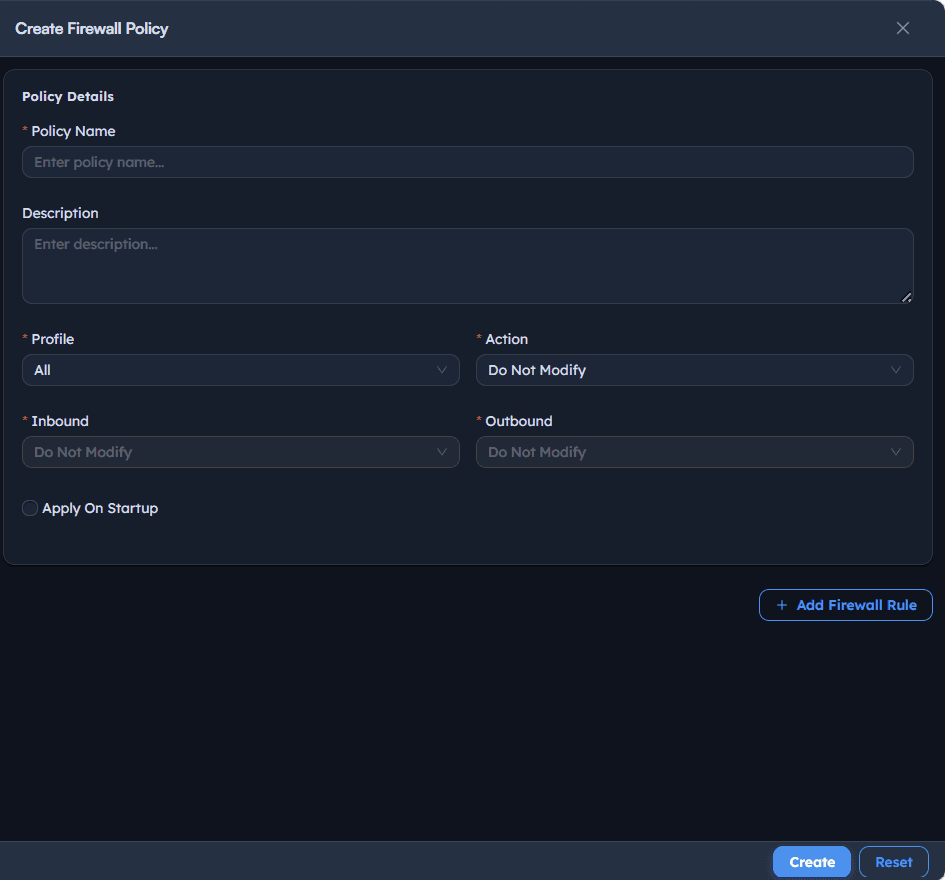
Instructions
- Go to Firewall Policies -> Create.
- Enter a Policy Name describing the policy's intent, e.g. Block VLC Outbound Connection.
- Add an optional Description.
- Set Profile (e.g.
All). - Set Action to
On,Off, orDo Not Modify. - Set Inbound and Outbound to
Do Not Modify(or another available option) as appropriate. - Optionally check Apply On Startup.
Path: Console / Device Control / Firewall Management / Firewall Policies / Create
Console: policy definition
| Field | Value |
|---|---|
| Policy Name | Block VLC Outbound Connection |
| Profile | All |
| Action | On |
| Inbound | Do Not Modify |
| Outbound | Do Not Modify |
Result: A firewall policy exists with its overall posture set. It has no rules or targets yet - those are added next and in the deployment step.
Important: Action, Inbound, and Outbound at the policy level set the general firewall posture for the selected profile(s). Rule-level settings (Step 3) are what actually allow or block specific traffic - the two work together, not interchangeably.
Step 3: Add a firewall rule to the policy
Define the specific condition to allow or block: which program, which protocol, which direction, and under which network profiles.
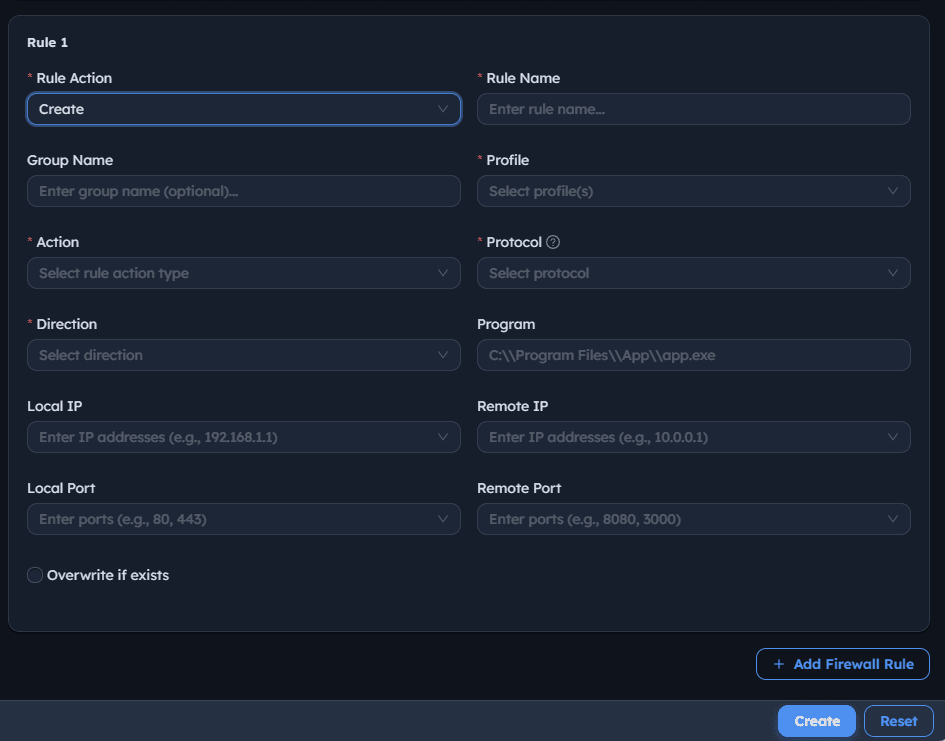
Instructions
- In the policy panel, select + Add Firewall Rule.
- Set Rule Action to
Create,Delete,Enable, orDisable. - Enter a Rule Name, e.g. Block VLC Outbound Connection.
- Add an optional Group Name.
- Select one or more Profile(s):
Domain,Private,Public. - Set Action to
AlloworBlock. - Set Protocol (e.g.
Any,TCP,UDP,ICMPV4,IGMP,IPV6). - Set Direction to
InboundorOutbound. - Enter the Program path, e.g.
C:\Program Files\VideoLAN\VLC\vlc.exe. - Optionally set Local IP, Remote IP, Local Port, and Remote Port.
- Optionally check Overwrite if exists to replace a rule with the same name.
- Select Create.
Path: Console / Device Control / Firewall Management / Firewall Policies / Create / Add Firewall Rule
Console: rule definition
| Field | Value |
|---|---|
| Rule Action | Create |
| Rule Name | Block VLC Outbound Connection |
| Profile | Domain, Private, Public |
| Action | Block |
| Protocol | Any |
| Direction | Outbound |
| Program | C:\Program Files\VideoLAN\VLC\vlc.exe |
| Overwrite if exists | On |
Result: The policy now shows 1 under Firewall Rules in the Firewall Policies list, alongside any other existing policies (e.g. Block Specific ip, Allow Inbound RDP, Block FTP Traffic).
Warning: The Program field expects the exact executable path. A path that doesn't match the real installed location means the rule is created but never actually matches the traffic it was meant to block.
Step 4: Deploy the firewall policy to endpoints
Bind the policy to a scope of endpoints so it's actually enforced, rather than just defined.
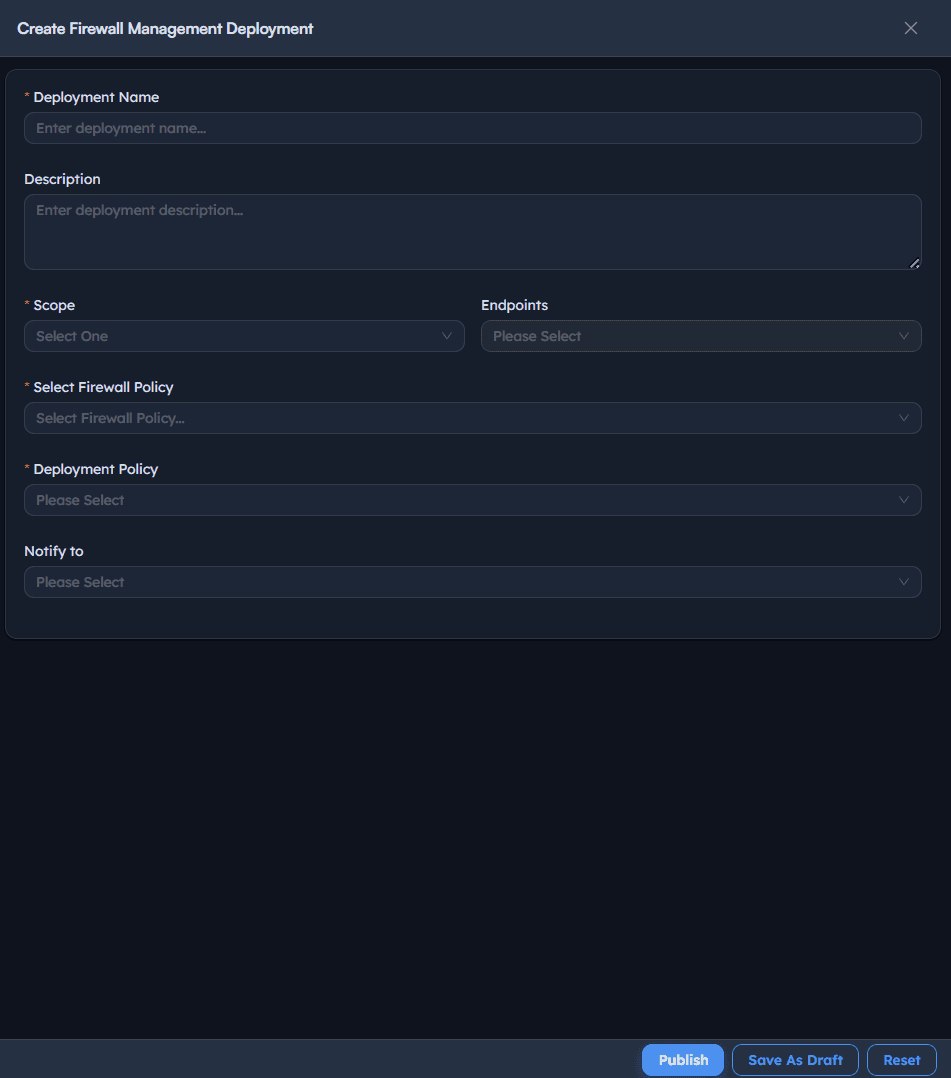
Instructions
- Go to Policy Deployments -> Create.
- Enter a Deployment Name, e.g. Block VLC Outbound Connection.
- Add an optional Description.
- Set Scope to
All Endpoints,Specific Endpoints,Specific Department,Specific Locations, orWindows. - If Specific Endpoints, select the target Endpoints from the list.
- Set Select Firewall Policy to the policy created in Steps 2-3.
- Set Deployment Policy (e.g.
OOB Instant deployment policy, typeInstant). - Optionally set Notify to for completion alerts.
- Select Publish (or Save As Draft to finish later).
Path: Console / Device Control / Firewall Management / Policy Deployments / Create
Console: deployment definition
| Field | Value |
|---|---|
| Deployment Name | Block VLC Outbound Connection |
| Scope | Specific Endpoints: <ENDPOINT-HOSTNAME> |
| Select Firewall Policy | Block VLC Outbound Connection |
| Deployment Policy | OOB Instant deployment policy (Instant) |
Result: A deployment task is created (e.g. ADR-264: Block VLC Outbound Connection) with stage Initiated and progress 0/1, visible in the Policy Deployments list alongside prior deployments.
Pro tip: Save As Draft is useful when you've selected a policy and scope but still need sign-off before it goes live - the deployment stays out of Policy Deployments' active list until it's published.
Step 5: Monitor deployment progress
Track the deployment from Initiated through Completed, then drill into per-endpoint task status.
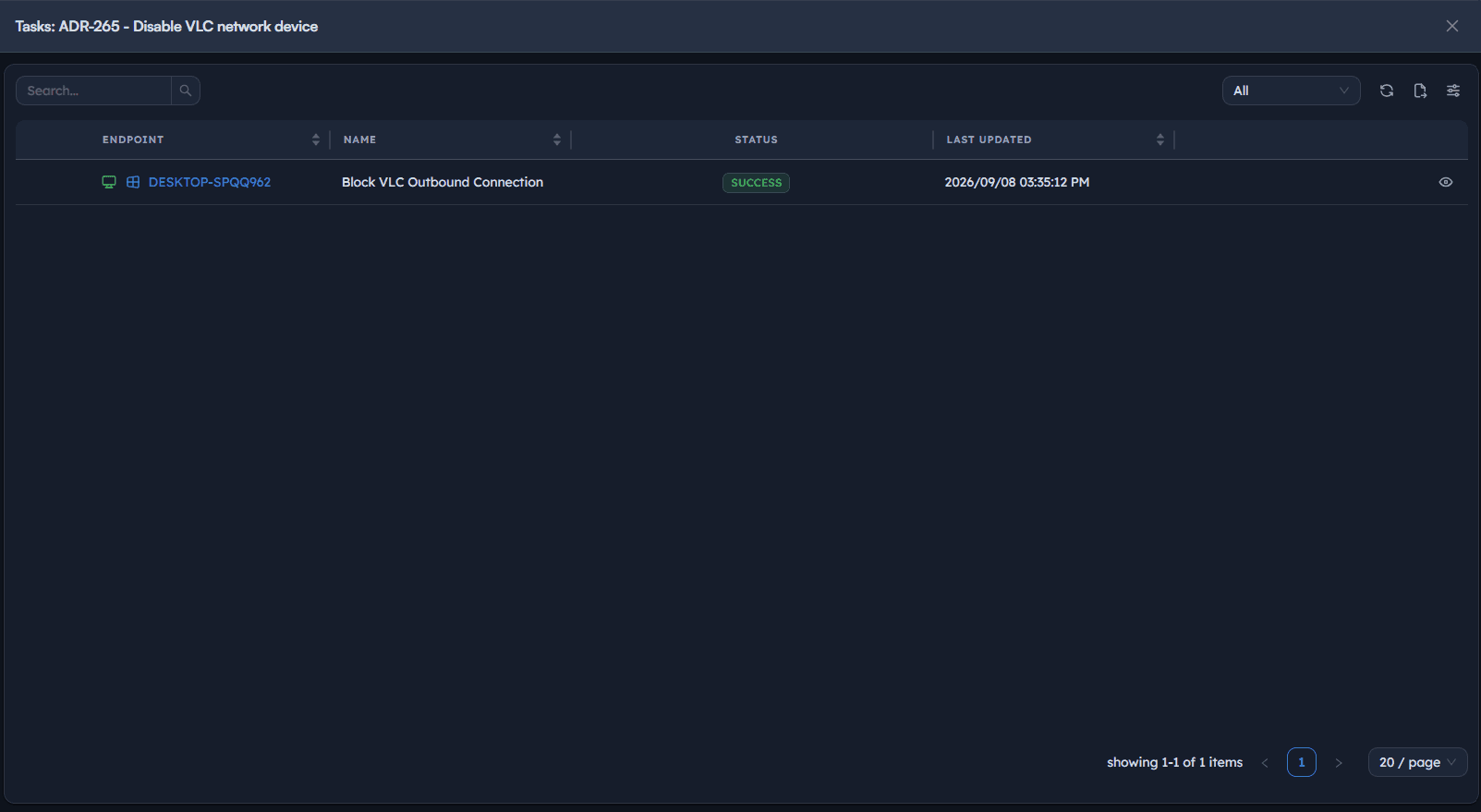
Instructions
- Go to Policy Deployments to see every deployment with its Type (
Install), Stage (Initiated,Completed), Progress, and Policy. - Select the view icon on a deployment row to open its Tasks panel, showing Endpoint, Name, Status, and Last Updated.
- Refresh to see status move from
Ready to DeploytoSuccess(orFailed) as the agent processes the task.
Path: Console / Device Control / Firewall Management / Policy Deployments
Console: task status
| Endpoint | Name | Status | Last Updated |
|---|---|---|---|
| <ENDPOINT-HOSTNAME> | Block VLC Outbound Connection | SUCCESS | 2026/09/08 03:30:22 PM |
Result: Confirmation that the deployment is not just Completed at the task level, but actually Success at the individual endpoint level.
Important: A deployment Stage of Completed and a task Status of Success are related but not identical - Completed describes the deployment task as a whole, Success/Failed describes what happened on that specific endpoint. Check the per-endpoint status, not just the deployment stage.
Step 6: Confirm rule execution with the task output
Verify the exact rule that was applied and that it completed without errors, rather than relying on the status label alone.
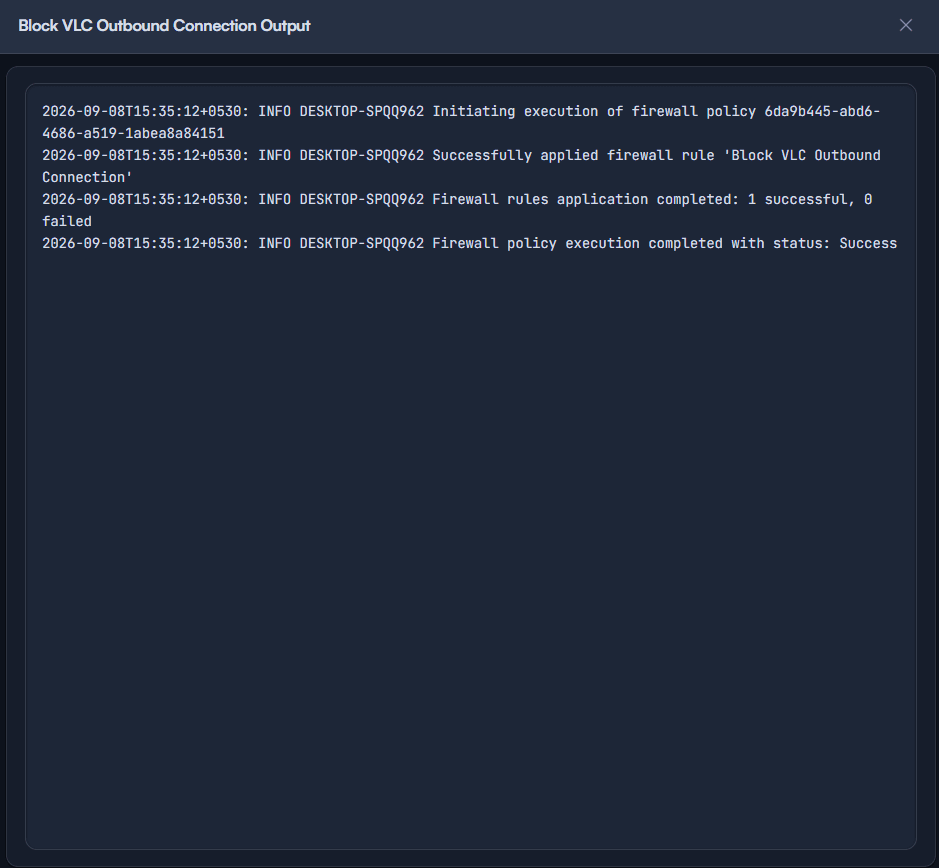
Instructions
- From the Tasks panel, select the task row to open its Output view.
- Review the timestamped log lines confirming the firewall policy execution began, the specific rule was applied, and the overall result.
- Confirm the summary line reports the expected count of successful vs. failed rules.
Path: Console / Device Control / Firewall Management / Policy Deployments / Tasks / Output
Result: Evidence-backed confirmation that the specific rule was applied on the endpoint, not just an assumption based on the deployment or task status alone.
Best practices for firewall management
| Practice | Why it matters | Recommended setting |
|---|---|---|
| Set the exact Program path | A mistyped or wrong-cased path silently fails to match the intended application | Confirm the real install path before saving the rule |
| Separate policy posture from rule specifics | Action/Inbound/Outbound at the policy level and Action at the rule level serve different purposes | Use Do Not Modify at the policy level when only specific rules should act |
| Use Specific Endpoints for targeted changes | A broad scope (All Endpoints, Windows) is harder to reason about and roll back | Scope narrowly first, expand once validated |
| Check task Status, not just deployment Stage | A Completed deployment and a Success task are different facts | Confirm Success per endpoint before considering a rollout done |
| Review the execution Output on new rules | The status label alone doesn't show which specific rule was applied or why something failed | Open Output for at least the first deployment of any new rule |
| Use Overwrite if exists deliberately | It silently replaces a same-named rule rather than warning first | Only enable it when you intend to replace the existing rule |
Troubleshooting: common issues and resolutions
| Issue | Cause | Resolution |
|---|---|---|
| Deployment shows Completed but traffic isn't blocked/allowed as expected | Program path, protocol, or direction in the rule doesn't match the real traffic | Re-confirm the exact Program path, Protocol, and Direction on the rule |
| Task Status shows Failed | Agent lost connectivity mid-deployment, or the rule conflicts with an existing one | Confirm agent health, then check Overwrite if exists if a same-named rule already exists |
| Task Status stays at Ready to Deploy | The deployment policy hasn't triggered yet, or the agent hasn't checked in | Confirm the Deployment Policy type and agent connectivity |
| Rule created but policy shows 0 Firewall Rules | The rule form wasn't submitted with Create before the policy was saved | Reopen the policy and confirm the rule appears under Firewall Rules before deploying |
| Deployment never appears in Policy Deployments | Save As Draft was used instead of Publish | Reopen the draft and select Publish to move it into an active deployment |
| Execution Output shows 0 successful, 1 failed | The rule's Program, Protocol, or Profile combination wasn't valid for that endpoint's OS/profile | Re-check profile selection (Domain/Private/Public) matches the endpoint's actual network profile |
Frequently asked questions
No. The policy and its rules only take effect once deployed through a Policy Deployment to a chosen scope of endpoints.
The policy-level Action (On/Off/Do Not Modify) sets the overall firewall posture for the selected profile. The rule-level Action (Allow/Block) determines what happens to the specific traffic matched by that individual rule.
Yes. Scope can be set to All Endpoints, Specific Endpoints (select multiple), Specific Department, Specific Locations, or Windows as a platform-wide scope.
Open the deployment's Tasks panel and check the Status column for that endpoint. Success confirms it; you can open the task's Output for a full execution log.
It replaces an existing rule with the same name rather than failing the deployment when a naming conflict is found. Use it deliberately, since it doesn't prompt for confirmation first.
Publish creates an active deployment that runs immediately against the selected endpoints. Save As Draft stores the configuration without deploying it, useful when a deployment needs review before going live.