


How to Configure Power Management
Power Management enables administrators to centrally configure and deploy power plans across managed endpoints. Administrators can define power schemes with separate settings for plugged-in and battery operation, including display dimming, display-off, sleep, and hibernate timeouts, along with power-button and lid-close actions.
How to Configure Power Management
Overview
Why a power plan isn't useful until it's deployed
Defining a power plan only describes what you want an endpoint's power behavior to look like - how long it sits idle before the display dims, when it sleeps, whether it hibernates. On its own, that definition changes nothing on a real device. It has to be pushed out to specific endpoints, departments, locations, or the whole fleet before any setting actually takes effect, and only the deployment record tells you whether it landed.
Power Management is built for that two-part workflow: define a power plan (its scheme name, action type, and the idle-time, button, and lid-close behavior for both plugged-in and battery states), then create a deployment that targets the endpoints you want and pushes the plan out under a chosen deployment policy. Each deployment reports its own stage and progress, and a per-task output log confirms exactly what happened on the endpoint.
This guide walks the full workflow end to end: opening the Power Management module, creating a power plan with its idle-time and additional settings, saving it, deploying it to specific endpoints, and confirming the deployment actually completed on a live endpoint.
- Define by action type, not just a name: choose whether the plan should Create, Modify, or Delete a power scheme on the endpoint, then give that scheme its own name.
- Separate settings for plugged in vs. running on battery: every idle-time action - dimming the display, turning it off, sleeping, hibernating - has an independent timeout for AC power and battery power.
- Hibernate support is opt-in: Enable Hibernate Support has to be switched on before System Hibernate timeouts take effect.
- Overwrite and activate are separate choices: Overwrite If Exists controls whether a same-named scheme is replaced, and Set As Active controls whether the plan becomes the endpoint's active power plan - neither is implied by the other.
- Deployment scope is flexible: target All Endpoints, Specific Endpoints, Specific Departments, Specific Locations, or Windows devices from a single deployment.
- See deployment status per task: Stage (Initiated/Completed) and Progress are tracked per deployment, and a task-level output log shows the exact actions the endpoint agent performed.
Prerequisites
Confirm these before creating a power plan. Leaving Set As Active off, or forgetting to enable hibernate support before setting a hibernate timeout, are the most common reasons a "saved" plan never changes endpoint behavior.
- Administrator access: your account holds a role permitted to manage the Device Control -> Power Management module.
- Agent installed and reporting: the endpoint agent is installed, registered, and reporting healthy on every target device you plan to deploy to.
- Action type and scheme name decided: know whether you're creating a new scheme, modifying an existing one, or deleting one, and have a clear scheme name ready (e.g.
Power Saving mode). - Idle-time policy decided: know the intended dim, display-off, sleep, and hibernate timeouts for both plugged-in and battery states before opening the form, so you're not guessing values as you go.
- Deployment scope confirmed: know whether this plan should go to specific endpoints, a department, a location, or the whole fleet, so the deployment step doesn't overreach.
Architecture: how a power plan definition becomes an applied setting
A power plan entry defines what the power scheme should look like and how it should behave when idle. A deployment decides which endpoints receive it and under what policy. Settings scope which endpoints are exempt.
| Stage | Component | Role |
|---|---|---|
| Definition | Power Plan entry | Action type, scheme name, idle-time and additional-settings actions |
| Configuration | Configuration Level | Scopes the plan definition itself (e.g. User level) |
| Targeting | Deployment Scope | All Endpoints, Specific Endpoints, Specific Departments, Specific Locations, or Windows |
| Enforcement | Deployment Policy | Governs how and when the deployment is pushed to targeted endpoints |
| Execution | Endpoint agent | Creates, modifies, or deletes the power scheme and applies its settings |
| Proof | Deployment Stage and Task Output | Per-deployment Initiated/Completed status with a per-endpoint action log |
Pro tip: Idle-time dropdowns list values from After 1 minute up through After 300 minutes and Never - pick the shortest reasonable value for battery states and a longer one for plugged-in states, rather than mirroring the same timeout across both columns.
Step 1: Open Power Management
Get oriented before creating anything, so you know where power plans and deployments each live.
Instructions
- From the main console, go to Endpoints -> Device Control.
- Select the Power Management module.
- Note the two sections in the left sidebar: Power Plans (definitions) and Power Plan Deployments (rollouts and status).
Path: Console / Endpoints / Device Control / Power Management
Result: You're in the Power Management module with visibility into any existing power plans before authoring a new one.
Step 2: Create a power plan and choose an action type
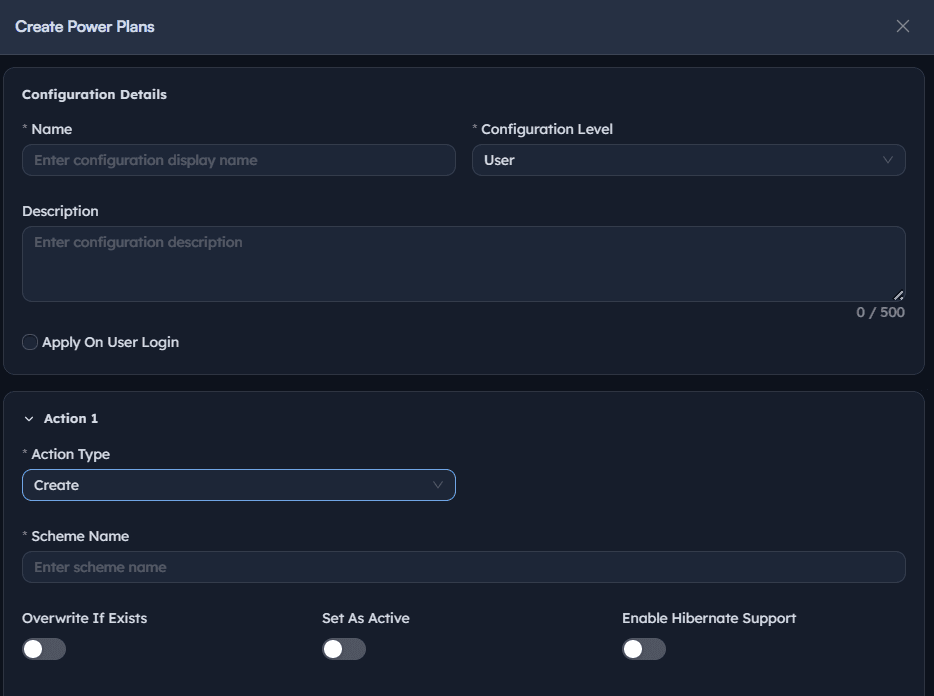
Define what the plan does at the scheme level: its name, configuration level, action type, and the scheme it targets.
Instructions
- Go to Power Plans -> Create.
- Enter a Name describing the plan's intent, e.g. Saving power.
- Set Configuration Level, e.g.
User. - Optionally enter a Description and toggle Apply On User Login if the plan should apply as soon as a user signs in.
- Under Action 1, set Action Type to
Create,Modify, orDelete. - Enter the Scheme Name the action applies to, e.g.
Power Saving mode.
Path: Console / Device Control / Power Management / Power Plans / Create
Console: power plan definition
| Field | Value |
|---|---|
| Name | Saving power |
| Configuration Level | User |
| Action Type | Create |
| Scheme Name | Power Saving mode |
Result: The plan's identity and target scheme are set. Nothing is applied to an endpoint yet - that happens once the plan is deployed in Step 5.
Important: Overwrite If Exists, Set As Active, and Enable Hibernate Support are independent toggles next to the Scheme Name field. Turn on Overwrite If Exists if a scheme with that name may already exist on the endpoint, and Set As Active if this plan should immediately become the endpoint's active power plan once deployed.
Step 3: Configure idle-time display, sleep and hibernate timers
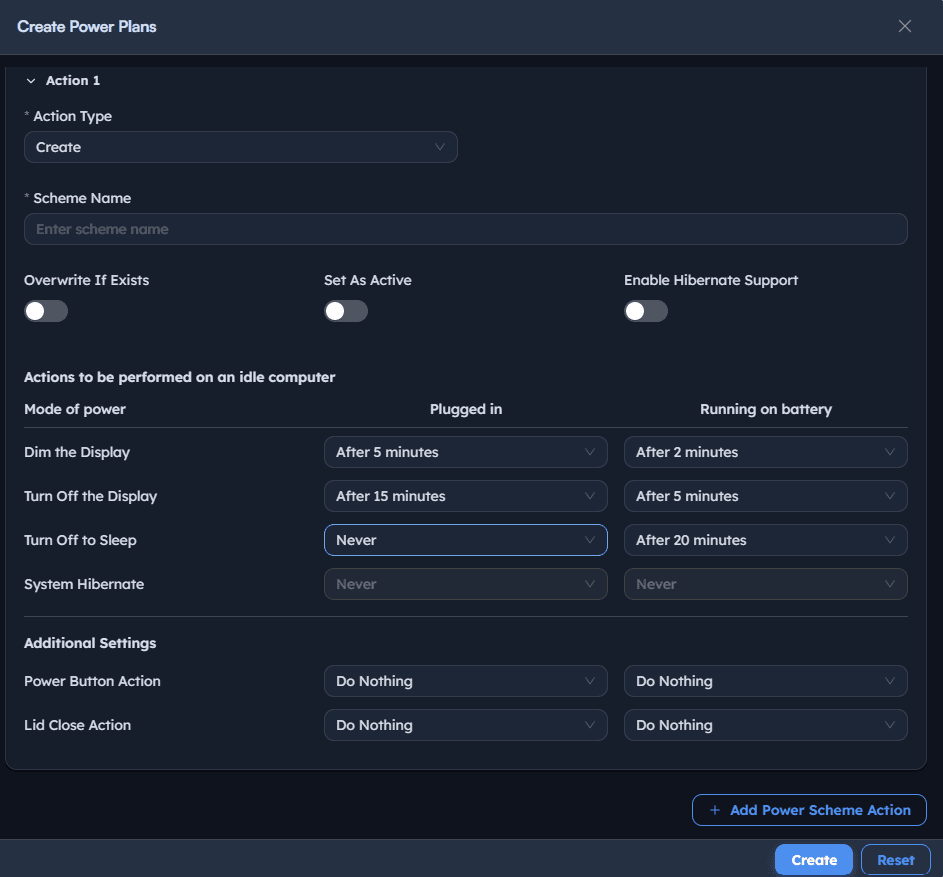
Set how the endpoint behaves after a defined period of inactivity, separately for plugged-in and battery power.
Instructions
- Under Actions to be performed on an idle computer, set a Plugged in and Running on battery value for each mode of power.
- Dim the Display: choose a shorter timeout for battery than for plugged-in power, e.g.
After 3 minutesplugged in,After 2 minuteson battery. - Turn Off the Display: e.g.
After 15 minutesplugged in,After 5 minuteson battery. - Turn Off to Sleep: e.g.
After 120 minutesplugged in,After 20 minuteson battery. - If the plan should hibernate, toggle Enable Hibernate Support on first, then set System Hibernate timeouts, e.g.
After 120 minutesplugged in,After 45 minuteson battery.
Path: Console / Device Control / Power Management / Power Plans / Create
Console: idle-time actions
| Mode of power | Plugged in | Running on battery |
|---|---|---|
| Dim the Display | After 3 minutes | After 2 minutes |
| Turn Off the Display | After 15 minutes | After 5 minutes |
| Turn Off to Sleep | After 120 minutes | After 20 minutes |
| System Hibernate | After 120 minutes | After 45 minutes |
Result: The endpoint's idle behavior is fully defined for both power states, ready to be saved along with the button and lid-close actions in Step 4.
Important: The System Hibernate row stays disabled until Enable Hibernate Support is switched on. Setting a hibernate timeout while the toggle is off has no effect once deployed.
Step 4: Set button and lid-close actions, then save the plan
Decide what a physical power button press or a laptop lid close should do, then save the entry.
Instructions
- Under Additional Settings, set Power Button Action for Plugged in and Running on battery, choosing from
Do Nothing,Sleep,Hibernate, orShutdown. - Set Lid Close Action the same way.
- Use + Add Power Scheme Action if this plan needs more than one action (for example, pairing a Create action with a separate Delete action for an older scheme).
- Select Create.
Path: Console / Device Control / Power Management / Power Plans / Create
Console: additional settings
| Field | Plugged in | Running on battery |
|---|---|---|
| Power Button Action | Do Nothing | Do Nothing |
| Lid Close Action | Do Nothing | Do Nothing |
Result: The power plan appears in the Power Plans list with its Configuration Level and Actions Count, alongside any existing plans. It still has no effect on any endpoint until it's deployed.
Step 5: Deploy the power plan to endpoints
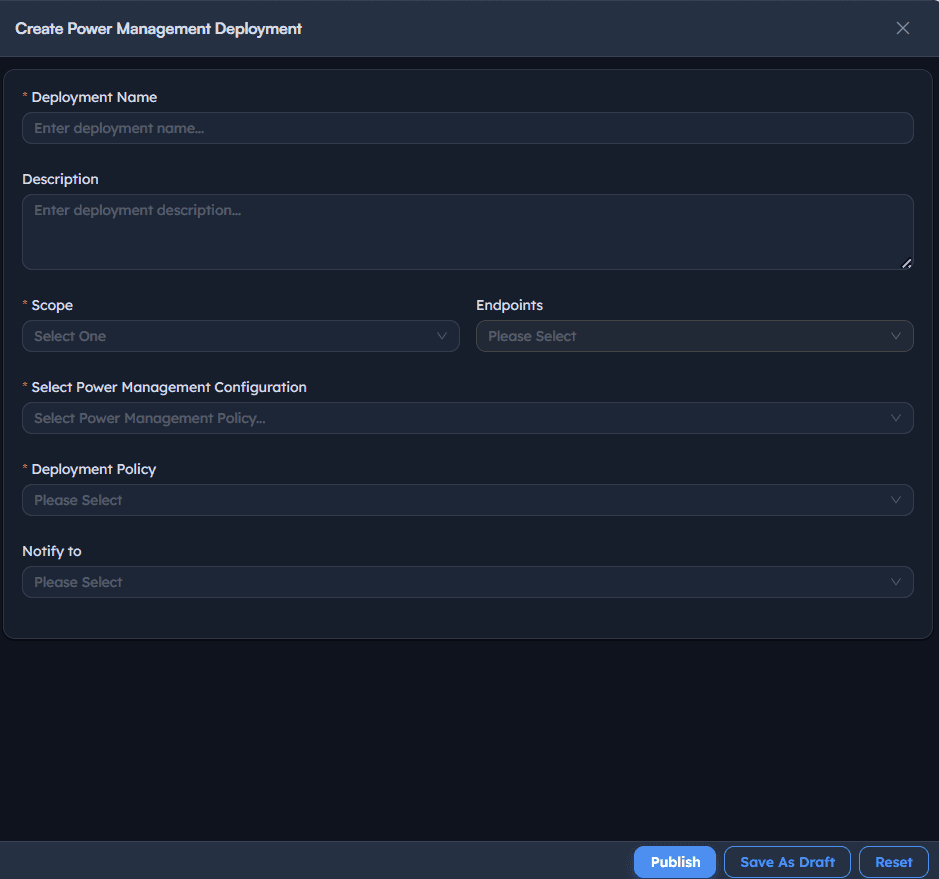
Push the saved plan out to the endpoints that should receive it.
Instructions
- Go to Power Plan Deployments -> Create.
- Enter a Deployment Name, e.g. Saving Power, and an optional Description.
- Set Scope to
All Endpoints,Specific Endpoints,Specific Departments,Specific Locations, orWindows. - If you chose
Specific Endpoints, search and select each target endpoint under Endpoints. - Under Select Power Management Configuration, choose the power plan you created, e.g.
Saving power. - Set Deployment Policy, e.g.
OOB Instant deployment policy. - Optionally set Notify To if stakeholders should be alerted about the deployment.
- Select Publish, then confirm in the dialog asking "Are you sure you want to Publish Deployment: <deployment name>?"
Path: Console / Device Control / Power Management / Power Plan Deployments / Create
Console: deployment definition
| Field | Value |
|---|---|
| Deployment Name | Saving Power |
| Scope | Specific Endpoints |
| Endpoints | <ENDPOINT-HOSTNAME> |
| Select Power Management Configuration | Saving power |
| Deployment Policy | OOB Instant deployment policy |
Result: A new deployment is created and immediately begins rolling out. It starts in the INITIATED stage with 0/1 progress before it's picked up by the targeted endpoint agent.
Warning: Choosing All Endpoints or a broad department/location scope pushes the selected power plan to every matching device at once. Confirm the scope before publishing rather than after.
Step 6: Monitor the deployment and confirm it reached an endpoint
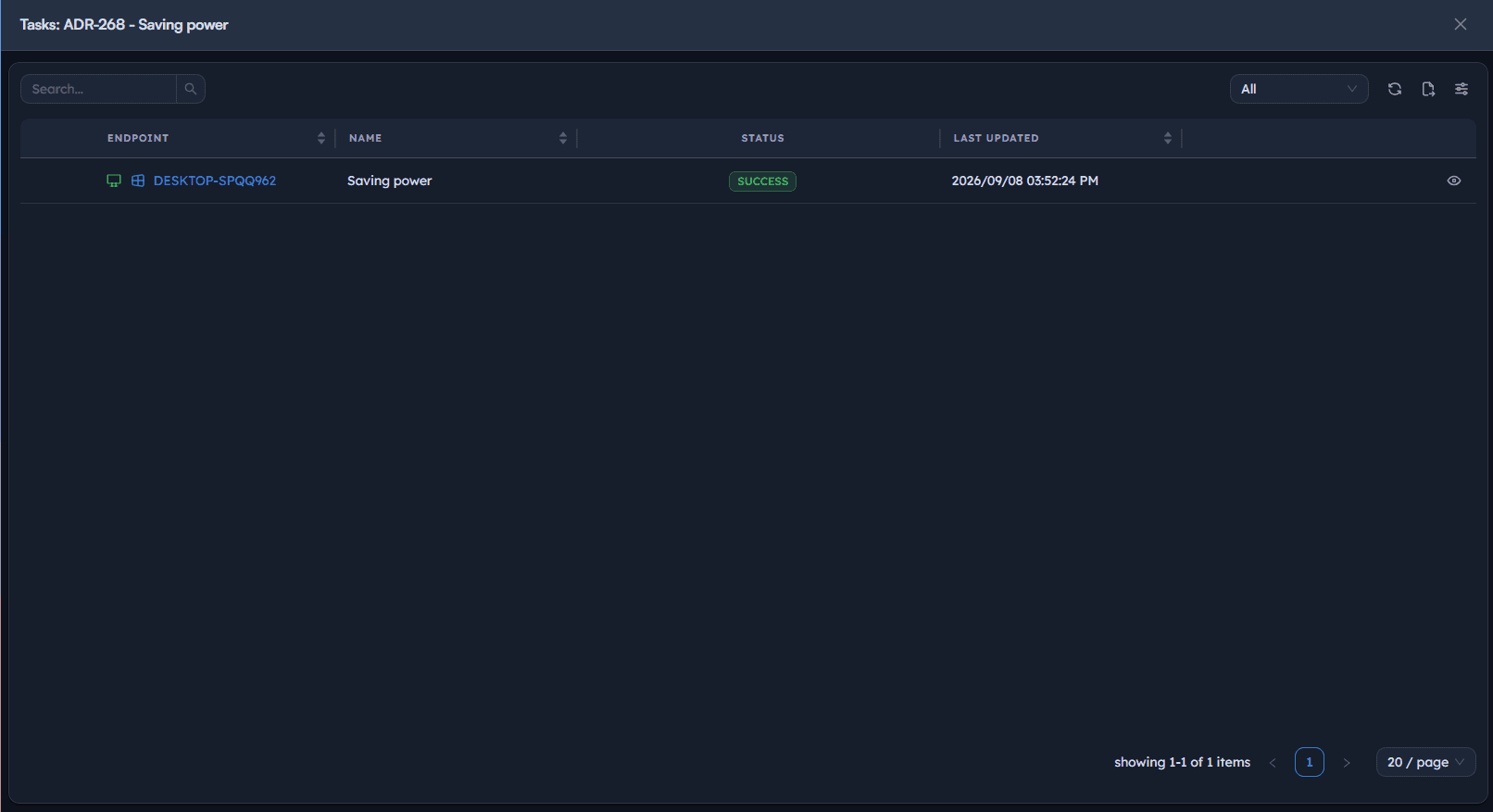
Verify the whole chain - plan, deployment, and endpoint agent - actually results in an applied setting, rather than assuming the deployment succeeded.
Instructions
- Return to Power Plan Deployments and locate the deployment by name.
- Read the Stage column:
INITIATEDmeans the deployment has started but not finished;COMPLETEDconfirms the endpoint agent finished applying it. - Read Progress (e.g.
1/1) to confirm every targeted endpoint was processed. - Select the deployment's view icon to open its task detail and see the per-endpoint Output log.
Path: Console / Device Control / Power Management / Power Plan Deployments
Console: deployment status
| Deployment | Type | Stage | Progress | Policy |
|---|---|---|---|---|
| <DEPLOYMENT-ID> - Saving Power | INSTALL | COMPLETED | 1/1 | OOB Instant deployment policy |
Result: Confirmed, evidence-backed rollout - the task output shows each individual action the agent performed, and the deployment's stage and progress reflect a completed rollout, not just a plan that was saved.
Best practices for power management
| Practice | Why it matters | Recommended setting |
|---|---|---|
| Use shorter timeouts on battery than plugged in | Battery-powered devices need more aggressive power saving | Battery timeouts at roughly a third to a half of plugged-in timeouts |
| Enable hibernate support before relying on it | A hibernate timeout set with the toggle off never takes effect | Toggle on, then set the System Hibernate row |
| Scope deployments narrowly at first | A broad scope makes an unwanted setting hard to walk back quickly | Start with Specific Endpoints, widen once verified |
| Confirm Set As Active intentionally | A plan can be created without becoming the endpoint's active plan | Only enable when this plan should replace the current one |
| Check deployment Stage after every publish | Publishing and completing are different facts | Confirm COMPLETED, not just that the deployment was created |
| Review the task output on new deployment types | Confirms the exact sequence of actions the agent ran | Open the Output log the first time you deploy a new plan |
Troubleshooting: common issues and resolutions
| Issue | Cause | Resolution |
|---|---|---|
| Power plan created but no endpoint behavior changed | The plan was never deployed | Go to Power Plan Deployments and publish a deployment targeting the plan |
Deployment stuck at INITIATED | Endpoint agent hasn't checked in, or lost connectivity mid-run | Confirm endpoint agent health and connectivity, then re-check the deployment |
| System Hibernate values don't apply | Enable Hibernate Support was left off | Re-open the plan, toggle Enable Hibernate Support on, and redeploy |
| Existing scheme wasn't replaced | Overwrite If Exists was off while a same-named scheme already existed | Re-create or modify the plan with Overwrite If Exists enabled |
| Plan applied but isn't the active plan on the endpoint | Set As Active was left off | Re-open the plan, enable Set As Active, and redeploy |
| Deployment appears to target the wrong devices | Scope was set to a broader option than intended (e.g. a department instead of specific endpoints) | Re-check the deployment's Scope and Endpoints fields before publishing again |
Frequently asked questions
No. Creating a power plan only saves its definition. The settings only reach a device once you create and publish a deployment targeting that plan.
Overwrite If Exists controls whether a same-named power scheme already on the endpoint gets replaced. Set As Active controls whether this plan becomes the endpoint's current active power plan. Either can be on without the other.
System Hibernate values only apply once Enable Hibernate Support is toggled on for that power plan. If the toggle is off, any hibernate timeout is ignored.
Yes. Set the deployment's Scope to Specific Endpoints, Specific Departments, or Specific Locations and choose the exact targets, instead of using All Endpoints.
Check the Stage and Progress columns on Power Plan Deployments. Stage moves from Initiated to Completed, and Progress shows how many of the targeted endpoints were processed. Opening the task's Output log shows the exact actions the agent ran.
They set what happens when a user presses the physical power button or closes a laptop lid, each configurable separately for plugged-in and battery power, with options of Do Nothing, Sleep, Hibernate, or Shutdown.