


How to Configure Certificate Management
Certificate Management in TRINETRI - from reviewing endpoint certificate inventory and creating install/delete certificate policies to deploying them on specific endpoints and verifying the results through task status and execution output.
How to Configure Certificate Management
Overview:
Why certificates need a policy, not a manual fix
An expired root certificate, a revoked authority, or a certificate that never got installed can quietly break authentication, encryption, or trust chains across endpoints. Fixing it by hand on one machine is easy; proving the same certificate was removed or installed consistently across every affected endpoint, and confirming it actually worked, is not.
Certificate Management covers that path: a Certificate Policy defines an install or delete action against a chosen certificate store, and a Policy Deployment pushes that policy to a scope of endpoints. Like other automation modules, defining a policy changes nothing by itself; nothing happens until it's deployed, and every deployment breaks down into a per-endpoint task with its own status and execution log.
This guide walks the full workflow end to end: opening Certificate Management, reviewing an endpoint's existing certificate inventory, creating a Delete policy for a specific certificate, publishing a deployment, and confirming from the task output that the certificate was actually removed.
- Install or Delete, your choice: Operation supports
Install(upload a certificate file) orDelete(remove matching certificates), so both directions of certificate management fit the same policy type. - Delete Specific targets one certificate: within a Delete policy, the Action field can target a Common Name and, optionally, an exact Serial Number, so only the intended certificate is affected rather than everything in the store.
- Certificate Store is multi-select: a policy can target one or more stores, such as Trusted Root Certificate Authorities, Personal, or Trusted Publisher, in a single definition.
- Per-endpoint certificate inventory: each endpoint's Certificates tab lists every certificate found on it, filterable by All, Not Expired, or Expired, with issuer, validity window, and signing details.
- Full execution log per task: the task output reports exactly how many certificates were found and deleted (or installed) and the final status, not just a single pass or fail flag.
Prerequisites
Confirm these before deploying a certificate policy. An unconfirmed Common Name or Certificate Store is the most common reason a deployment reports success while the wrong certificate, or no certificate, actually changes.
- Administrator access: your account holds a role permitted to manage the Device Control -> Certificate Management module.
- Agent installed and reporting: the endpoint agent is installed, registered, and reporting healthy on every target device.
- Certificate identified: for a Delete policy, confirm the exact Common Name (and Serial Number, if targeting one specific certificate) before saving the policy. For an Install policy, have the certificate file (cer, crt, p12, or pfx) and its password, if any, ready.
- Endpoint scope identified: know which specific endpoints this policy should be deployed to before publishing the deployment.
Architecture: how a certificate policy reaches an endpoint
A Certificate Policy defines the change itself. A Policy Deployment binds that policy to a scope of endpoints. The endpoint agent applies the install or delete action and reports back a per-task status and log.
| Stage | Component | Role |
|---|---|---|
| Definition | Certificate Policy | Policy Name, Configuration Level (Computer/User), Apply On Startup, Operation (Install/Delete), Certificate Store(s), and Install or Delete specific fields |
| Binding | Policy Deployment | Scope, endpoints, Certificate Policy selection, deployment policy, notification list |
| Execution | Endpoint agent | Installs or deletes the certificate(s), reports per-endpoint task status |
| Proof | Task Status and Output | Per-endpoint Success status with a timestamped execution log, plus the endpoint's Certificates tab reflecting the change |
Pro tip: Before creating a new policy, check the target endpoint's Certificates tab first. Filtering by Expired quickly surfaces stale root or intermediate certificates that are good candidates for a Delete policy.
Step 1: Open Certificate Management
Get oriented before creating a policy, so you know where policies, deployments, and per-endpoint certificate data each live.
Instructions
- From the main console, go to Device Control in the left sidebar.
- Under Data Protection, select Certificate Management.
- Note the two sections in the left panel: Certificate Policies and Policy Deployments.
Path: Console / Device Control / Certificate Management
Result: You're in the Certificate Management module with visibility into existing policies and deployments before creating anything new.
Step 2: Review the endpoint's current certificate inventory
Confirm the certificate you plan to target actually exists on the endpoint, and note its current status, before writing a policy against it.
Instructions
- From Inventory -> Endpoints, open the target endpoint.
- Select the Certificates tab.
- Use the All, Not Expired, or Expired filters to narrow the list.
- Review the Common Name, Status, Issuer, Not Valid Before/After, Signing Algorithm, Key Algorithm, CA, and Self Signed columns for the certificate in question.
Path: Console / Inventory / Endpoints / <ENDPOINT-HOSTNAME> / Certificates
Console: certificate inventory (example)
| Field | Value |
|---|---|
| Common Name | Microsoft Root Certificate Authority |
| Status | Expired |
| Issuer | CN=Microsoft Root Certificate Authority |
| Not Valid After | 2021/05/10 04:58:13 AM |
| Signing Algorithm | SHA-1 with RSA |
| Self Signed | Yes |
Result: You've confirmed the certificate exists on the endpoint and captured its exact Common Name, ready to reference when building the policy.
Step 3: Create a Certificate Policy
Define the install or delete action once, so it can be applied consistently to any number of endpoints.
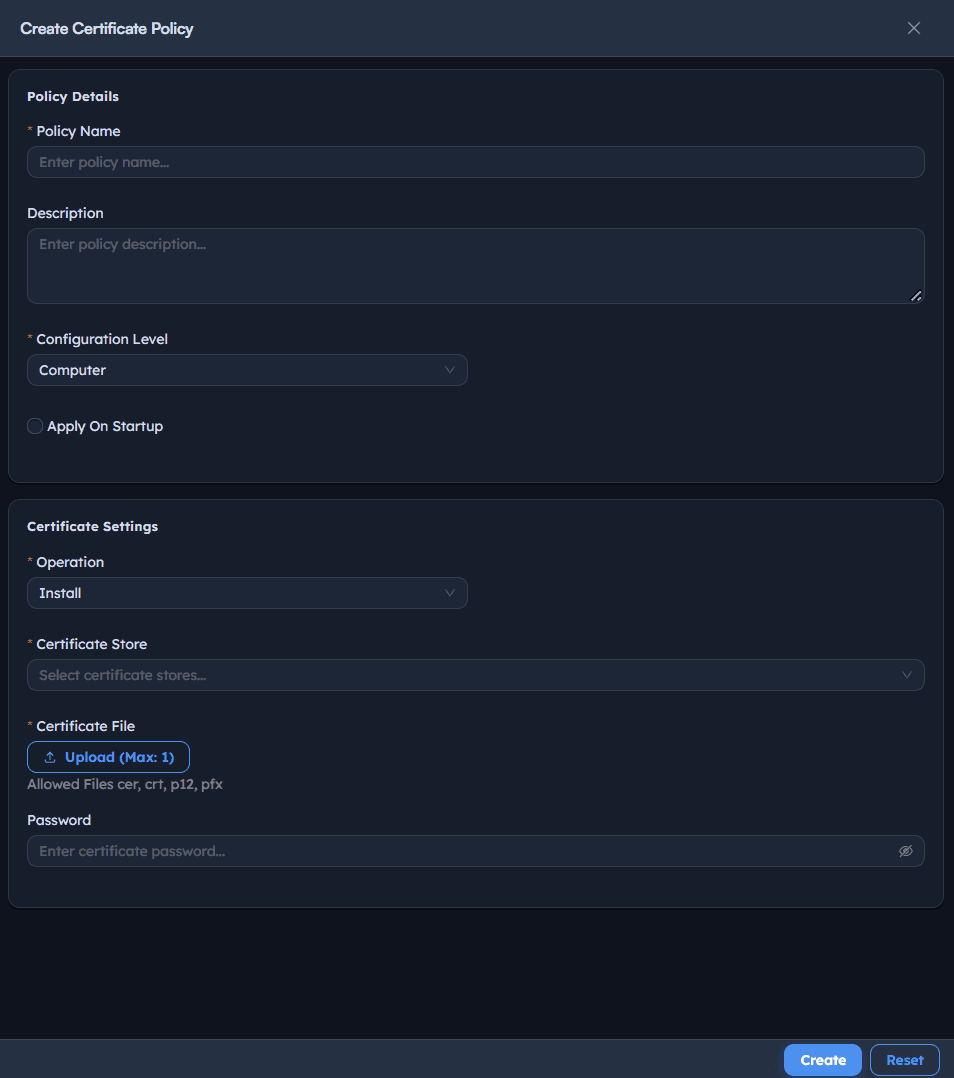
Instructions
- Go to Certificate Policies -> Create.
- Enter a Policy Name describing the action, e.g. Delete Microsoft Root Certificate Authority.
- Optionally enter a Description.
- Set Configuration Level to
ComputerorUser. - Optionally toggle Apply On Startup.
- Under Certificate Settings, set Operation to
InstallorDelete. - Select one or more entries in Certificate Store, e.g.
Trusted Root Certificate Authorities. - For
Install: select Certificate File (cer, crt, p12, or pfx, max 1) and enter a Password if the file requires one. - For
Delete: set Action toDelete Specific, then enter the Common Name and, optionally, the Serial Number of the exact certificate to remove. - Select Create.
Path: Console / Device Control / Certificate Management / Certificate Policies / Create
Console: policy definition (example)
| Field | Value |
|---|---|
| Policy Name | Delete Microsoft Root Certificate Authority |
| Configuration Level | Computer |
| Operation | Delete |
| Certificate Store | Trusted Root Certificate Authorities |
| Action | Delete Specific |
| Common Name | Microsoft Root Certificate Authority |
Result: The policy appears in the Certificate Policies list with its Configuration Level, Operation, and Certificate Store(s) visible. Like other catalog-based modules, a policy has no effect until targeted by a deployment.
Important: For a Delete policy, leaving Serial Number blank removes every certificate matching the Common Name from the selected store(s), not just one. Set the Serial Number when only a single specific certificate should be removed.
Step 4: Publish a Policy Deployment to endpoints
Bind the certificate policy to a scope of endpoints so the change is actually applied, rather than just defined.
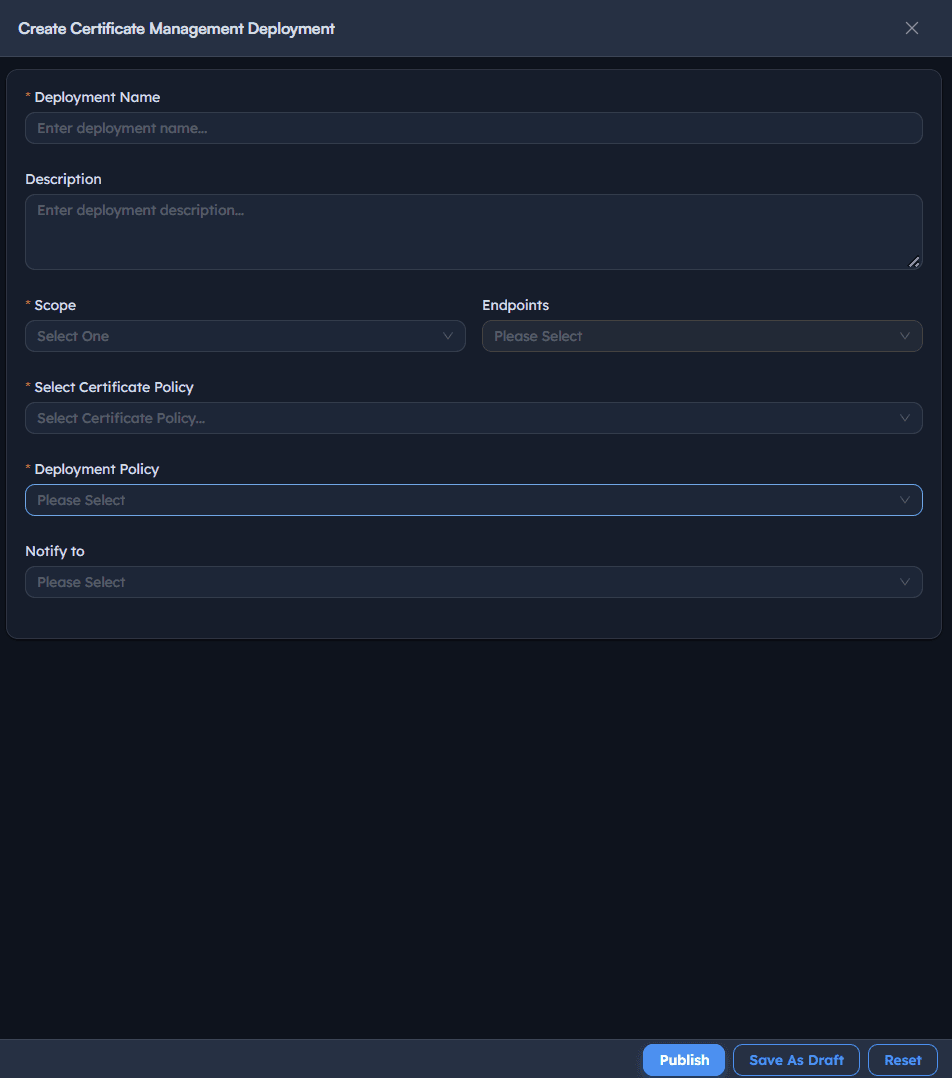
Instructions
- Go to Policy Deployments -> Create.
- Confirm or edit the Deployment Name (it defaults to the policy name).
- Add an optional Description.
- Set Scope to
Specific Endpoints(or another available scope) and select the target Endpoints. - Under Select Certificate Policy, choose the policy created in Step 3.
- Set Deployment Policy, e.g.
OOB Instant deployment policy(typeInstant). - Optionally set Notify to for completion alerts.
- Select Publish (or Save As Draft to finish later).
Path: Console / Device Control / Certificate Management / Policy Deployments / Create
Console: deployment definition
| Field | Value |
|---|---|
| Deployment Name | Delete Microsoft Root Certificate Authority |
| Scope | Specific Endpoints: <ENDPOINT-HOSTNAME> |
| Select Certificate Policy | Delete Microsoft Root Certificate Authority |
| Deployment Policy | OOB Instant deployment policy (Instant) |
Result: A deployment task is created (e.g. ADR-280: Delete Microsoft Root Certificate Authority) with stage Initiated, moving through to Completed with progress 1/1, visible in the Policy Deployments list alongside prior deployments.
Warning: A Deployment Policy of type Instant starts execution as soon as the deployment is published. If the target scope needs review first, use Save As Draft rather than Publish until the endpoint list is confirmed.
Step 5: Confirm the deployment with per-endpoint task status and output
Verify the certificate was actually installed or removed, rather than assuming from the deployment stage alone.
Instructions
- Go to Policy Deployments to see every deployment with its Stage (
Initiated,Completed), Progress, and Policy. - Select the view icon on a deployment row to open its Tasks panel, showing Endpoint, Name, Status, and Last Updated.
- Confirm the Status shows
Successfor the target endpoint. - Select the task row to open its Output view and review the execution log.
- Return to the endpoint's Certificates tab and confirm the certificate no longer appears (for a delete) or now appears (for an install), and that the All/Expired counts changed accordingly.
Path: Console / Device Control / Certificate Management / Policy Deployments / Tasks / Output
Console: task status
| Endpoint | Name | Status | Last Updated |
|---|---|---|---|
| <ENDPOINT-HOSTNAME> | Delete Microsoft Root Certificate Authority | SUCCESS | 2026/09/11 12:30:52 PM |
Result: Evidence-backed confirmation of exactly how many certificates were matched and removed, plus a drop in the endpoint's total and Expired certificate counts on the Certificates tab, not just a single Success flag for the whole deployment.
Best practices for certificate management
| Practice | Why it matters | Recommended setting |
|---|---|---|
| Confirm the exact Common Name before saving | A mistyped or partial Common Name can match unintended certificates in the store | Copy the Common Name directly from the endpoint's Certificates tab |
| Set a Serial Number for single-certificate deletes | Without it, every certificate matching the Common Name in the selected store is removed | Use Serial Number whenever only one specific certificate should be affected |
| Use Specific Endpoints while validating a new policy | A broad scope makes it harder to confirm a new policy behaves as expected | Test on one or two endpoints first, then expand |
| Review the Certificates tab before and after | A Success task status confirms the agent ran the action, not which certificates were affected | Compare the All and Expired counts before and after the deployment |
| Check the exit status in Output, not just task Status | The Output log shows exactly how many certificates matched and were changed | Review the Output log for any new or unusual policy |
| Set a Notify To list for unattended deployments | Without it, a failed certificate change can go unnoticed until someone checks manually | Add relevant recipients for any deployment run outside business hours |
Troubleshooting: common issues and resolutions
| Issue | Cause | Resolution |
|---|---|---|
| Deployment shows Success but the certificate is still listed | Common Name in the policy doesn't exactly match the certificate on the endpoint | Re-confirm the exact Common Name from the endpoint's Certificates tab before re-saving the policy |
| Task Status shows Failed | Agent lost connectivity mid-deployment, or the Certificate Store selected doesn't contain a matching certificate | Confirm agent health, then check the Output log for the specific error before re-publishing |
| More certificates were removed than expected | Serial Number was left blank on a Delete Specific action, so every certificate matching the Common Name in the store was deleted | Set the Serial Number to target only the intended certificate, then redeploy |
| Install policy fails to apply | Certificate file format isn't one of cer, crt, p12, or pfx, or the Password doesn't match the file | Confirm the file type and password before re-uploading |
| New policy doesn't appear in the Policy Deployment picker | The policy was saved but the deployment panel's list wasn't refreshed | Close and reopen Create Certificate Management Deployment, or refresh the Certificate Policies list first |
| Deployment stays at Initiated indefinitely | The target endpoint's agent isn't reporting, or the Deployment Policy type doesn't match the intended trigger | Confirm agent connectivity and the selected Deployment Policy's type (e.g. Instant) |
Frequently asked questions
No. A policy only defines the install or delete action. It's applied only once targeted by a Policy Deployment published to a chosen scope of endpoints.
Install uploads a certificate file (cer, crt, p12, or pfx), with an optional password, into the selected certificate store. Delete removes certificates already present in the selected store, either all matching a Common Name or one exact certificate when a Serial Number is also specified.
Every certificate in the selected store(s) that matches the given Common Name is deleted. To remove only one specific certificate, provide its Serial Number as well.
Yes. An endpoint's Certificates tab lists every certificate found on it, with All, Not Expired, and Expired filters, plus details like issuer, validity dates, signing algorithm, key algorithm, CA, and whether it's self-signed.
Open the deployment's Tasks panel and check the Status column for that endpoint, then open the task's Output view to see how many certificates were matched and changed. You can also revisit the endpoint's Certificates tab to confirm the count changed.
Yes. Certificate Store is a multi-select field, so a single policy can apply its Install or Delete action across several stores, such as Personal and Trusted Root Certificate Authorities, at once.