


How to Configure File Integrity Monitoring (FIM) for the Registry
File Integrity Monitoring (FIM) closes that gap by monitoring specific files, folders, or registry keys for exactly this kind of change: modifications, deletions, or other integrity-relevant events, and recording who or what process made it, when, and on which endpoint.
How to Configure File Integrity Monitoring (FIM) for the Registry
Overview:
Why a compromise often looks like a quiet edit, not a loud alarm
Most endpoint compromises and most policy drift don't announce themselves. A registry key gets modified to establish persistence, a configuration file gets quietly altered to disable a control, or a value gets deleted to remove evidence, and none of it triggers a traditional alert because nothing crashed and no antivirus signature matched. The change simply happened, and unless something was watching that specific location, it's invisible until the consequences show up somewhere else, sometimes weeks later.
File Integrity Monitoring (FIM) closes that gap by watching specific files, folders, or registry keys for exactly this kind of change: modify, delete, or other integrity-relevant events, and recording who or what process made it, when, and on which endpoint. Unlike a general log stream, FIM is scoped: you tell it precisely what to watch, and it reports on that scope specifically, which keeps the signal usable instead of drowning in noise.
This guide walks the full workflow end to end: creating a FIM configuration, targeting it to specific endpoints and an operating system, defining a monitoring rule for files or for the registry with include and exclude paths, confirming the configuration is capturing real events by making a test change, and reading the resulting event detail, category trends, and per-event process and identifier information.
- Watch what actually matters: scope monitoring to specific paths or registry keys instead of trying to watch everything.
- Cover files and registry alike: the same configuration model applies whether you're watching a config file or a registry key used for persistence.
- See trends, not just a raw log: category-wise event counts and a timeline trend make it possible to notice a spike before reading every individual event.
- Attribute every change: each event records the process, PID, username, and a unique event ID, not just that something changed.
- Cross-platform by design: configurations target Windows, Linux, or Mac endpoints, keeping file and registry integrity monitoring consistent across a mixed fleet.
Prerequisites
Confirm all four before creating a configuration. A monitoring rule pointed at the wrong path, or scoped to no endpoints at all, produces a configuration that looks complete and generates no events.
- Administrator access: your account holds a role permitted to manage FIM Configuration. Read-only operators can view FIM events but cannot create or modify configurations.
- Agent installed and reporting: the endpoint agent is installed, registered, and reporting healthy on every target device.
- Exact path or registry key identified: know the precise file/folder path or registry key you intend to monitor, e.g.
HKEY_CURRENT_USER\Software\FIMTest, verified against a real endpoint rather than assumed. - Target OS and endpoint scope decided: know whether this configuration targets Windows, Linux, or Mac endpoints, and which specific endpoints, departments, or locations it applies to.
Architecture: how a monitored path becomes an attributed event
A configuration defines what to watch (a category of Files or Registry, with include/exclude paths) and where (scope endpoints, OS). The endpoint agent watches that exact scope and reports each change as an event, attributed to a process, user, and timestamp, into the FIM Events dashboard.
| Stage | Component | Role |
|---|---|---|
| Definition | FIM Configuration | Name, Status, Description, Scope Endpoints, Category (Files/Registry), Include/Exclude Paths |
| Targeting | Scope Endpoints | All Endpoints, Specific Endpoints, Specific Departments, or Specific Locations, per OS |
| Execution | Endpoint agent | Watches the configured paths/keys, detects Modify/Delete (and other) actions |
| Attribution | FIM Event | Endpoint, Category, Target Path, Action, Event Time, Process, PID, Username, Event ID |
| Proof | FIM Events dashboard | Trend chart, category-wise event count, full event list and detail |
Pro tip: Start a new configuration narrow (a single key or a single file) and confirm it captures a real, deliberate test change before broadening its scope. A configuration that's silent could mean nothing changed, or it could mean the path is wrong, and you want to rule out the second case first.
Step 1: Open FIM Configuration
Get oriented before creating anything, so you know what's already being watched.
Instructions
- From the main console, go to Endpoints → FIM Configuration.
- Review the existing configuration list: each row shows Name, Description, and Status.
Path: Console / Endpoints / FIM Configuration
Result: You have visibility into existing FIM configurations before creating a new one.
Step 2: Create a FIM configuration and set its details
Start the configuration with a name, an enabled status, and a description of its intent.
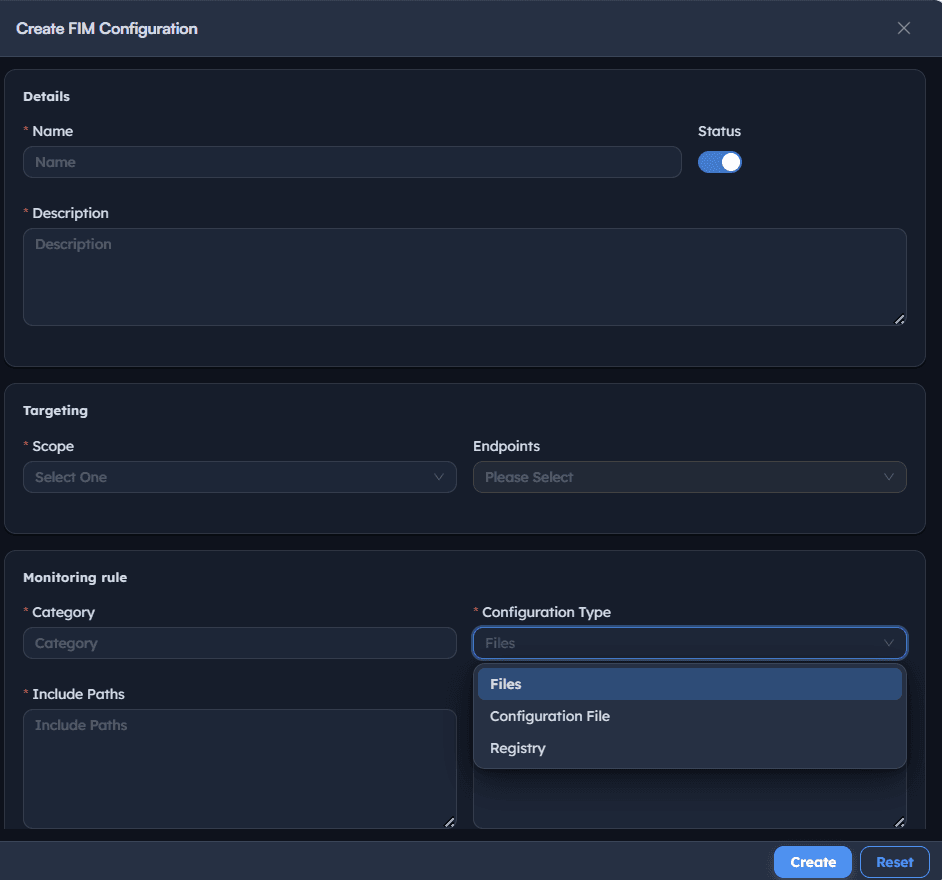
Instructions
- Select Create FIM Configuration.
- Enter a Name describing what's being watched, e.g. Monitor Registry FIM.
- Toggle Status on to enable the configuration.
- Add a Description, e.g. Monitor Registry FIM, stating the intent in plain language.
Path: Console / FIM Configuration / Create FIM Configuration / Details
Console: configuration details
| Field | Value |
|---|---|
| Name | Monitor Registry FIM |
| Status | On |
| Description | Monitor Registry FIM |
Result: A named, enabled configuration shell exists. Targeting and the actual monitoring rule are defined next.
Step 3: Set the targeting scope
Decide which endpoints and which operating system this configuration applies to.
Instructions
- Under Targeting, set Scope Endpoints to
All Endpoints,Specific Endpoints,Specific Departments, orSpecific Locations. - For
Specific Endpoints, select the exact target device(s), e.g. a specific desktop by hostname. - Select the target OS the monitoring rule applies to:
Windows,Linux, or (where applicable)Mac.
Path: Console / FIM Configuration / Create FIM Configuration / Targeting
Console: targeting fields
| Field | Value |
|---|---|
| Scope Endpoints | Specific Endpoints: <ENDPOINT-HOSTNAME> |
| OS | Windows |
Result: The configuration now has a defined population of endpoints it will actually run on.
Important: A configuration targeting the wrong OS for its monitoring rule (e.g. a Windows registry path applied to a Linux scope) will not generate meaningful events. Confirm OS and rule type match before saving.
Step 4: Configure a Files monitoring rule
Watch a specific file or folder path for integrity-relevant changes.
Instructions
- Under Monitoring rule, set Category to
Files. - Set Configuration Type to
Filesto match. - Under Include Paths, enter the specific file or folder path to watch.
- Under Exclude Paths, enter any subpaths that should be excluded from monitoring, useful for reducing noise from files that change frequently but aren't security-relevant.
Path: Console / FIM Configuration / Create FIM Configuration / Monitoring rule
Console: Files monitoring rule
| Field | Value |
|---|---|
| Category | Files |
| Configuration Type | Files |
| Include Paths | (target file or folder path) |
| Exclude Paths | (optional, subpaths to skip) |
Result: A file-level monitoring rule exists, generating events for changes within the included paths, minus anything explicitly excluded.
Step 5: Configure a Registry monitoring rule
Watch a specific registry key for changes, useful for detecting persistence mechanisms and unauthorized configuration changes on Windows.
Instructions
- Under Monitoring rule, set Category to
Registry. - Set Configuration Type to
Registryto match. - Under Include Paths, enter the exact registry key path, e.g.
HKEY_CURRENT_USER\Software\FIMTest. - Under Exclude Paths, enter any subkeys that should be excluded, if the included key has children that shouldn't be watched individually.
- Save the configuration.
Path: Console / FIM Configuration / Create FIM Configuration / Monitoring rule
Console: Registry monitoring rule
| Field | Value |
|---|---|
| Category | Registry |
| Configuration Type | Registry |
| Include Paths | HKEY_CURRENT_USER\Software\FIMTest |
Result: A registry-level monitoring rule exists, generating events for changes to the specified key and its values.
Warning: Registry paths are exact. HKEY_CURRENT_USER\Software\FIMTest and a subtly different casing or path segment are not guaranteed to be treated as the same key. Verify the exact path against the real registry before saving.
Step 6: Confirm the configuration is live
Verify the configuration is enabled and correctly scoped before relying on it.
Instructions
- Return to the FIM Configuration list.
- Confirm the new configuration shows Status: On.
- Confirm its Description accurately reflects what it's watching, useful later when several configurations exist side by side.
Path: Console / FIM Configuration
Result: The configuration is confirmed live and ready to generate events from real changes on its target scope.
Step 7: Make a test change to confirm detection
Deliberately trigger a real change on the monitored path or key and confirm FIM captures it, rather than assuming the configuration works.
Instructions
- On the target endpoint, make a real, deliberate change matching the monitored scope. For a registry rule, for example, create a test key and value using PowerShell:
powershell
New-Item -Path "HKCU:\Software\FIMTest" -Force New-ItemProperty -Path "HKCU:\Software\FIMTest" -Name "TestValue" -Value "Hello" -PropertyType String -Force - Modify the value to confirm a Modify event is captured, not just a creation:
powershell
Set-ItemProperty -Path "HKCU:\Software\FIMTest" -Name "TestValue" -Value "Changed" - Optionally delete the key or value to confirm a Delete event is also captured.
Path: endpoint-side, via PowerShell or the equivalent file operation
Result: A known, deliberate set of changes now exists on the endpoint, giving you a concrete baseline to check against the FIM Events dashboard in the next step.
Best practice: Always validate a new configuration with a real, deliberate test change before trusting it in production. A configuration with a subtly wrong path will show as configured and enabled while silently capturing nothing.
Step 8: Review FIM event trends
Check the aggregate view before reading individual events, to spot volume or pattern changes at a glance.
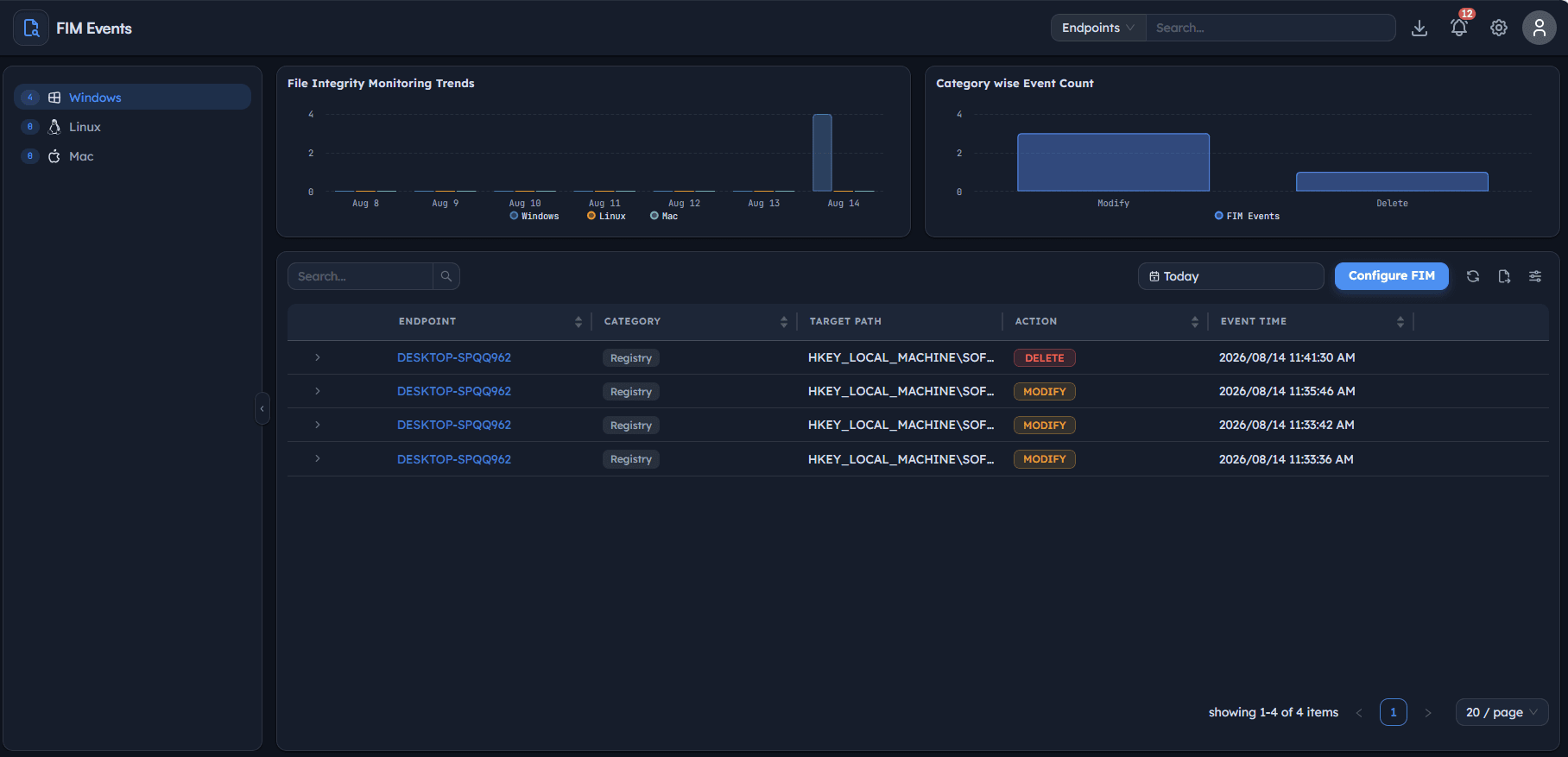
Instructions
- Go to FIM Events.
- Review the File Integrity Monitoring Trends chart, showing event volume over time, broken down by OS (
Windows,Linux,Mac). - Review the Category wise Event Count chart, showing the split between action types, e.g.
ModifyversusDelete. - Use these charts to notice an unusual spike or a shift in behavior before drilling into individual events.
Path: Console / FIM Events
Result: A high-level view of monitoring activity across the fleet, useful for spotting a trend before you'd otherwise notice it in a raw event list.
Step 9: Review individual FIM events and their detail
Drill into a specific event to see exactly what changed, when, and by which process.
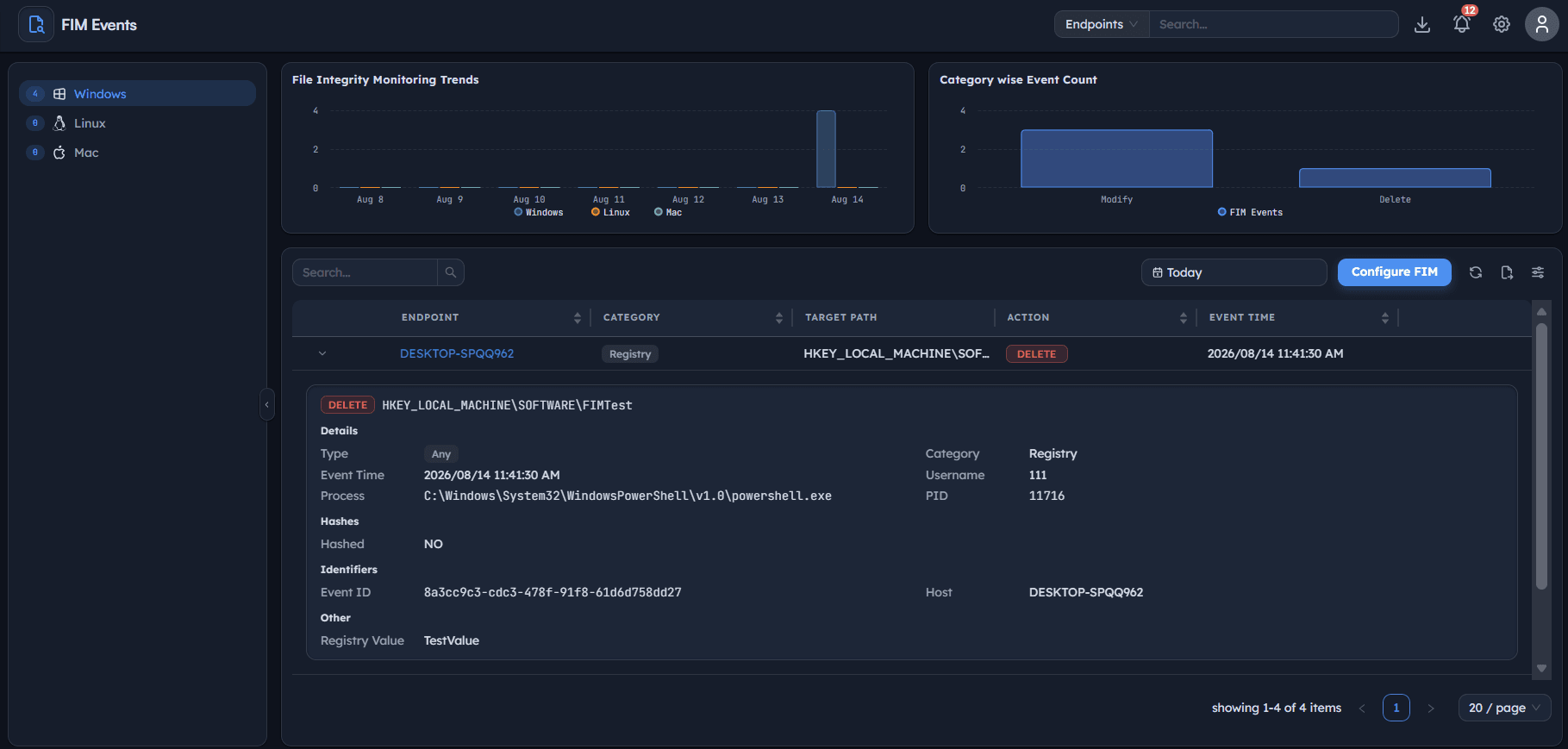
Instructions
- In the FIM Events table, review each row: Endpoint, Category, Target Path, Action (
Modify,Delete), and Event Time. - Expand a specific event to see its full detail: Type, Category, Event Time, Username, Process (full path and PID), Hashed status, Event ID, Host, and for registry events, the specific Registry Value name and Registry Data.
- Confirm the test change from Step 7 appears here with the expected Action and Target Path, verifying the configuration is working end to end.
Path: Console / FIM Events / <Event Row>
Console: event detail (example)
| Field | Value |
|---|---|
| Category | Registry |
| Action | Modify |
| Target Path | HKEY_LOCAL_MACHINE\SOFTWARE\FIMTest |
| Process | C:\Windows\System32\WindowsPowerShell\v1.0\powershell.exe |
| PID | 11716 |
| Event ID | (unique identifier per event) |
| Host | <ENDPOINT-HOSTNAME> |
| Registry Value | TestValue |
Result: A fully attributed record of the change, exactly what a security review or an incident investigation needs: what changed, who or what process changed it, and when.
Important: The Process and PID fields are what make FIM useful for investigation, not just detection. A Modify event alone tells you something changed; the process path tells you whether that change came from an expected admin tool or something unexpected.
Step 10: Tune monitoring scope based on real event volume
Use what Steps 8 and 9 revealed to refine the configuration, since a first-pass scope is rarely the final one.
Instructions
- If a monitored path generates a high volume of routine, expected changes, add those specific subpaths to Exclude Paths rather than disabling the whole configuration.
- If a configuration has generated no events at all despite expected activity, re-verify the exact Include Paths against the real file or registry location on the endpoint.
- Periodically revisit the FIM Configuration list to confirm every configuration still reflects a genuine monitoring need, retiring ones tied to a decommissioned application or a resolved investigation.
Path: Console / FIM Configuration (review/edit)
Result: A monitoring scope that stays useful and readable over time, rather than one that either misses real events or drowns them in expected noise.
Best practices for file integrity monitoring
| Practice | Why it matters | Recommended setting |
|---|---|---|
| Start narrow, validate, then widen | Confirms the configuration actually works before scaling it up | Single path/key first, tested with a deliberate change |
| Use Exclude Paths to cut noise | Keeps events meaningful instead of drowning in routine changes | Exclude known-frequent, low-risk subpaths |
| Match OS to the rule type | A registry rule on a non-Windows scope generates nothing useful | Confirm Scope Endpoints' OS matches the monitoring rule |
| Always validate with a real test change | A misconfigured path looks identical to a silent, working one | Deliberate Modify and Delete test before trusting production use |
| Read the Process/PID, not just the Action | Attribution is what turns a detection into an investigation | Check Process path and PID on every event you review |
| Review trend charts regularly | Aggregate view surfaces anomalies faster than scanning a raw log | Periodic check, not only after an incident |
| Retire stale configurations | An unmaintained configuration is either noisy or silently useless | Review configuration list alongside its actual event history |
Troubleshooting: common issues and resolutions
| Issue | Cause | Resolution |
|---|---|---|
| Configuration enabled but generates no events | Include Paths doesn't exactly match the real file or registry location | Re-verify the exact path/key on the target endpoint and correct the configuration |
| Test change doesn't appear in FIM Events | Configuration targets the wrong OS, or Scope Endpoints doesn't include the test endpoint | Confirm both OS and Scope Endpoints match the endpoint where the test change was made |
| Too many low-value events from one path | Include Paths is broader than intended, capturing routine, expected changes | Narrow Include Paths or add specific subpaths to Exclude Paths |
| Event shows no Process information | The change was made through a mechanism the agent couldn't attribute to a specific process | Treat missing attribution as a signal worth investigating further, not a data gap to ignore |
| Registry events missing after a key rename | Include Paths still references the old key path | Update Include Paths to the new key location and re-save the configuration |
| Delete events aren't appearing | Test only covered Modify, not an actual deletion | Explicitly test a delete action against the monitored path or key to confirm coverage |
Frequently asked questions
Files monitors file and folder paths for changes like modification or deletion. Registry monitors specific Windows registry keys and their values for the same kinds of changes. Both use the same Include/Exclude Paths structure, just pointed at a different kind of target.
Make a deliberate, known test change on the monitored path or registry key, then check FIM Events for a matching entry with the expected Action and Target Path. A configuration that's silent after a real test change likely has a path mismatch.
No, registry monitoring is specific to Windows. For Linux and Mac endpoints, use the Files category to monitor relevant configuration files and paths instead.
It reflects the state or status of the registry value at the time of the event, alongside the specific Registry Value name that changed, giving you the exact detail of what was modified.
Add the specific, known-noisy subpaths to Exclude Paths rather than disabling the whole configuration or widening your tolerance for missed events elsewhere in the same path.
It's populated whenever the agent can attribute the change to a specific process, which is the common case. An event missing that attribution is itself worth a closer look rather than being dismissed.