


How to Configure Browser Management
Browser Management enables organizations to centrally manage, secure, and enforce browser configurations across all enterprise endpoints. Administrators can control browser policies, manage extensions, restrict risky permissions, configure native messaging, and ensure consistent security, compliance, and user experience through centralized deployment and real-time monitoring.
How to Configure Browser Management
Overview:
Why a browser is the widest, least-controlled attack surface on an endpoint
Every managed endpoint has a browser, and every browser has an extension store sitting one click away from anyone using it. An extension is effectively third-party code granted whatever permissions it asks for and the user happens to accept, often without reading what those permissions actually mean. A single unreviewed extension with broad host permissions can read every page a user visits, including anything typed into an internal tool, a webmail client, or an admin console. Browsers are also the one application category most users expect to configure themselves, which makes ad hoc restriction unpopular and inconsistent.
Browser Management treats extensions and browser capability as a managed policy surface rather than a user preference. A policy defines whether users can install extensions at all, which specific extensions are explicitly blocked, which browser API permission categories are blocked fleet-wide regardless of which extension requests them, how native messaging (a browser extension's ability to talk to a local application) is handled, and which extensions are pinned for visibility. That policy is then deployed to endpoints the same way any other managed configuration is.
This guide walks the full workflow end to end: creating a browser policy for a specific browser type, configuring extension control and a blocked extensions list, blocking permission categories at the API level, configuring native messaging behavior, pinning approved extensions, deploying the policy to endpoints, and confirming the deployment succeeded per endpoint.
- Block by extension, not by trust alone: a specific, known-bad or unapproved extension ID can be blocked outright, regardless of what it claims to do.
- Block by permission category: an entire class of capability (Cookies, Debugger, Downloads, History, Native Messaging, and others) can be denied fleet-wide, closing the door on any extension, known or not yet discovered, that requests it.
- Control native messaging explicitly: the bridge between a browser extension and a local executable is set to Not Configured, Allowed, or Blocked, with an explicit allowed-hosts list when needed.
- Pin what's approved: known-good extensions can be pinned for visibility and consistency across the fleet.
- Deploy per browser type: Chrome and Edge policies are configured and deployed independently, matching the actual browsers in use.
Prerequisites
Confirm all four before creating a policy. A policy built for the wrong browser type, or missing a permission category someone assumed was covered, is the most common source of a browser restriction that looks complete but has a gap.
- Administrator access: your account holds a role permitted to manage Browser Management. Read-only operators can view deployment status but cannot create policies or deployments.
- Agent installed and reporting: the endpoint agent is installed, registered, and reporting healthy on every target device.
- Browser type identified: know whether this policy targets
Chrome,Edge, or another supported browser, since policies are authored and deployed per browser type. - Extension IDs and permission scope decided: know which specific extensions to block (by name and ID) and which permission categories to restrict before starting, rather than deciding ad hoc while building the policy.
Architecture: how a browser policy becomes enforced extension control
A policy defines extension-level rules (install permission, a blocked extensions list, blocked permission categories, native messaging behavior, and pinned extensions) scoped to a specific browser type. A deployment binds that policy to endpoints and installs it, with per-endpoint task tracking.
| Stage | Component | Role |
|---|---|---|
| Definition | Browser Policy | Name, Browser Type, Extension Control, Blocked Permissions, Native Messaging, Pinned Extensions |
| Binding | Policy Deployment | Scope endpoints, Browser Management Policy, deployment policy |
| Execution | Endpoint agent | Installs the browser-level configuration, enforces extension and permission restrictions |
| Proof | Deployment Tasks | Per-endpoint Status (Ready to Deploy, Success) and Last Updated timestamp |
Pro tip: Build one policy per browser type per intent (e.g. "Block Extension" for Edge, a separate policy for Chrome) rather than trying to make a single policy cover multiple browsers. Extension IDs and some permission categories aren't guaranteed to be identical across browsers.
Step 1: Open Browser Management
Get oriented before creating anything, so you know where policies and deployments live.
Instructions
- From the main console, go to Endpoints → Device Control.
- Under Network and Web, select Browser Management, described as securing the browser by allowing appropriate permissions to browser extensions.
- Note the module's two main areas: policy list and Deployments.
Path: Console / Endpoints / Device Control / Browser Management
Result: You're in the Browser Management module with visibility into any existing policies before authoring a new one.
Step 2: Create a browser policy and set its browser type
Start the policy with a name and the specific browser it targets.
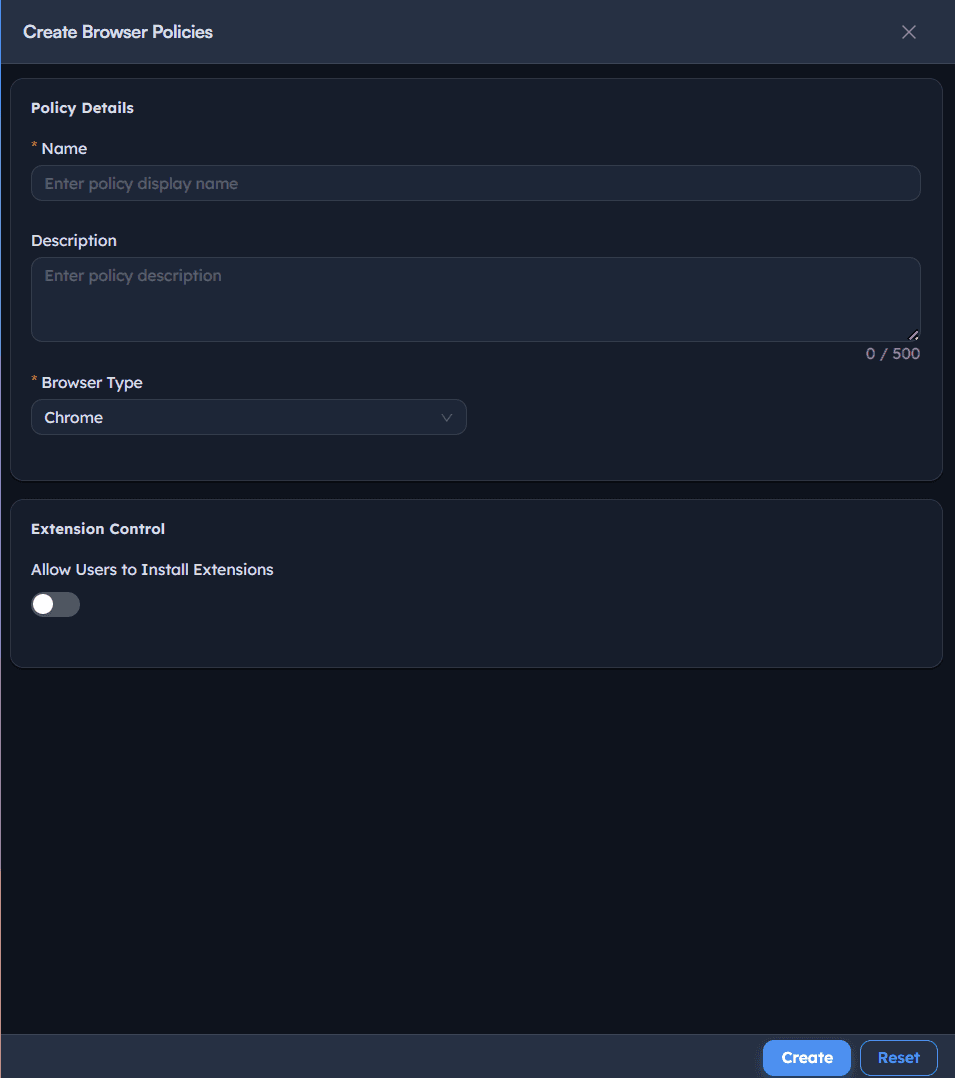
Instructions
- Go to Create Browser Policies.
- Enter a Name for the policy, e.g. Block Extension.
- Add an optional Description.
- Set Browser Type to the target browser, e.g.
ChromeorEdge.
Path: Console / Browser Management / Create Browser Policies
Console: policy details
| Field | Value |
|---|---|
| Name | Block Extension |
| Browser Type | Edge |
Result: A named, browser-specific policy shell exists. Extension control settings are configured next.
Step 3: Configure extension control and the blocked extensions list
Decide whether users can install extensions at all, and name the specific extensions to block outright.
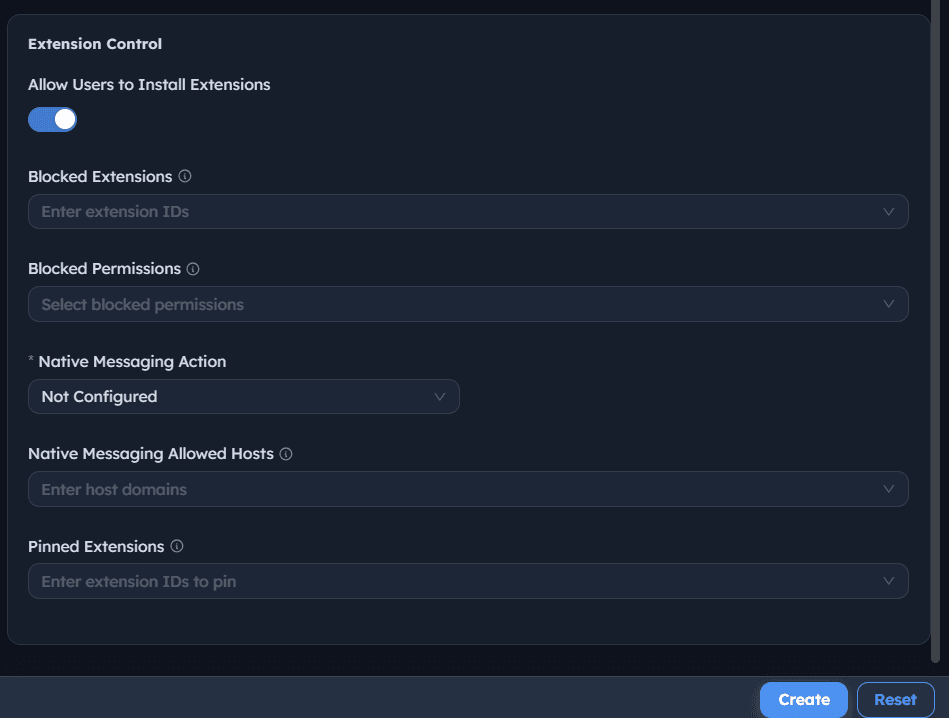
Instructions
- Under Extension Control, toggle Allow Users to Install Extensions on or off depending on whether ad hoc installation should be permitted at all.
- If extensions are allowed generally, use Blocked Extensions to explicitly deny specific ones by name and ID, e.g. ChatGPT to PDF by PDFCrowd (jlfcopnobjbkjiclieaopipchijelm), Awesome Screen Recorder & Screenshot (gpmjlinohibfgmeoaeceoajachkabijo).
- Add each blocked extension individually, confirming both the display name and the extension ID match the intended item, since display names can be reused by unrelated extensions.
Path: Console / Browser Management / Create Browser Policies / Extension Control
Console: extension control fields
| Field | Value |
|---|---|
| Allow Users to Install Extensions | On |
| Blocked Extensions | ChatGPT to PDF by PDFCrowd (jlfcopnobjbkjiclieaopipchijelm), Awesome Screen Recorder & Screenshot (gpmjlinohibfgmeoaeceoajachkabijo) |
Result: Named, specific extensions are blocked regardless of the general install permission, while other, unlisted extensions remain installable if Allow Users to Install Extensions is on.
Warning: Blocking specific extensions by name only stops those exact items. A newly published or renamed extension requesting the same risky permissions won't be caught by a Blocked Extensions list alone, that's what Blocked Permissions in the next step is for.
Step 4: Configure blocked permission categories
Deny entire categories of browser API capability, closing the door on any extension, known or not, that requests them.
Instructions
- Under Blocked Permissions, review the available categories:
Cookies,Debugger,Declarative Content,Declarative Net Request,Desktop Capture,Downloads,History,Identity,Management,Native Messaging,Notifications,Page Capture,Privacy,Proxy, and others. - Select the categories that represent unnecessary or high-risk capability for your environment, e.g.
History. - Understand that this blocks the capability itself: no extension, present or future, can use a blocked permission category once it's denied at the policy level.
Path: Console / Browser Management / Create Browser Policies / Blocked Permissions
Console: sample permission categories
| Category | Typical risk |
|---|---|
| Debugger | Full access to inspect and modify page content and network traffic |
| Downloads | Can initiate or intercept file downloads |
| History | Can read the user's full browsing history |
| Native Messaging | Can communicate with local, non-browser applications |
| Proxy | Can redirect or intercept all browser network traffic |
Result: A category-level restriction that applies to every extension on the endpoint, not just the ones named individually in Step 3.
Best practice: Prioritize blocking Debugger, Native Messaging, and Proxy unless a specific, approved business need requires them. These three categories carry the broadest potential for an extension to affect things well beyond its stated purpose.
Step 5: Configure native messaging
Set explicit behavior for the bridge between browser extensions and local, non-browser applications.
Instructions
- Set Native Messaging Action to
Not Configured,Allow, orBlockdepending on whether extensions should be permitted to communicate with local applications at all. - If native messaging must be permitted for specific, known-good hosts, add them under Native Messaging Allowed Hosts rather than leaving the capability open fleet-wide.
Path: Console / Browser Management / Create Browser Policies / Native Messaging Action
Console: native messaging fields
| Field | Value |
|---|---|
| Native Messaging Action | Not Configured |
| Native Messaging Allowed Hosts | (empty unless a specific host is approved) |
Result: Native messaging behavior is explicitly decided rather than left to whatever the browser's own default happens to be.
Important: Native messaging is one of the more consequential permissions an extension can hold, since it's the mechanism by which browser-level access can reach outside the browser entirely. Treat Native Messaging Allowed Hosts as an allowlist to keep short and deliberate, not a convenience list.
Step 6: Configure pinned extensions
Pin known-good, approved extensions for visibility and consistency across the fleet.
Instructions
- Under Pinned Extensions, enter the extension IDs that should be pinned to the browser toolbar.
- Use this for extensions the organization has explicitly approved and wants visible and consistent across every managed endpoint, not as a substitute for the Blocked Extensions or Blocked Permissions controls.
- Save the policy once Extension Control, Blocked Permissions, Native Messaging, and Pinned Extensions are all configured.
Path: Console / Browser Management / Create Browser Policies / Pinned Extensions
Result: A complete browser policy: what's blocked by name, what's blocked by capability, how native messaging is handled, and what's pinned for visibility.
Step 7: Deploy the browser policy
Bind the policy to specific endpoints so it's actually installed and enforced.
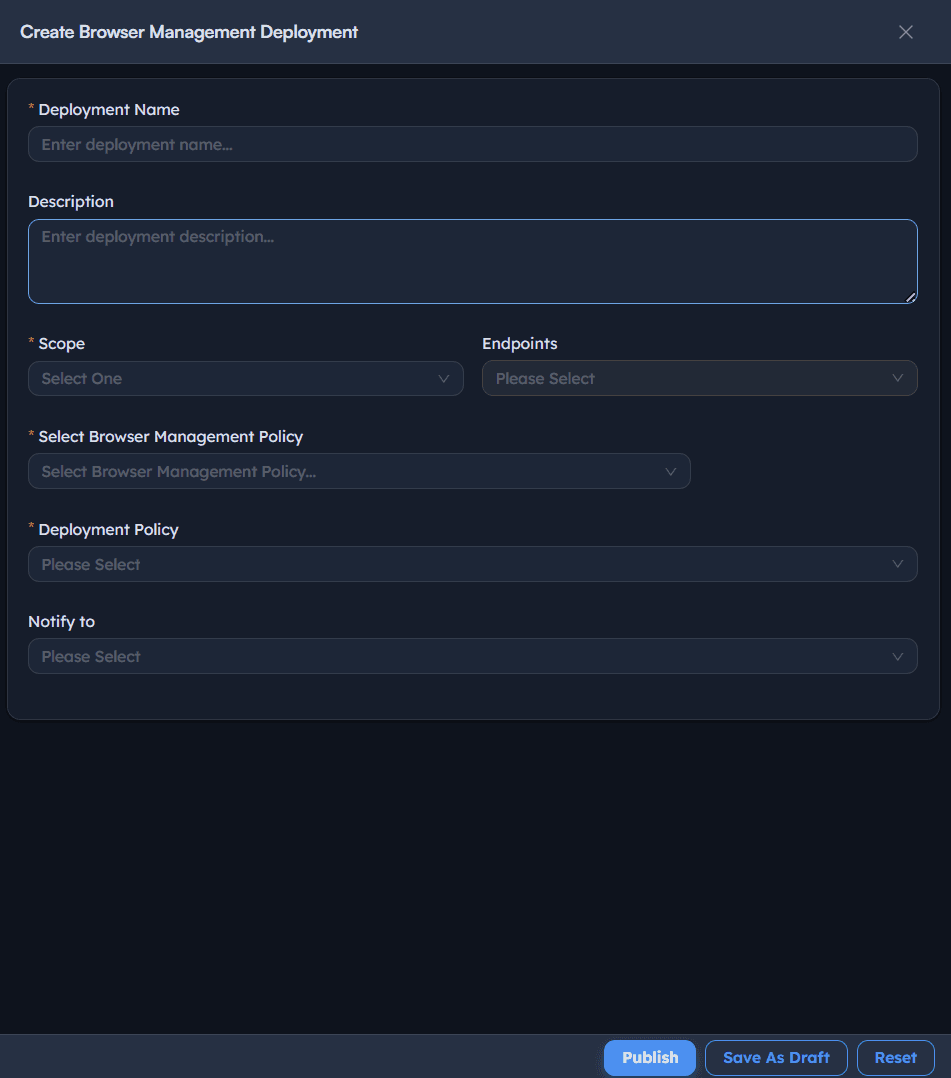
Instructions
- Go to Deployments → Create Browser Management Deployment.
- Enter a Deployment Name, e.g. Allow Specific Exe.
- Add an optional Description.
- Set Scope Endpoints to
Specific Endpointsand select the target device(s). - Set Select Browser Management Policy to the policy created in Steps 2 through 6, e.g.
Block Extension. - Set Deployment Policy, e.g.
OOB Instant deployment policy(typeInstant). - Optionally set Notify to for completion alerts.
- Select Publish.
Path: Console / Browser Management / Deployments / Create Browser Management Deployment
Console: deployment definition
| Field | Value |
|---|---|
| Deployment Name | Allow Specific Exe |
| Scope Endpoints | Specific Endpoints: <ENDPOINT-HOSTNAME> |
| Select Browser Management Policy | Block Extension |
| Deployment Policy | OOB Instant deployment policy (Instant) |
Result: A task is created (e.g. ADR-072: Allow Specific Exe) with type Install, visible under the deployments list with an initial stage such as Initiated.
Step 8: Monitor the deployment
Track the deployment from initiation through completion across the deployments list.
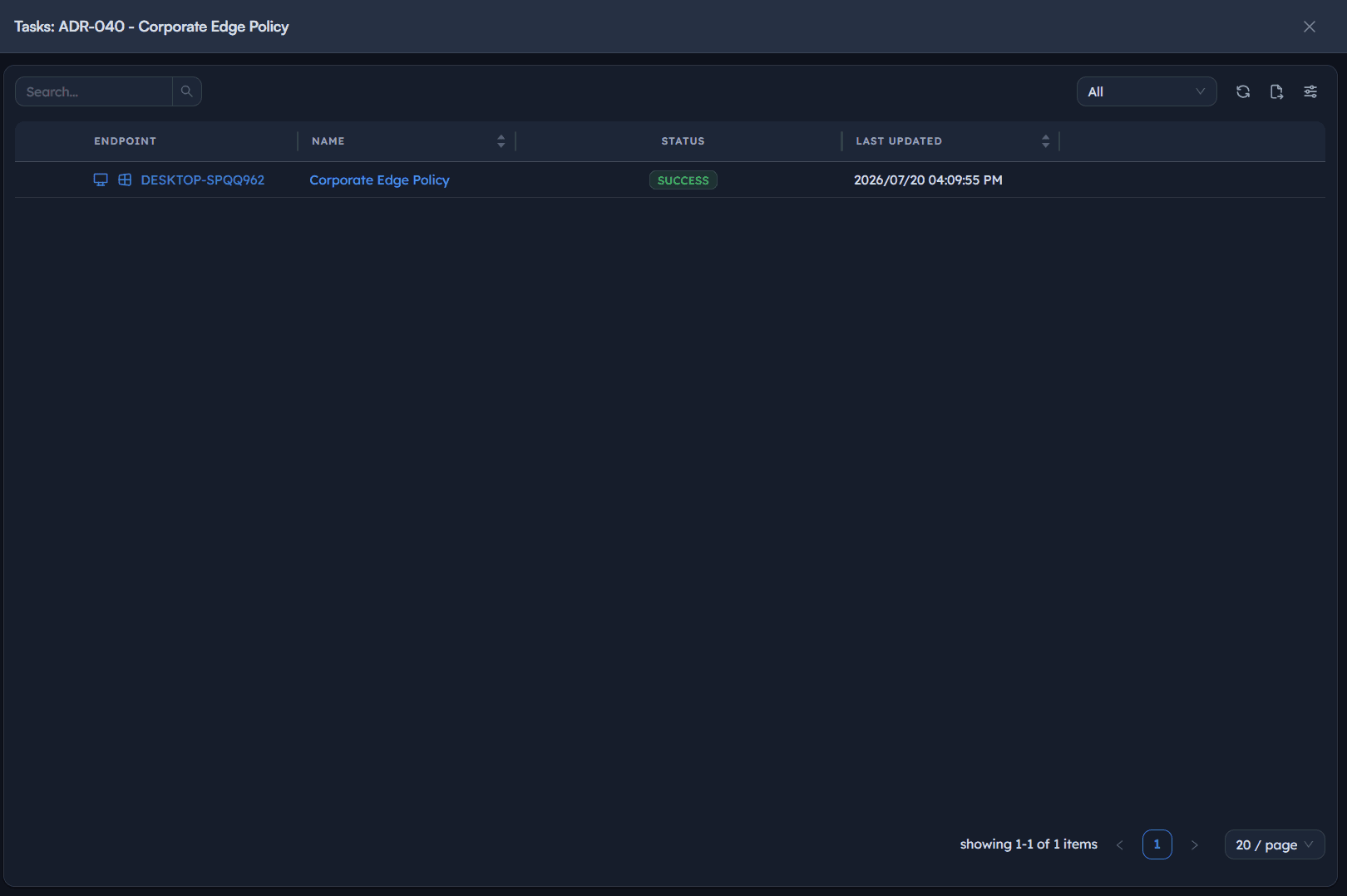
Instructions
- Go to Deployments to see all Browser Management deployments with their Type (
Install), Stage (Initiated,Completed), Progress, and Policy. - Open the specific deployment task to see its per-endpoint Status and Last Updated time.
- Watch the endpoint's status move from an initial state such as
Ready to Deploytoward a final result.
Path: Console / Browser Management / Deployments
Result: A live view of the rollout, endpoint by endpoint, before treating the browser policy as fully in effect.
Step 9: Confirm task success per endpoint
Verify the policy actually installed successfully on the target endpoint.
Instructions
- Reopen the deployment task, e.g. ADR-072: Allow Specific Exe.
- Confirm Status has progressed to
Successfor every targeted endpoint, not just that the overall deployment stage showsCompleted. - Note the updated Last Updated timestamp confirming when the successful state was reached.
Path: Console / Browser Management / Deployments / <Task>
Result: Endpoint-level confirmation that the browser policy was actually applied, the evidence behind the deployment's overall completed stage.
Best practice: A deployment stage of Completed describes the task lifecycle, not necessarily a uniform Success across every endpoint. Always check individual endpoint status before treating a rollout as fully verified.
Step 10: Review the policy list before scaling to more browsers or endpoints
Confirm the full set of browser policies before expanding scope, since each is tied to a specific browser type.
Instructions
- Return to the Browser Management policy list and review each entry: Name, Browser Type, and Allow Extensions status.
- Confirm there's a corresponding policy for every browser type actually in use across the fleet, a policy built only for Edge does nothing for Chrome endpoints.
- Before broadening a deployment's Scope Endpoints, confirm the browser type of the newly included endpoints matches the policy being deployed.
Path: Console / Browser Management
Console: policy list (example)
| Name | Browser Type | Allow Extensions |
|---|---|---|
| Block Extension | Edge | Yes |
Result: A clear view of policy coverage across browser types, so a gap (a browser in use with no corresponding policy) is visible before it becomes an incident.
Best practices for browser management
| Practice | Why it matters | Recommended setting |
|---|---|---|
| One policy per browser type | Extension IDs and permission categories aren't guaranteed identical across browsers | Separate, named policies for Chrome, Edge, and any other browser in use |
| Block by permission category, not extensions alone | Named-extension blocking doesn't catch new or renamed extensions requesting the same risky capability | Prioritize Debugger, Native Messaging, and Proxy for restriction |
| Treat Native Messaging Allowed Hosts as a short allowlist | This permission bridges browser access to local applications | Keep the allowed-hosts list deliberate and minimal |
| Pin approved extensions, don't rely on pinning as control | Pinning aids visibility and consistency but isn't a security boundary | Use alongside, not instead of, Blocked Extensions/Permissions |
| Verify extension ID, not just display name | Display names can be duplicated by unrelated or malicious extensions | Confirm the exact ID before adding to a blocked or approved list |
| Check per-endpoint task status | A Completed deployment stage isn't the same as Success on every endpoint | Review the task's endpoint list before considering it verified |
| Maintain policy coverage per browser | A policy gap for an in-use browser leaves that browser fully unmanaged | Review the policy list against actual browser usage periodically |
Troubleshooting: common issues and resolutions
| Issue | Cause | Resolution |
|---|---|---|
| A blocked extension is still usable | Extension ID in Blocked Extensions doesn't match the actual installed extension's ID | Re-verify the exact extension ID from the browser's extension management page |
| Users report they can't use a legitimate extension feature | A Blocked Permission category is broader than intended and affects an approved extension too | Review which approved extensions rely on the blocked category before restricting it fleet-wide |
| Deployment shows Success but policy doesn't seem applied | Deployment targeted the wrong Browser Type relative to the endpoint's actual default browser | Confirm the policy's Browser Type matches the browser actually in use on the endpoint |
| Task stuck at Ready to Deploy | Endpoint is offline or the agent isn't reporting | Confirm agent health on the target endpoint before expecting the task to progress |
| Native messaging still works for an extension after Blocking it | Native Messaging Action was left at Not Configured rather than explicitly set to Block | Set Native Messaging Action to Block explicitly if that capability should be fully denied |
| New endpoints added to an existing deployment don't get the policy | The added endpoints run a different browser type than the deployed policy targets | Confirm a matching policy exists for each browser type before broadening deployment scope |
Frequently asked questions
Blocked Extensions denies specific, named extensions by their exact ID. Blocked Permissions denies an entire category of browser API capability fleet-wide, which also blocks any extension, current or future, that requests that capability, not just the ones named individually.
No. Pinned Extensions controls visibility and toolbar consistency only. An extension can still be pinned and simultaneously restricted by any Blocked Permissions category it requests.
A policy is authored and deployed against a single Browser Type. To cover both browsers, create a separate policy for each, since extension IDs and some permission categories aren't guaranteed to be identical across them.
Not Configured leaves native messaging behavior at the browser's own default rather than explicitly allowing or blocking it through policy. For a deliberate restriction, set the action explicitly to Block.
Less so, since installation is already denied generally. Blocked Extensions is most useful when general installation is allowed but specific, known items still need to be explicitly denied.
Open the specific deployment task and check the per-endpoint Status column for Success, rather than relying on the deployment's overall Completed stage alone.