


How to Configure Application Control
Application Control enables organizations to manage which applications can run on endpoint devices by allowing or blocking executables based on security policies. It helps prevent unauthorized software execution, reduces security risks, supports temporary access for approved applications, and ensures centralized policy enforcement, compliance, and endpoint protection across the enterprise.
How to Configure Application Control
Overview:
Why blocking by name is not the same as blocking by risk
Application allowlisting and blocklisting sounds simple until someone on the finance team needs Chrome for exactly one vendor portal that doesn't work in the approved browser, and the ticket lands on your desk an hour before their meeting. A blanket block solves the security problem and creates an operational one, and most teams end up either leaving the block in place and absorbing the friction, or quietly disabling it and losing the control entirely.
Application Control treats this as two related but separate problems: block an executable by name across the endpoints it shouldn't run on, and grant a scoped, time-limited exception when a legitimate need shows up, without touching the underlying policy. The block stays enforced everywhere else, and the exception expires on its own instead of becoming a standing hole someone forgets to close.
This guide walks the full workflow end to end: creating an application block policy by executable name, deploying it to specific endpoints, granting temporary access through a fixed duration or a scheduled time window, monitoring both the block deployment and the temporary access as they run, and removing a policy cleanly when it's no longer needed.
- Block by executable, not by guesswork: policies target the actual binary name, so enforcement doesn't depend on where the file was installed.
- Grant exceptions without disabling the policy: temporary access opens a scoped window for one endpoint and one application, and closes itself automatically.
- Choose fixed duration or a scheduled window: a support-ticket-driven exception and a planned maintenance window are different shapes of request, and both are supported directly.
- See policy status per endpoint: Active/Inactive status and last-updated time are visible per asset, not just at the policy level.
- Remove cleanly: a Remove-type deployment reverses a block the same way an Apply-type deployment applied it, tracked the same way.
Prerequisites
Confirm all four before creating a block policy. Blocking an executable without first confirming its exact binary name is the most common cause of a policy that silently does nothing.
- Administrator access: your account holds a role permitted to manage the Application Control module. Read-only operators can view policy status but cannot create policies, deployments, or temporary access grants.
- Agent installed and reporting: the endpoint agent is installed, registered, and reporting healthy on every target device.
- Exact executable name confirmed: application binary names are case-sensitive and must match exactly (e.g.
notepad.exe,chrome.exe). Confirm the real binary name on a representative endpoint before authoring the policy. - Endpoint scope identified: know which specific endpoints, or which broader scope, this block should apply to before creating the deployment. A block created but never deployed to a scope has no effect.
Architecture: how a block reaches an endpoint, and how an exception overrides it
A policy defines what to block. A deployment applies that policy to specific endpoints. Temporary access sits alongside the policy, not inside it, granting a scoped and time-bound exception without editing or removing the underlying block.
| Stage | Component | Role |
|---|---|---|
| Definition | Application Control Policy | Application name, executable name to block |
| Binding | Policy Deployment | Scope endpoints, deployment type (Apply/Remove), deployment policy |
| Override | Temporary Access | Endpoint-and-application-scoped exception, fixed duration or scheduled window |
| Execution | Endpoint agent | Enforces the block, honors an active temporary access grant, reports status |
| Proof | Policy Status | Per-endpoint Active/Inactive state with last-updated timestamp |
Pro tip: Confirm the exact executable name on a live endpoint (Task Manager's Details tab, or the file's own properties) rather than assuming it from the application's display name. Many applications' process names don't match their marketing name.
Step 1: Open Application Control
Get oriented before creating anything, so you know where policies, deployments, and temporary access each live.
Instructions
- From the main console, go to Endpoints → Application Control.
- Note the sections in the left sidebar: Policy (block policies), Deployments, and Temporary Access.
Path: Console / Endpoints / Application Control
Result: You're in the Application Control module with visibility into existing policies before authoring a new one.
Step 2: Create an application block policy
Define the block: a name for the policy and the exact executable it targets.
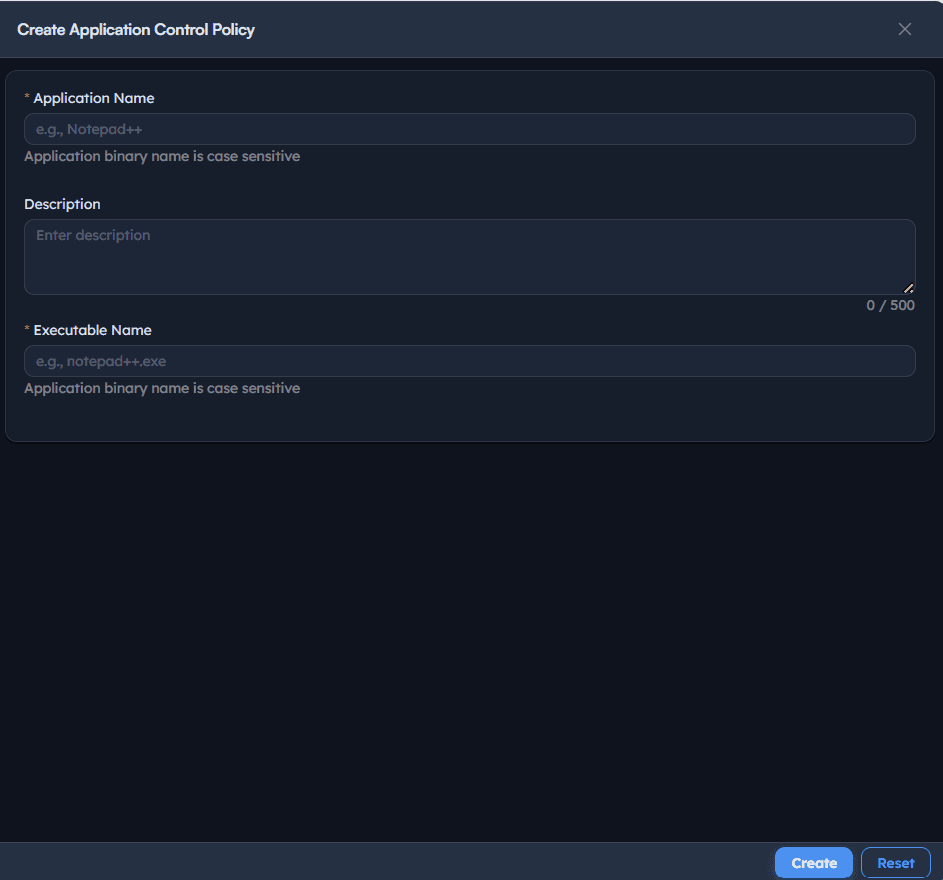
Instructions
- Go to Policy → Create Application Control Policy.
- Enter an Application Name describing the policy's intent, e.g. Block Notepad.
- Add an optional Description.
- Enter the Executable Name exactly as it appears on disk, e.g.
notepad.exe. This field is case-sensitive. - Save the policy.
Path: Console / Application Control / Policy / Create Application Control Policy
Console: policy definition
| Field | Value |
|---|---|
| Application Name | Block Notepad |
| Executable Name | notepad.exe |
Result: A policy exists that defines what to block. It has no targets yet, that's set in the deployment step.
Important: The Executable Name field matches the binary exactly. Notepad.exe, notepad.exe, and a renamed copy of the same binary are not guaranteed to be treated as identical, depending on the underlying OS's own case sensitivity handling. Confirm the real name rather than typing from memory.
Step 3: Deploy the block policy to endpoints
Bind the policy to specific endpoints with a deployment of type Apply Policy.
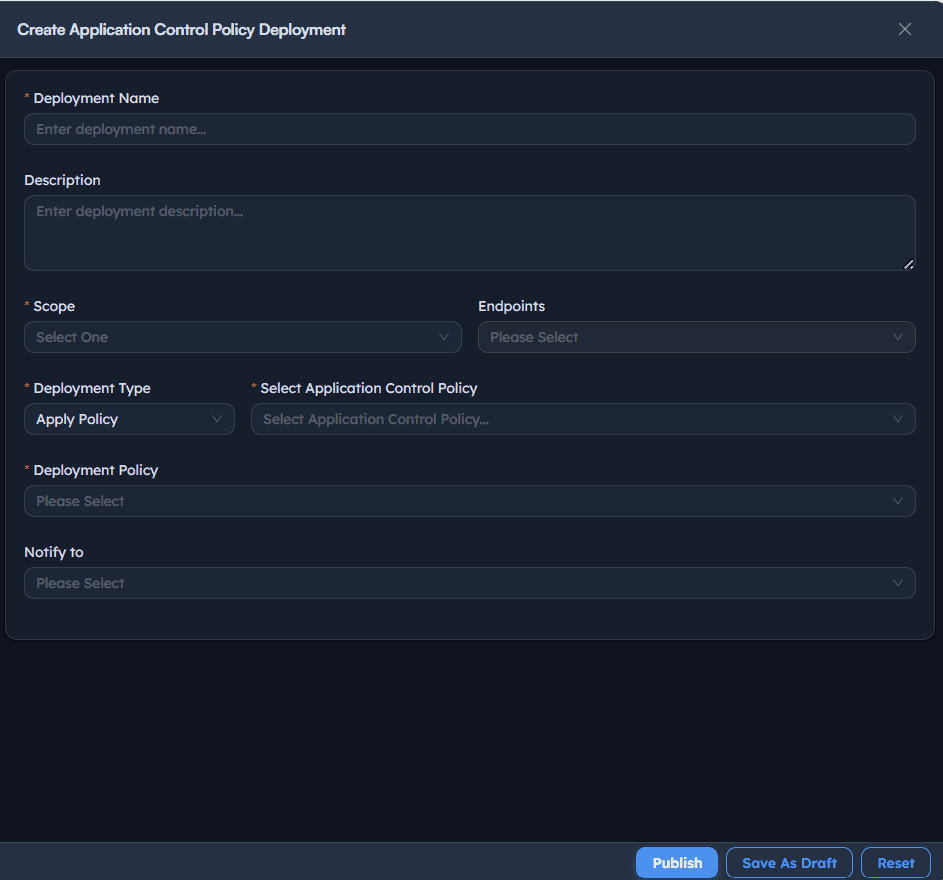
Instructions
- Go to Deployments → Create Application Control Policy Deployment.
- Enter a Deployment Name describing the rollout, e.g. Block Chrome.
- Set Scope Endpoints to
Specific Endpoints(or a broader scope) and select the target device(s). - Set Deployment Type to
Apply Policy. - Set Select Application Control Policy to the policy created in Step 2.
- Set Deployment Policy (e.g.
OOB Instant deployment policy, typeInstant). - Optionally set Notify to for completion alerts.
- Select Publish and confirm.
Path: Console / Application Control / Deployments / Create Application Control Policy Deployment
Console: deployment definition
| Field | Value |
|---|---|
| Deployment Name | Block Chrome |
| Scope Endpoints | Specific Endpoints: <ENDPOINT-HOSTNAME> |
| Deployment Type | Apply Policy |
| Select Application Control Policy | Block Chrome |
| Deployment Policy | OOB Instant deployment policy (Instant) |
Result: A task is created (e.g. ADR-061: Block Chrome) with status In Progress, visible under the task list with the target endpoint and timestamp.
Warning: Confirm Scope Endpoints carefully before publishing. A block policy deployed to the wrong scope can interrupt a legitimate workflow on endpoints that were never meant to be affected.
Step 4: Monitor the block deployment
Track the deployment from initiation through completion, then confirm the policy is actually enforced.
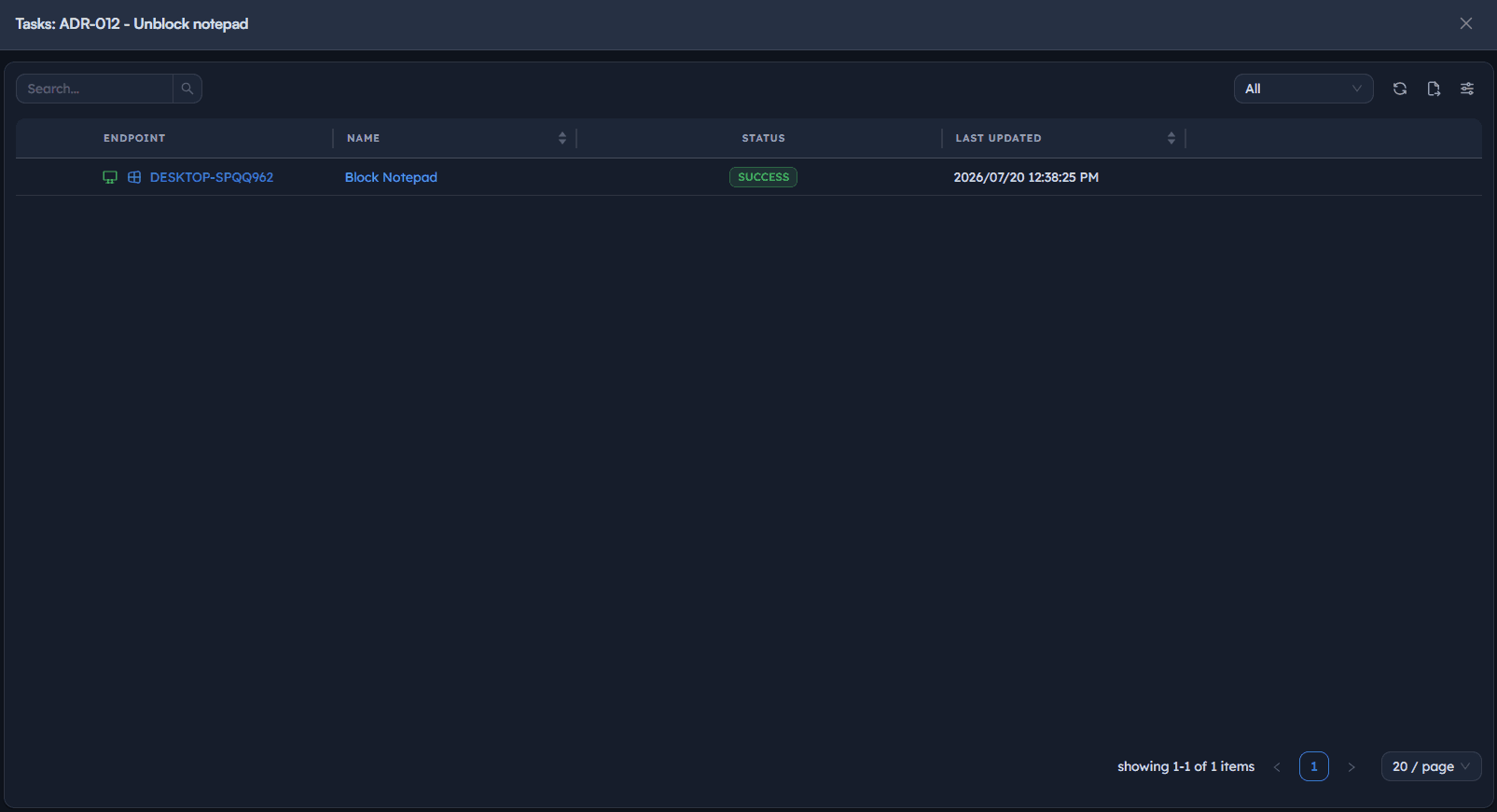
Instructions
- Go to Deployments to see all deployments with their Type (
Apply,Remove), Stage (Initiated,Completed), Progress, and Policy. - Open the specific deployment task to see its per-endpoint Status and Last Updated time.
- Once the deployment stage shows
Completed, check Policy Status to confirm the policy is nowActiveon the target endpoint(s).
Path: Console / Application Control / Deployments
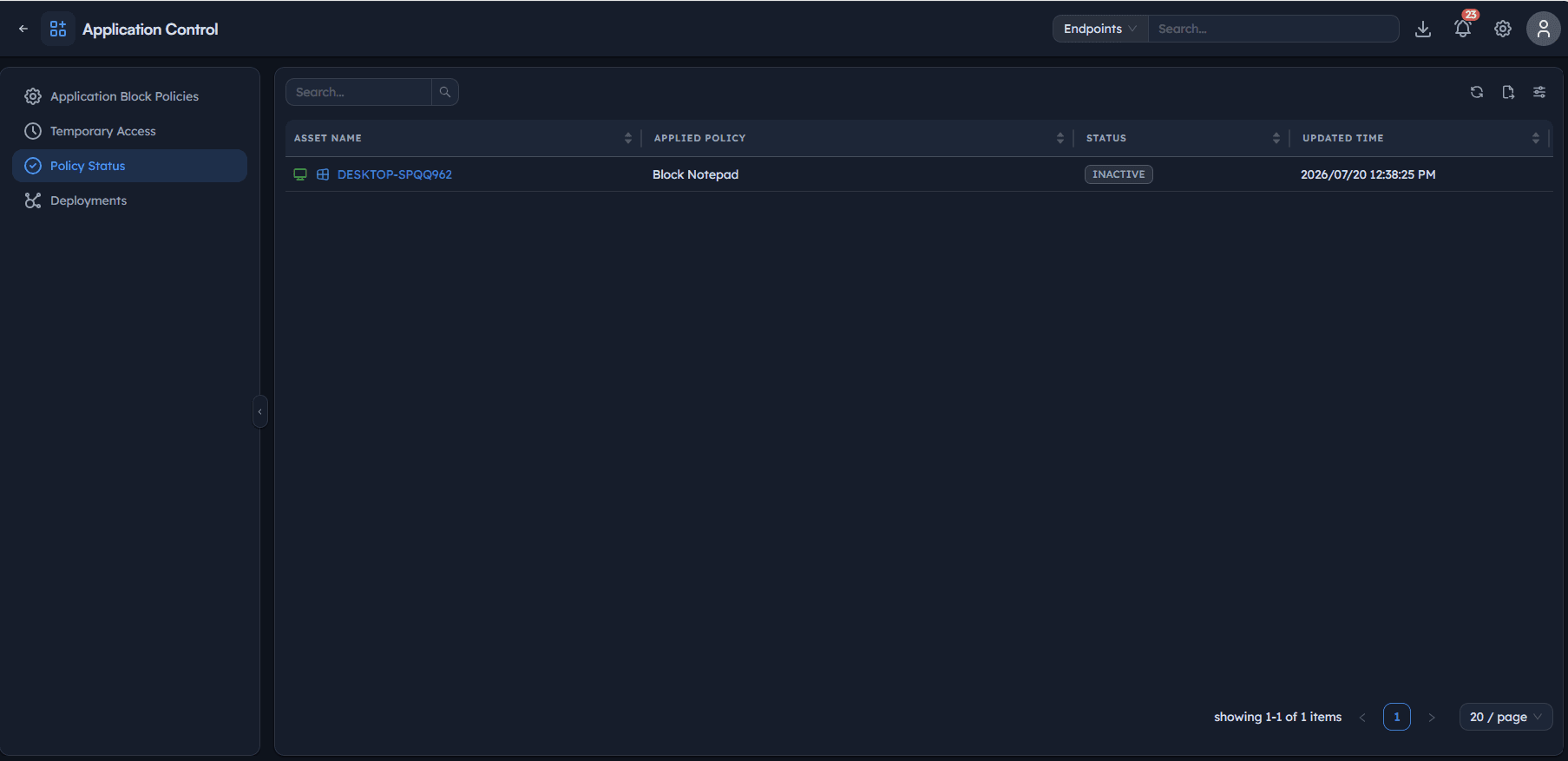
Console: policy status
| Asset Name | Applied Policy | Status | Updated Time |
|---|---|---|---|
| <ENDPOINT-HOSTNAME> | Block Chrome | Active | 2026/07/04 05:01:32 PM |
| <ENDPOINT-HOSTNAME> | Block Notepad | Inactive | 2026/07/01 04:35:05 PM |
Result: Confirmation that the block is not just deployed but actually enforced, with a per-endpoint audit trail.
Important: A deployment showing Completed and a policy showing Inactive are not the same thing. Completed describes the deployment task; Active/Inactive describes whether the block is currently in effect on that endpoint. Check both.
Step 5: Grant temporary access with a fixed duration
Open a scoped exception for a specific endpoint and application when someone has a legitimate, time-bound need.
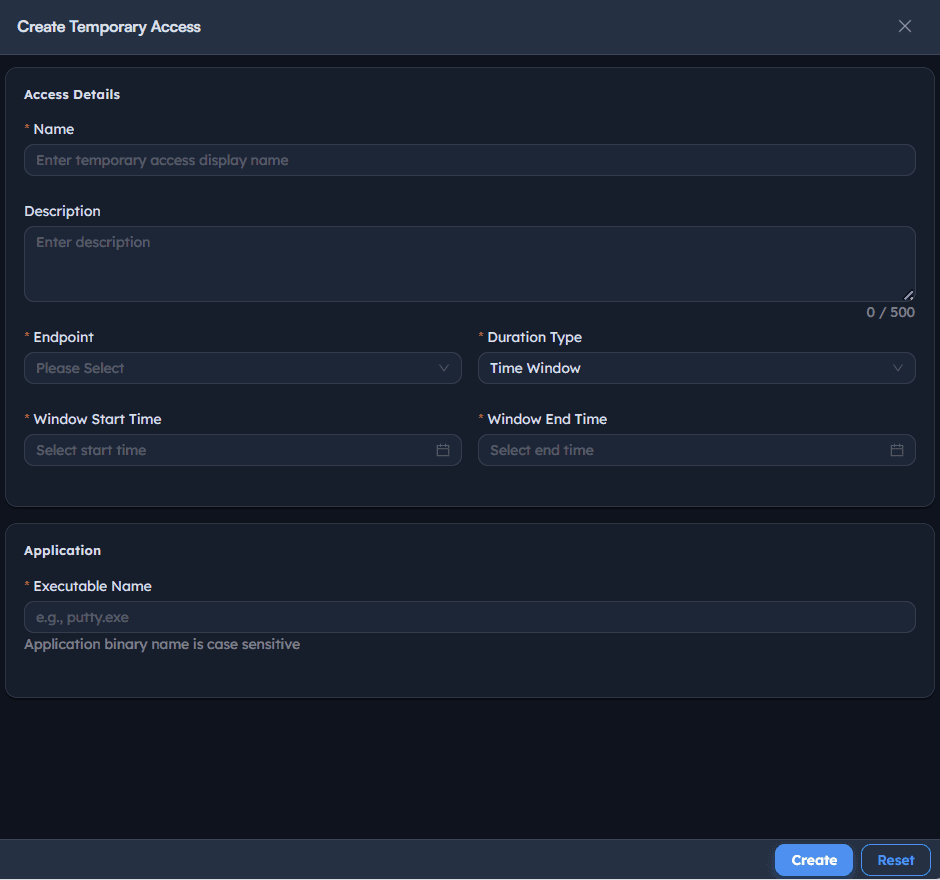
Instructions
- Go to Temporary Access → Create Temporary Access.
- Enter a Name describing the exception, e.g. Temporary Notepad Access.
- Add an optional Description.
- Select the target Endpoint.
- Set Duration Type to
Fixed Duration. - Set Duration Value and Duration Unit, e.g.
2andHours. - Under Application, enter the Executable Name the exception applies to, e.g.
notepad.exe. - Save.
Path: Console / Application Control / Temporary Access / Create Temporary Access
Console: fixed-duration access
| Field | Value |
|---|---|
| Name | Temporary Notepad Access |
| Endpoint | <ENDPOINT-HOSTNAME> |
| Duration Type | Fixed Duration |
| Duration Value | 2 |
| Duration Unit | Hours |
| Executable Name | notepad.exe |
Result: The named endpoint can run the specified executable for the fixed duration, after which the underlying block resumes automatically.
Best practice: Name the temporary access entry for the reason it was granted, not just the application. "Temporary Notepad Access, ticket #4021" is far easier to audit later than a generic name repeated across many grants.
Step 6: Grant temporary access for a scheduled time window
Use a defined start and end time instead of a rolling duration, for a planned maintenance window or a known meeting time.
Instructions
- Go to Temporary Access → Create Temporary Access.
- Enter a Name, e.g. Temporary access for chrome.
- Select the target Endpoint.
- Set Duration Type to
Time Window. - Set Window Start Time and Window End Time using the date/time picker.
- Under Application, enter the Executable Name, e.g.
chrome.exe. - Save.
Path: Console / Application Control / Temporary Access / Create Temporary Access
Console: time-window access
| Field | Value |
|---|---|
| Name | Temporary access for chrome |
| Endpoint | <ENDPOINT-HOSTNAME> |
| Duration Type | Time Window |
| Window Start Time | 2026-07-04 17:03:30 |
| Window End Time | 2026-07-04 17:06:42 |
| Executable Name | chrome.exe |
Result: The application is only permitted on that endpoint within the exact window specified, outside of which the block applies as normal.
Pro tip: Use Time Window for anything you can schedule in advance (a demo, a vendor call, a maintenance task) and reserve Fixed Duration for reactive requests where you don't know the exact end time yet.
Step 7: Monitor temporary access status
Confirm a grant is active, and know when it expires, without waiting for someone to report a problem.
Instructions
- Go to Temporary Access to see all grants with Endpoint Name, Access/Duration Type, Duration, Executable, and Status.
- Read the Status column: an active grant shows as in effect; an elapsed one shows as
Expired. - Use this view before granting a new exception to confirm an old one isn't still active and overlapping unnecessarily.
Path: Console / Application Control / Temporary Access
Console: temporary access list
| Endpoint Name | Duration Type | Duration | Executable | Status |
|---|---|---|---|---|
| <ENDPOINT-HOSTNAME> | Window | Window | notepad.exe | Expired |
| <ENDPOINT-HOSTNAME> | Fixed | 2 Hours | notepad.exe | Expired |
Result: A clear record of every exception granted, active or expired, without needing to cross-reference tickets to know what's currently open.
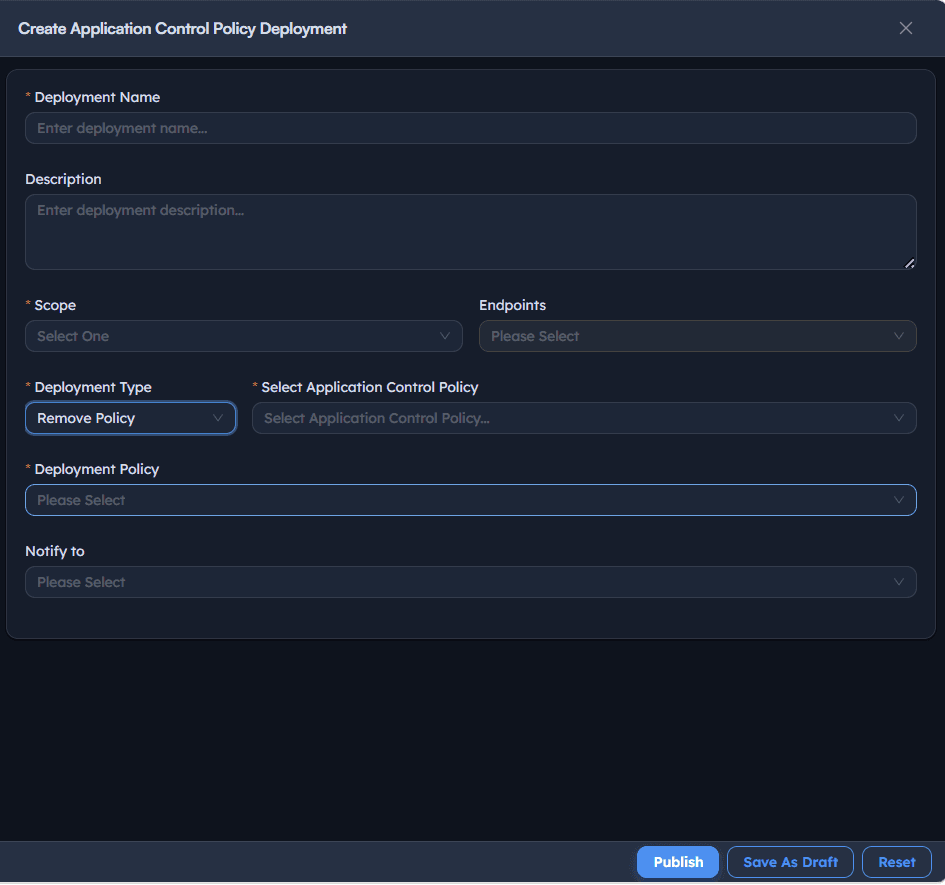
Step 8: Remove a block policy
Reverse a block cleanly through a Remove-type deployment rather than deleting the policy outright.
Instructions
- Go to Deployments → Create Application Control Policy Deployment.
- Enter a Deployment Name for the removal, e.g. Unblock Notepad.
- Set Scope Endpoints to the same or a different target set.
- Set Deployment Type to
Remove. - Set Select Application Control Policy to the policy being removed.
- Select Publish.
Path: Console / Application Control / Deployments / Create Application Control Policy Deployment
Result: A Remove-type task runs and, once Completed, the policy's status for that endpoint moves to Inactive in Policy Status.
Warning: Removing a policy on an endpoint still targeted by an active Apply-type deployment (e.g. from a recurring or group-based policy assignment) may result in the block being reapplied at the next scheduled evaluation. Confirm the endpoint's ongoing policy assignment before assuming a removal is permanent.
Step 9: Confirm the removal took effect
Verify the policy is genuinely inactive rather than only assuming the Remove deployment succeeded.
Instructions
- Return to Deployments and confirm the Remove-type deployment's Stage shows
Completed. - Check Policy Status for the affected endpoint and confirm the policy now shows
Inactive. - If the application was blocked via a Time Window or Fixed Duration temporary access exception rather than a full policy removal, confirm instead via Temporary Access that the relevant grant is active or has expired as expected.
Path: Console / Application Control / Deployments and Console / Application Control / Policy Status
Result: Confirmed, evidence-backed removal rather than an assumption based on the deployment task alone.
Step 10: Review policy status across the fleet
Get a single view of every application control policy's current enforcement state before calling a rollout complete.
Instructions
- Go to Policy Status (or the equivalent asset-level view).
- Review every row: Asset Name, Applied Policy, Status (
Active/Inactive), and Updated Time. - Cross-check this list against the deployments you expect to be in effect. An endpoint missing from this list, or showing an unexpected status, is worth investigating before you consider the rollout done.
Path: Console / Application Control / Policy Status
Result: A fleet-wide, per-endpoint confirmation of which application control policies are actually enforced right now, the evidence behind your block policy's real coverage.
Best practice: Review Policy Status on a schedule, not only right after a deployment. An endpoint that goes offline, gets reimaged, or drops agent connectivity can silently fall out of enforcement without a deployment ever reporting a failure.
Best practices for application control
| Practice | Why it matters | Recommended setting |
|---|---|---|
| Confirm the exact executable name | A mistyped or wrong-cased binary name silently fails to block anything | Verify on a live endpoint before authoring the policy |
| Use temporary access instead of disabling a policy | Keeps the block enforced everywhere except the specific, scoped exception | Fixed Duration for reactive requests, Time Window for planned ones |
| Name grants for their reason, not just the app | Makes an audit of open exceptions meaningful months later | Include a ticket reference or requester in the Name field |
| Remove via deployment, not policy deletion | Keeps a tracked, reversible record of when and where a block was lifted | Remove-type deployment scoped to the specific endpoints |
| Check Policy Status, not just deployment Stage | A Completed deployment and an Active policy are different facts | Confirm both before considering a block fully enforced |
| Review Policy Status on a recurring basis | Enforcement can silently drift after reimaging or agent issues | Periodic audit independent of any specific deployment |
Troubleshooting: common issues and resolutions
| Issue | Cause | Resolution |
|---|---|---|
| Policy deployed as Completed but application still runs | Executable Name doesn't exactly match the real binary, or the application runs under a different process name | Confirm the exact, case-sensitive binary name on the live endpoint and correct the policy |
| Temporary access grant doesn't seem to work | Executable Name in the temporary access entry doesn't match the blocked policy's Executable Name exactly | Confirm both entries reference the identical binary name |
| Application still blocked during an active Time Window | Window Start/End Time was set in the wrong timezone, or the window has already elapsed | Confirm the endpoint's local time against the configured window before troubleshooting further |
| Application becomes blocked again after a Remove deployment | The endpoint is still targeted by a separate, ongoing Apply-type policy assignment | Check all deployments targeting that endpoint, not just the most recent Remove action |
| Policy Status shows no entry for a target endpoint | The deployment never reached that endpoint, often due to agent connectivity | Confirm agent health on the endpoint before re-publishing the deployment |
| Temporary access shows Expired sooner than expected | Duration Value/Unit was set smaller than intended, or Window End Time was misconfigured | Re-check the exact values entered when the grant was created |
Frequently asked questions
No. Temporary access sits alongside the policy as a scoped, time-bound exception for a specific endpoint and executable. The policy itself is untouched, and enforcement resumes automatically once the grant ends.
Fixed Duration starts counting from when the grant is created, for a set number of hours or another unit. Time Window instead uses an exact start and end timestamp, better suited to a pre-planned event where you already know the exact times involved.
Create a Remove-type Application Control Policy Deployment targeting the same policy and endpoints the block was originally applied to, then confirm the policy shows Inactive in Policy Status afterward.
Yes. Confirm the exact binary name, including case, on a real endpoint rather than typing it from memory or from the application's display name.
Each temporary access entry is scoped to a single Executable Name. Create a separate grant for each application that needs a temporary exception.
The underlying block policy resumes automatically. The application becomes blocked again on that endpoint with no manual step required, and the grant's Status updates to Expired.