


How to Configure and Review File Integrity Monitoring (FIM)
Learn how to configure File Integrity Monitoring, read FIM events, and use the diff viewer to see exactly what changed in a monitored file, step by step.
How to Configure and Review File Integrity Monitoring (FIM)
Overview:
Why a change alert is only useful if you can see what changed
A FIM tool that only tells you "a file changed" forces you to trust that alert blindly. The useful question is never just whether a file changed, it's what changed, who or what process changed it, and whether the new content is something you'd approve. A single MODIFY flag on a config file means nothing without the actual before-and-after content behind it.
The operational problem is usually not detection, it's evidence. Any agent can watch a path and fire an event on write. What separates a trustworthy FIM setup is whether each event carries enough forensic detail, cryptographic hashes, originating process, timestamp, username, to stand on its own during an investigation, and whether you can open the exact line-level diff instead of re-deriving it yourself.
The FIM module treats this as three separate problems solved in order: define which paths matter and where, capture every modification with full forensic context, then let you drill from a trend chart down to the exact line that changed. This guide walks the full workflow end to end: creating a FIM configuration scoped to specific endpoints, reading the resulting events dashboard, inspecting a single event's forensic detail, and using the file version comparison view to see precisely what content changed.
- Scope monitoring precisely: target specific endpoints, categories, and exact include paths rather than watching entire drives.
- Capture forensic context automatically: every event records the originating process, username, PID, and MD5/SHA256/SHA1 hashes, not just a timestamp.
- See the actual change, not just the alert: the file version comparison view shows old versus new content side by side, line by line.
- Track trends, not just single events: date-based trend charts and category breakdowns show whether change volume is normal or spiking.
- Trust the evidence: a MODIFY event is only as useful as the detail behind it, so every event is fully expandable before you act on it.
Prerequisites
Confirm all three before creating your first FIM configuration. Skipping straight to a broad configuration is the most common cause of noisy, low-signal event feeds.
- Administrator access: your account holds a role permitted to manage the FIM module. Read-only operators can view events but cannot create or edit configurations.
- Agent installed and reporting: the endpoint agent is installed, registered, and reporting healthy on every target device. A configuration cannot evaluate on a device the agent cannot reach.
- Target paths identified: know the exact file or configuration paths you need watched (e.g.
D:\New folder\textnote.conf) before creating a configuration. Vague or overly broad include paths produce noisy, low-value event feeds.
Architecture: how a configuration becomes a reviewable event
A configuration defines what is watched and where. The agent evaluates that configuration continuously and reports a MODIFY event whenever the target content changes. The event is stored with full forensic context, and any two versions of the file can be opened side by side in the comparison view.
| Stage | Component | Role |
|---|---|---|
| Definition | FIM Configuration | Name, description, scope, target endpoints, category, configuration type, include/exclude paths |
| Execution | Endpoint agent | Watches the bound paths continuously and reports a MODIFY event on change |
| Capture | FIM Event | Per-event forensic record: process, username, PID, MD5/SHA256/SHA1 hashes, event ID, host |
| Proof | Version comparison | Line-level, side-by-side old version vs. new version diff for the changed file |
Pro tip: Scope a configuration to one category and one exact path first (for example, a single config file) before widening it to a folder or endpoint group. A narrow first configuration is easier to validate against real change activity.
Step 1: Open the FIM module
Get oriented before creating a configuration, so you know where events and configuration each live.
Instructions
- From the main console, go to Endpoints → FIM.
- Note the two sections under FIM in the left sidebar: Events and Configuration.
- Open Events to see the current event feed before creating anything new; a fresh environment shows No data until a configuration exists and a change is detected.
Path: Console / Endpoints / FIM / Events
Result: You're in the FIM module with visibility into the events dashboard before authoring a configuration.
Step 2: Create a FIM configuration
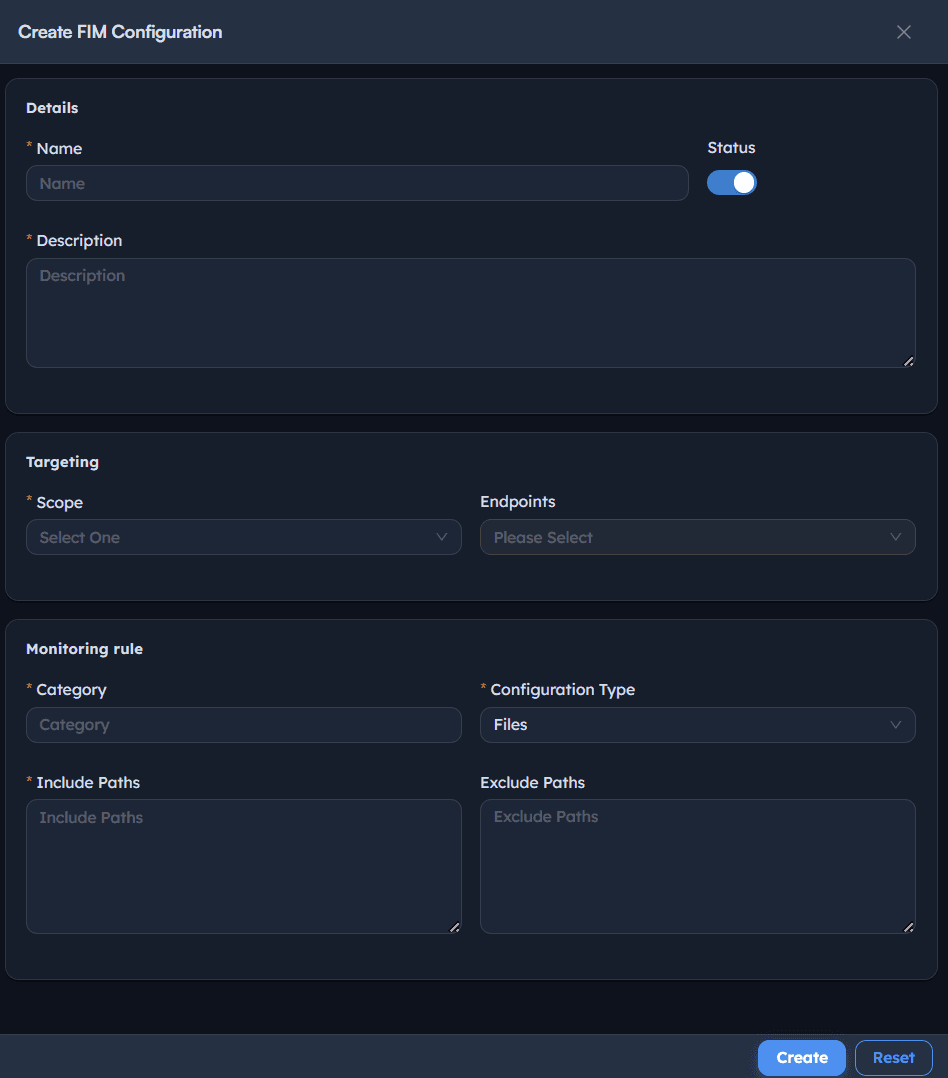
Define a single monitoring rule: what path to watch, on which endpoint, under which category.
Instructions
- Go to Configuration → Create FIM Configuration.
- Enter a Name that states what's being watched plainly, e.g. Configuration file monitoring, and toggle Status on.
- Enter a matching Description.
- Set Scope to
Specific Endpoints, then select the target device under Endpoints, e.g.<ENDPOINT-HOSTNAME>. - Set Category to classify the rule, e.g.
Config. Previously used categories appear as suggestions (e.g.FIM,Config) so naming stays consistent across configurations. - Set Configuration Type to the kind of target this rule watches:
Files,Configuration File, orRegistry. - Enter the exact Include Paths to watch, e.g.
D:\New folder\textnote.conf. Leaving this blank blocks saving with a Please enter Include Paths validation message. - Optionally set Exclude Paths to carve out sub-paths that shouldn't trigger events.
- Select Create.
Path: Console / FIM / Configuration / Create FIM Configuration
Console: configuration details
| Field | Value |
|---|---|
| Name | Configuration file monitoring |
| Description | Configuration file monitoring |
| Status | On |
| Scope | Specific Endpoints |
| Endpoints | <ENDPOINT-HOSTNAME> |
| Category | Config |
| Configuration Type | Configuration File |
| Include Paths | D:\New folder\textnote.conf |
Result: A configuration is created and bound to the target endpoint. The agent begins watching the specified path and will report a MODIFY event the next time its content changes.
Important: Include Paths is validated on save, an empty path is rejected before the configuration can be created. This prevents a configuration that silently watches nothing.
Step 3: Review the FIM Events dashboard
Read the event feed as a whole before drilling into any single event.
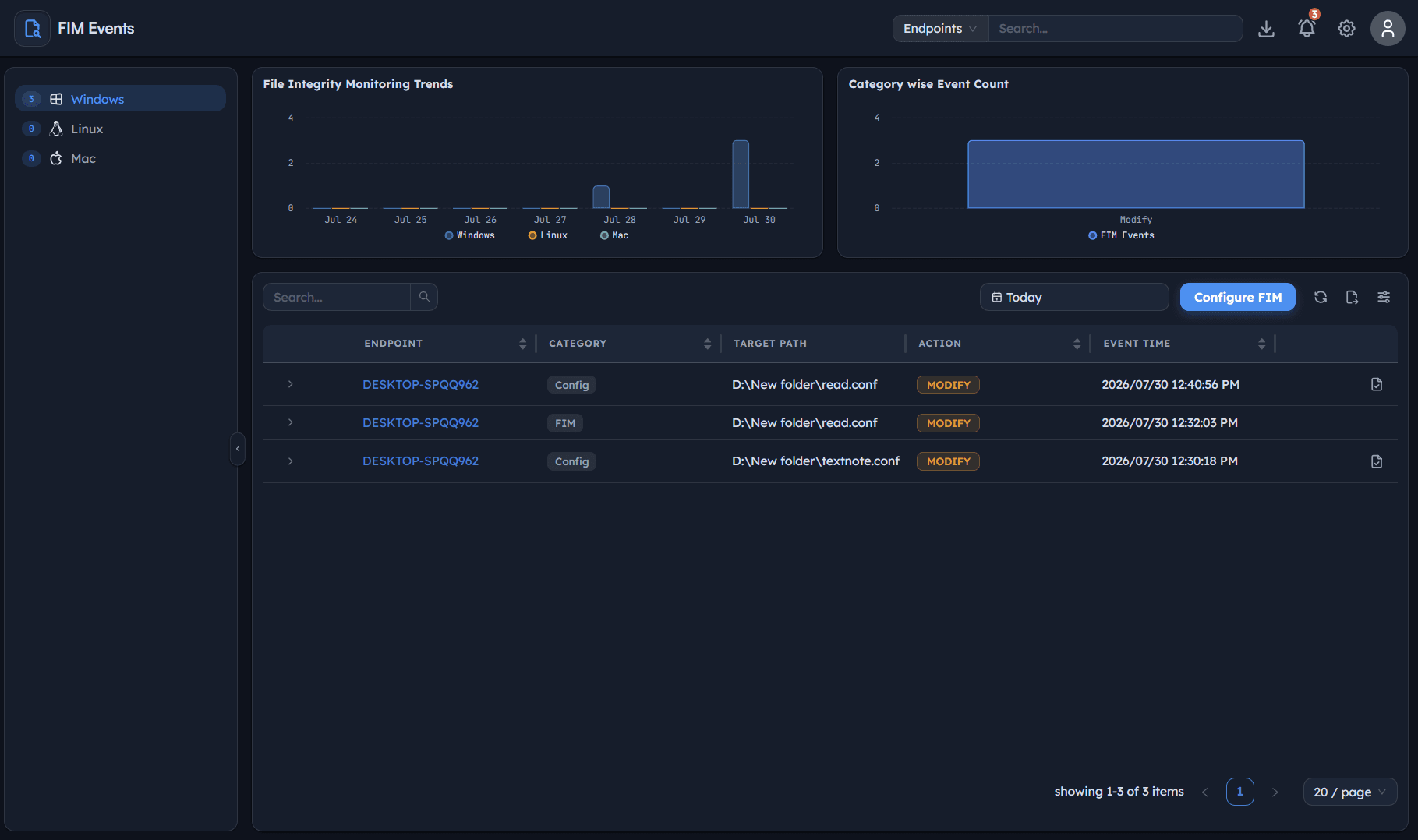
Instructions
- Go to FIM → Events.
- Use the left filter panel to narrow by OS: Windows, Linux, Mac, each showing a live count of matching events.
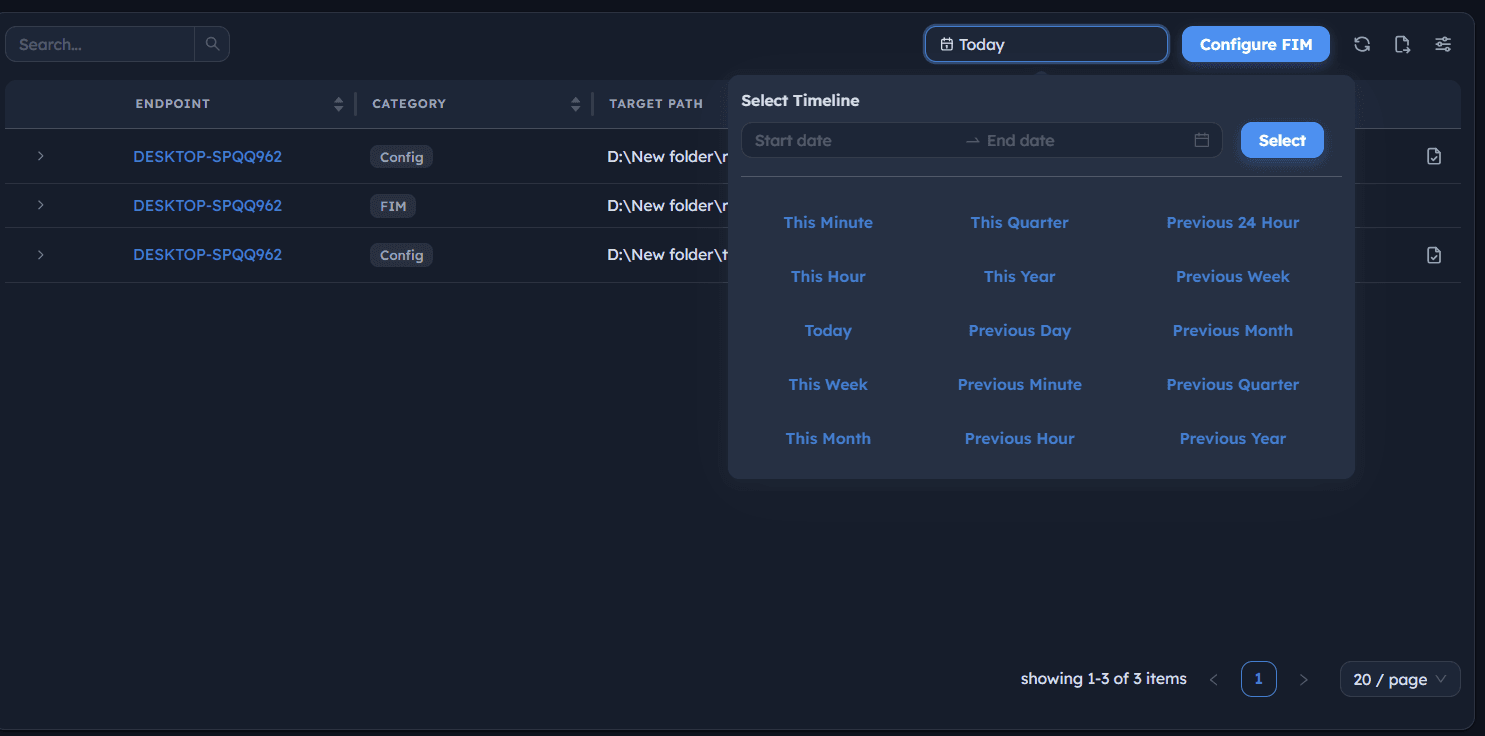
- Review File Integrity Monitoring Trends, a bar chart of event counts by date, to see whether change activity is a one-off or a pattern.
- Review Category wise Event Count, a bar chart breaking events down by category (e.g. Modify) to see what kind of activity is driving the totals.
- Review the events table: Endpoint, Category, Target Path, Action, Event Time.
Path: Console / FIM / Events
Console: events table (example)
| Endpoint | Category | Target Path | Action | Event Time |
|---|---|---|---|---|
| <ENDPOINT-HOSTNAME> | FIM | D:\New folder\read.conf | MODIFY | 2026/07/30 12:32:03 PM |
| <ENDPOINT-HOSTNAME> | Config | D:\New folder\textnote.conf | MODIFY | 2026/07/30 12:30:18 PM |
Result: A dated, filterable feed of every detected change, with trend and category charts to spot volume or pattern shifts before reviewing individual events.
Pro tip: Check the trend chart before the table. A cluster of MODIFY events on a single date is easier to explain (a patch, a deployment) than the same count spread evenly, which more often points to routine or unexpected drift.
Step 4: Investigate a MODIFY event's forensic detail
Expand a single event to see who or what made the change, not just that it happened.
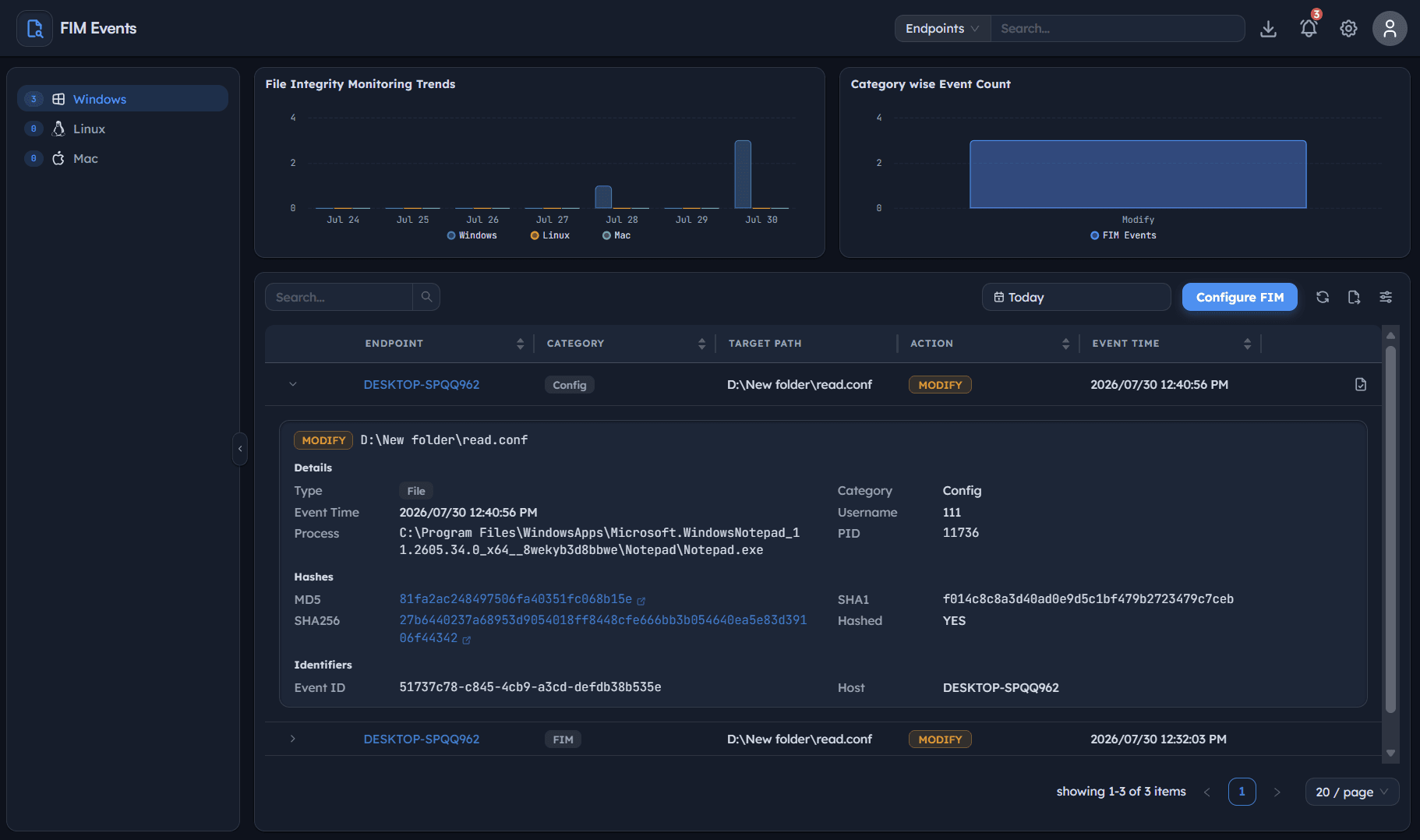
Instructions
- In the events table, select the row's expand control (
>) next to the endpoint you want to investigate. - Review Details: Type, Event Time, Process (full path to the originating executable), Category, Username, PID.
- Review Hashes: MD5, SHA256, SHA1, and the Hashed flag confirming a hash was captured.
- Review Identifiers: Event ID and Host.
Path: Console / FIM / Events / <row expand>
Console: event detail (example)
| Field | Value |
|---|---|
| Type | File |
| Event Time | 2026/07/30 12:32:03 PM |
| Process | <PATH-TO-EXECUTABLE> |
| Category | FIM |
| Username | <USERNAME> |
| PID | <PROCESS-ID> |
| MD5 | <MD5-HASH> |
| SHA256 | <SHA256-HASH> |
| SHA1 | <SHA1-HASH> |
| Hashed | YES |
| Event ID | <EVENT-ID> |
| Host | <ENDPOINT-HOSTNAME> |
Result: A single event now carries enough forensic context, process, user, PID, and three independent hashes, to stand on its own in an investigation without needing to cross-reference other tools.
Best practice: Check the Process field before anything else. A change made by an expected application (a config editor, a package manager) reads very differently from the same change made by an unrecognized or unexpected process.
Step 5: Compare file versions with the diff viewer
Open the exact line-level change behind a MODIFY event instead of inferring it from a hash difference alone.
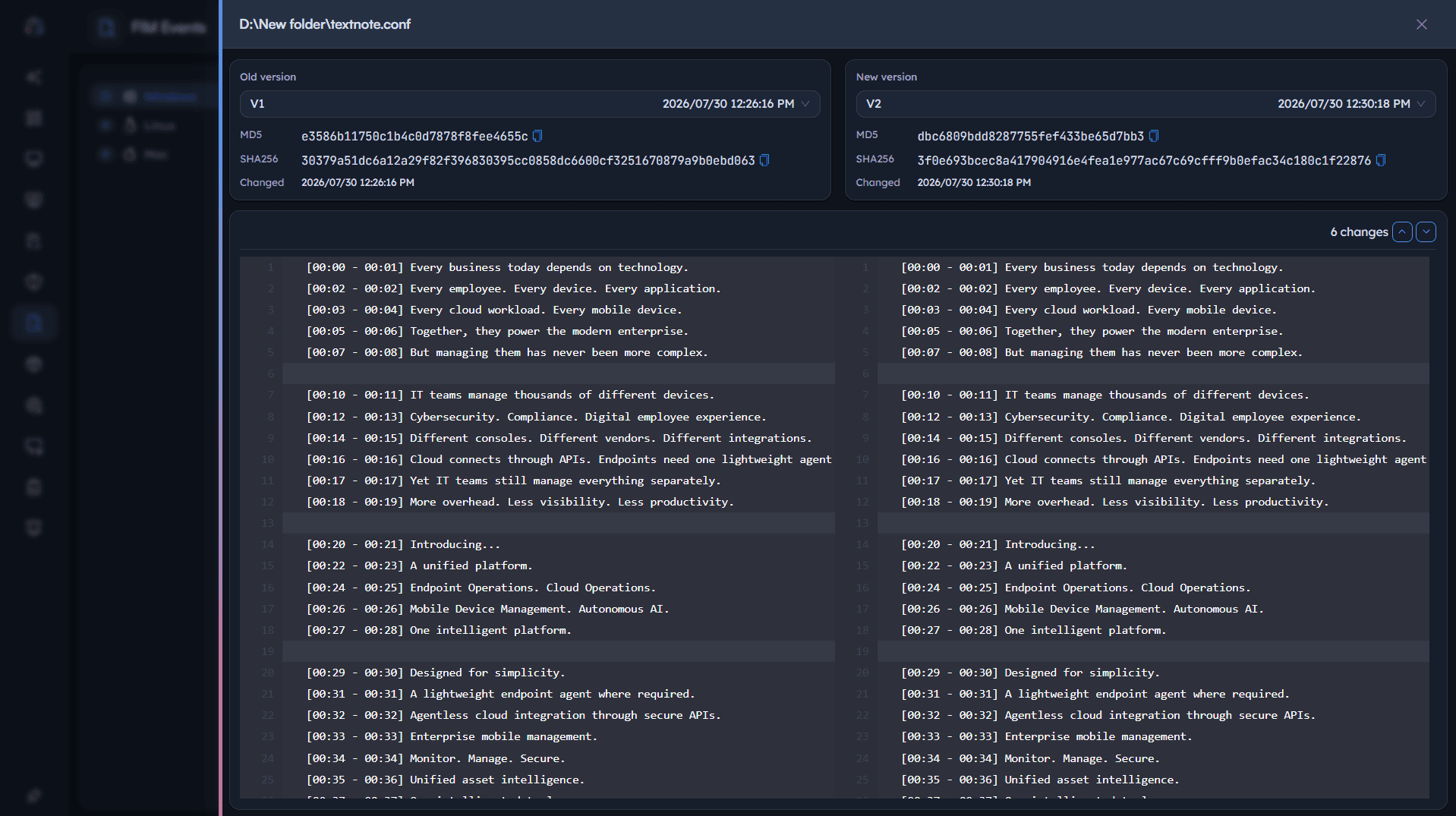
Instructions
- From the events table, select the event's Target Path link (or its detail icon) to open the file version comparison view.
- Review Old version and New version side by side, each showing its own version label, timestamp, MD5, and SHA256.
- Note the N changes counter at the top right, and use the up/down navigation controls to jump directly between changed lines instead of scrolling the full file.
- Scroll the line-numbered content on both sides together; removed lines are highlighted on the left, added lines are highlighted on the right, so each edit is visible in context rather than as an isolated fragment.
Path: Console / FIM / Events / <target path>
Console: version comparison (example)
| Panel | Version | Changed | MD5 | SHA256 |
|---|---|---|---|---|
| Old version | V1 | 2026/07/30 12:26:16 PM | <MD5-HASH-V1> | <SHA256-HASH-V1> |
| New version | V2 | 2026/07/30 12:30:18 PM | <MD5-HASH-V2> | <SHA256-HASH-V2> |
Result: The exact content that changed is visible line by line, confirming precisely what was added, edited, or removed rather than relying on the hash mismatch alone as proof.
Warning: Don't close out a MODIFY event based on the hash change alone. Two different edits can both produce a changed hash; only the line-level diff tells you whether the actual content change was expected.
Step 6: Track trends over time
Confirm ongoing monitoring health by returning to the dashboard view after investigating individual events.
Instructions
- Return to FIM → Events.
- Hover over a bar in File Integrity Monitoring Trends to see the exact date and per-OS breakdown, e.g. Thu, Jul 30, 2026: Windows 2, Linux 0, Mac 0.
- Use this view on a recurring basis (daily or weekly, depending on change volume) rather than only after an incident, so a spike is caught close to when it happens.
Path: Console / FIM / Events
Result: An ongoing, date-broken-down view of monitored change activity across every OS in scope, ready to catch the next spike early instead of after the fact.
Best practices for file integrity monitoring
| Practice | Why it matters | Recommended setting |
|---|---|---|
| Scope Include Paths narrowly | Broad paths generate noisy, low-signal events that bury real changes | Exact file paths first, folders only once validated |
| Check Process before Username | The originating application tells you more about legitimacy than the account alone | Review Process field on every MODIFY event |
| Use the diff viewer, not just the hash | A changed hash confirms that something changed, not what | Open version comparison on any unexpected event |
| Watch the trend chart regularly | A cluster of events is easier to explain close to when it happens | Daily or weekly review, not only post-incident |
| Keep Category consistent | Consistent categories (FIM, Config, Registry) make the event feed filterable and reportable | Reuse existing category suggestions when creating a configuration |
| Validate configuration on a single endpoint first | Confirms paths and bindings are correct before widening scope | One endpoint, one path, before expanding to a group |
Troubleshooting: common issues and resolutions
| Issue | Cause | Resolution |
|---|---|---|
| Events table shows "No data" | No configuration exists yet, or the configured path hasn't changed since creation | Confirm a configuration was created and saved; trigger or wait for a real file change |
| Configuration won't save | Include Paths field is empty | Enter a valid path before selecting Create; the field is required |
| Event is logged but hashes are missing | Hashing failed or is still processing for that event | Re-check the event after a short delay; confirm agent health on the host |
| Diff viewer shows no highlighted changes | Old and new versions are identical, or the wrong event was opened | Confirm the event's timestamp and target path before assuming the diff is broken |
| Trend chart shows a spike with no corresponding investigated event | Multiple endpoints or paths rolled into one chart bar | Filter by OS or endpoint before drawing conclusions from the aggregate count |
| Same path shows repeated MODIFY events | An application is rewriting the file on a normal cycle (e.g. auto-save) | Confirm the originating Process; consider Exclude Paths or a narrower binding if the churn is expected and low-risk |
Frequently asked questions
A MODIFY event only confirms that monitored content changed. Whether it's a security incident depends on the Process, Username, and the actual diff content behind it. Review all three before treating an event as an incident.
Not necessarily. For high-volume, low-risk paths, the hash and process detail may be enough for routine review. Reserve the diff viewer for events from unexpected processes, unusual timing, or any path where the actual content change matters.
Yes, Include Paths can point to a folder rather than a single file, and Exclude Paths can carve out sub-paths you don't want triggering events. Start with a single file to validate the configuration before widening scope.
Each MODIFY event captures a new version snapshot. If a file changes repeatedly, each change produces its own old-version/new-version pair, so you can compare any two points in its history.
All three independently confirm whether the file's content is identical to a prior state. Capturing multiple hash algorithms per event makes the record harder to dispute and easier to cross-verify against other tooling.
FIM detects and records the change; it does not block the write. Use the Process and diff detail to decide whether follow-up action, such as reverting the change or investigating the account involved, is needed.