


How to Build and Run Compliance Assessment
Compliance Assessment helps organizations evaluate endpoint security by verifying devices against predefined compliance policies. It automatically checks security configurations, identifies non-compliant devices, generates detailed compliance reports, and enables administrators to take corrective actions to maintain security standards and regulatory compliance.
How to Build and Run Compliance Assessments
Overview:
Why a pass rate is only useful if you trust how it was measured
A compliance dashboard that shows a single percentage is easy to produce and easy to misread. The number means nothing without knowing what was actually tested, how each check decided pass or fail, and what happens to a check that could not be evaluated at all. A 16% pass rate and a 96% pass rate are not more or less trustworthy than each other unless the rules behind them are inspectable.
The operational problem is usually not the framework, it is the rule underneath it. A CIS or GDPR benchmark is just a named bundle of individual checks, and each check is only as good as its audit logic and its remediation script. Frameworks built entirely from vague or untested rules produce dashboards that look authoritative and mean very little.
The Compliance module treats this as three separate problems solved in order: author and test individual rules, bundle tested rules into a framework mapped to a real standard, then deploy that framework to real endpoints and read back a per-rule, per-endpoint result rather than a single blended score.
This guide walks the full workflow end to end: authoring a compliance rule with audit and remediation logic, using the built-in AI command generator to draft that logic, live-testing a rule before it ships, building a framework from your own rules or the built-in benchmark library, deploying that framework to endpoints, and reading the resulting evaluation, including what an INVALID result means and how it differs from a genuine failure.
- Measure what actually matters: rules are written against your own environment and standards, not assumed from a generic score.
- Prove compliance per framework: CIS, GDPR, HIPAA, PCI DSS, ISO, RBI and SOC 2 mappings are built in, or define your own.
- Catch drift automatically: audit logic re-evaluates on schedule, so a control that silently reverted is caught before an auditor finds it.
- Remediate, not just report: every rule can carry a remediation script, so a failed check can be corrected automatically instead of only logged.
- Trust the number: a pass rate is broken down rule by rule, endpoint by endpoint, so nobody has to take the top-line percentage on faith.
Prerequisites
Confirm all four before authoring your first rule. Skipping straight to a framework built on untested rules is the most common cause of a dashboard full of INVALID results.
- Administrator access: your account holds a role permitted to manage the Compliance module. Read-only operators can view assessment results but cannot create rules, frameworks, or deployments.
- Agent installed and reporting: the endpoint agent is installed, registered, and reporting healthy on every target device. A rule cannot evaluate on a device the agent cannot reach.
- Target OS identified: rules and frameworks are written and bound per operating system (Windows Server editions, Windows 10/11, Ubuntu, RHEL/CentOS). Know which OS versions you're actually assessing before building rules for one you don't run.
- A defined standard, or none: know whether this assessment needs to map to a named regulatory or benchmark standard (CIS, GDPR, HIPAA, PCI DSS, ISO, RBI, SOC 2) or is a custom internal check. This decides whether Step 5 uses the built-in library or a custom framework.
Architecture: how a rule becomes a compliance result
A rule is the smallest unit of truth in the system. A framework is a named collection of rules mapped to a standard. A deployment binds a framework to endpoints and triggers evaluation. The result is reported per rule, per endpoint, never collapsed into a single number until you choose to view it that way.
| Stage | Component | Role |
|---|---|---|
| Definition | Compliance Rule | Audit script (checks state) and remediation script (fixes state), bound to an OS |
| Bundling | Compliance Framework | Named collection of rules mapped to a standard (CIS, GDPR, HIPAA, etc.) |
| Binding | Compliance Deployment | Scope (endpoints), framework, deployment policy, notification |
| Execution | Endpoint agent | Runs the audit script, reports PASS / FAIL / INVALID per rule |
| Proof | Evaluation results | Per-rule, per-endpoint breakdown with pass rate and rule-level detail |
Pro tip: Build and test rules individually before bundling them into a framework. A framework is only as trustworthy as its least-tested rule.
Step 1: Open the Compliance module
Get oriented before creating anything, so you know where rules, frameworks, and deployments each live.
Instructions
- From the main console, go to Endpoints → Compliance.
- Note the three sections in the left sidebar: Compliance Rule, Compliance Framework, Compliance Deployment.
- Open Compliance Rule to see the existing rule library: each row shows Name, Bindings (which OS/group it applies to), Type, and Tags.
Path: Console / Endpoints / Compliance / Compliance Rule
Result: You're in the Compliance module with visibility into the existing rule library before authoring anything new.
Step 2: Create a compliance rule
Author a single check: what it audits for, and what it does to remediate a failure.
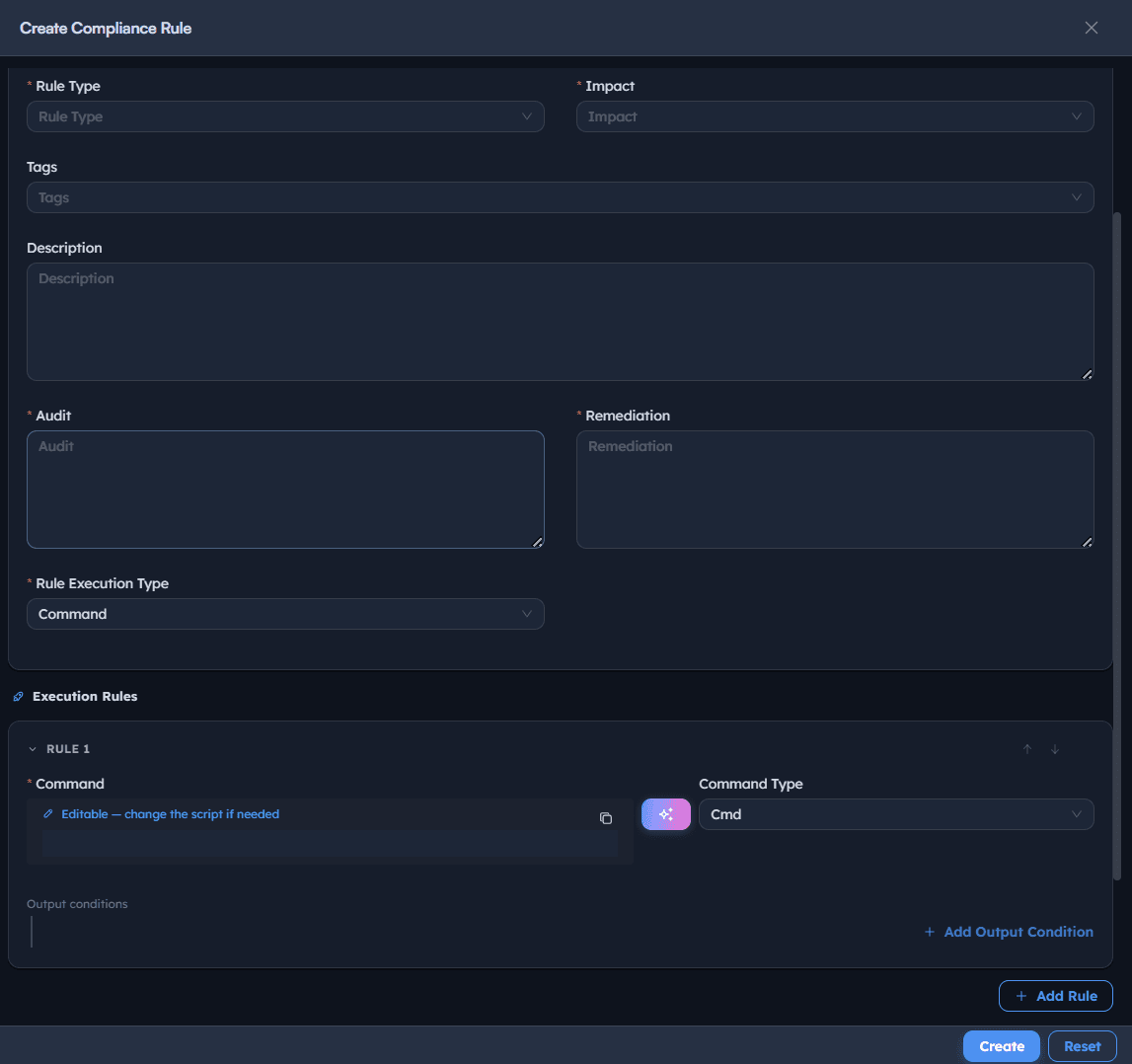
Instructions
- Go to Compliance Rule → Create Compliance Rule.
- Enter a Rule Name that states the check plainly, e.g. Ensure windows firewall is enabled, and toggle Status on.
- Set Execution Type to
Command. - Set Bindings to the target OS/group, e.g.
W2016MS. - Set Rule Type to
Securityand Impact toMedium,High, orCriticaldepending on the risk of the check failing. - Add Tags to make the rule searchable later.
- Write the Description in plain language: what the rule checks and why.
- Fill in Audit (what to check) and Remediation (what to do if the check fails) as separate statements, e.g. Audit: Verify the firewall status on all network profiles; Remediation: Enable Windows Defender Firewall on all profiles, if it is disabled.
Path: Console / Compliance / Compliance Rule / Create Compliance Rule
Console: rule details
| Field | Value |
|---|---|
| Rule Name | Ensure windows firewall is enabled |
| Execution Type | Command |
| Bindings | W2016MS |
| Rule Type | Security |
| Impact | Medium |
| Audit | Verify the firewall status on all network profiles |
| Remediation | Enable window defender firewall on all profiles, if it is disabled |
Result: A draft rule exists with its audit and remediation intent stated in plain language. The actual executable logic is added next, in Rule Execution Type.
Important: Write the Audit and Remediation fields as if someone other than you has to maintain this rule in a year. Vague intent here makes the executable script underneath much harder to trust or debug later.
Step 3: Generate the rule's command using AI (optional)
Use the built-in AI command generator to draft the actual audit/remediation script instead of writing it from scratch.
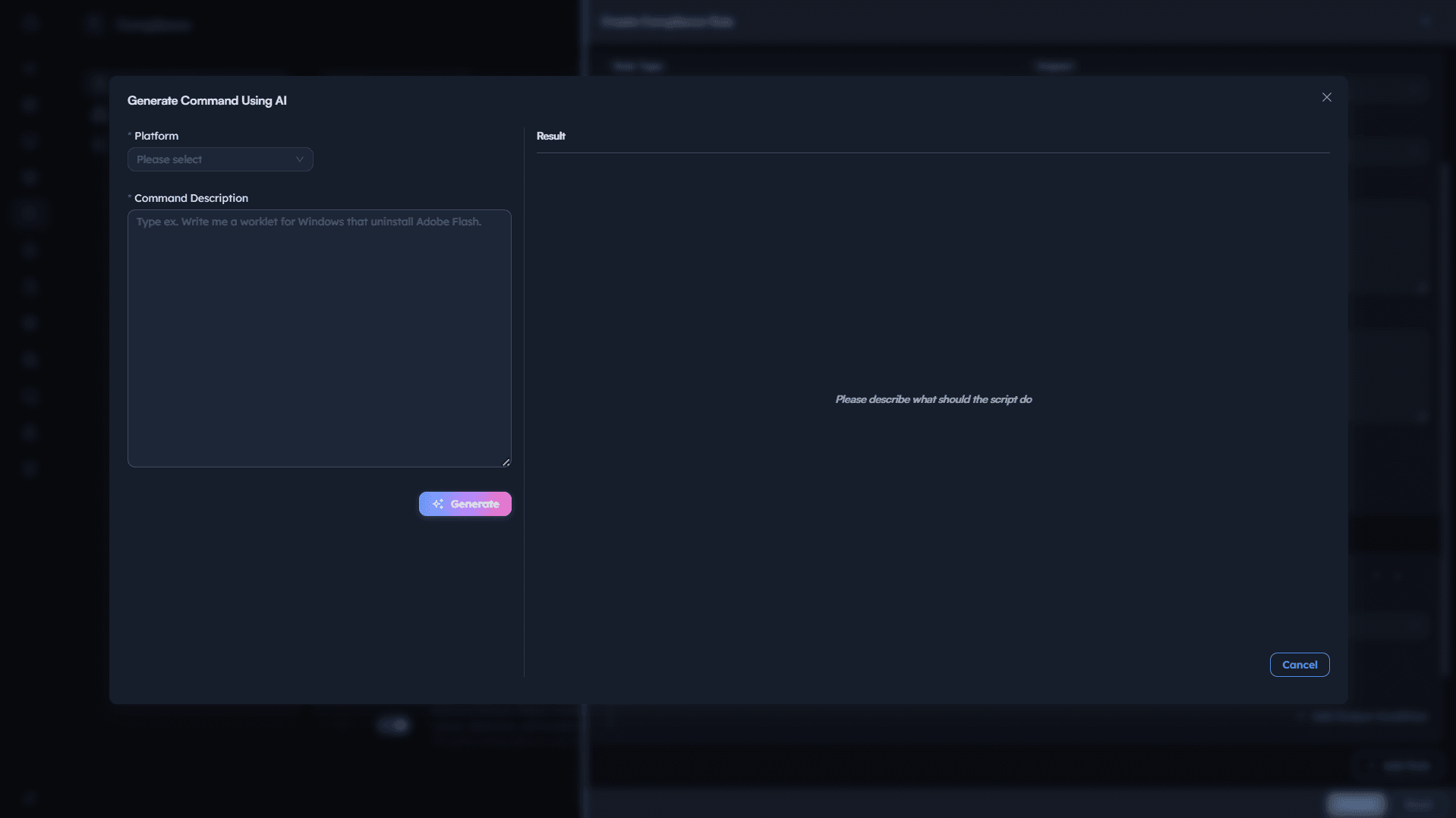
Instructions
- Within the rule's Rule Execution Type section, set the type to
Command, then select Generate Command Using AI. - Select the target Platform (e.g. Windows).
- In Command Description, describe the script you need in plain language, e.g. enable Windows Defender Firewall on all profiles if disabled.
- Review the generated Result script before accepting it. Treat AI-generated command output the same as any other unreviewed script: read it fully before it runs on a production endpoint.
- Under Execution Rules, confirm the generated Command Type (e.g.
cmd), and note the Editable flag: change the script if needed before saving.
Path: Console / Compliance / Compliance Rule / Create Compliance Rule / Generate Command Using AI
Result: A first-draft script is populated into the rule's execution rule, editable before it's attached to any endpoint.
Warning: Generated commands are a starting point, not a finished product. Review every generated script for scope and side effects before it's included in a framework that will run against real endpoints.
Step 4: Live-test the rule before publishing
Confirm the rule's logic actually behaves as intended on a real endpoint before it becomes part of a framework.
Instructions
- Under Execution Rules, confirm the rule (e.g.
RULE1) has its command and command type set. - Optionally select Add Output Condition to define what output counts as a pass versus a fail, or Add Rule to chain additional execution logic.
- Scroll to Live test.
- Select a Test Endpoint and run the rule against it to preview the actual result before the rule is saved into general use.
- Confirm the output matches what you expect for both a compliant and a non-compliant device, if you can test both states.
Path: Console / Compliance / Compliance Rule / Create Compliance Rule / Live test
Result: You've confirmed the rule's real output on a live endpoint rather than trusting the script's logic on paper alone.
Best practice: Always live-test a new or AI-generated rule against at least one real endpoint before adding it to a framework. This is the step that catches a script that's syntactically fine but functionally wrong.
Step 5: Create a compliance framework
Bundle individual rules into a named collection mapped to the standard you need to report against.
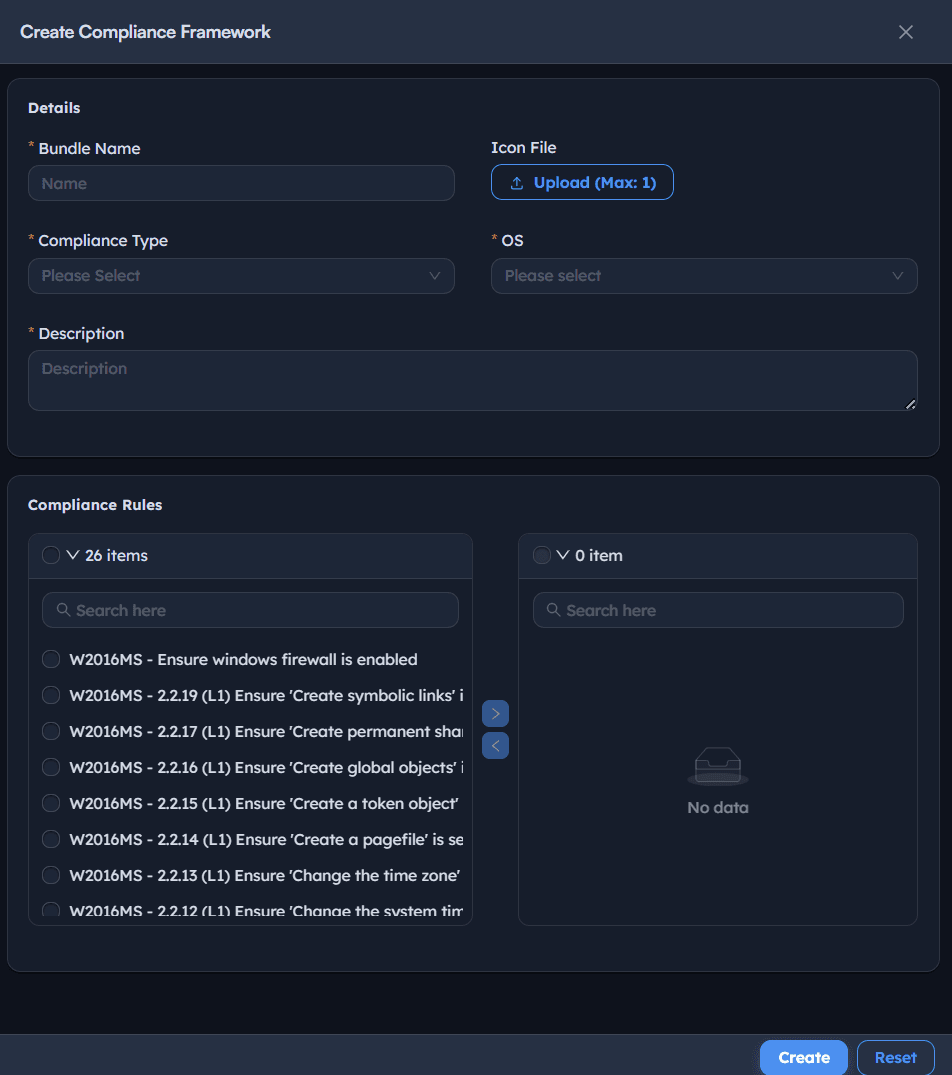
Instructions
- Go to Compliance Framework → Create Compliance Framework.
- Enter a Bundle Name, e.g. Windows firewall security baseline, and optionally upload an Icon File.
- Set Compliance Type to the standard this framework maps to:
CIS,HIPAA,PCI,FISMA,ISO,RBI, orSOC-2. - Write a Description stating what the framework covers and its intended effect, e.g. Firewall is enabled on all Windows devices. It audits the firewall status and automatically enables it if it is found to be disabled.
- Under Compliance Rules, search the rule library and move the rules you want into this framework. Selected rules move from the left (unselected) list into the right (selected) list, showing a running item count.
Path: Console / Compliance / Compliance Framework / Create Compliance Framework
Console: framework definition
| Field | Value |
|---|---|
| Bundle Name | Windows firewall security baseline |
| Compliance Type | CIS, Windows |
| Description | Firewall is enabled on all Windows devices; audits status and auto-enables if disabled |
| Compliance Rules | 1 of 26 available rules selected |
Result: A framework exists bundling one or more tested rules, tagged to the standard it satisfies.
Best practice: Name the framework for the standard and platform it covers, not the date it was built, the same principle that applies to naming any reusable policy.
Step 6: Use the built-in benchmark library
Skip authoring your own rules entirely for common standards by using the pre-built framework library.
Instructions
- Go to Compliance Framework and browse the existing list rather than creating a new one.
- Filter or search by OS and standard. Built-in frameworks cover, among others: CIS benchmarks for Windows 10/11, Windows Server 2012 through 2025, and Ubuntu 14.04 through newer LTS releases, plus GDPR technical control mappings per OS.
- Open a framework to review its description and confirm it matches the OS and standard you need before deploying it as-is.
Path: Console / Compliance / Compliance Framework
Console: sample built-in frameworks
| Framework | OS | Standard |
|---|---|---|
| CIS Microsoft Windows 11 Enterprise Benchmark v3.0.0 | Windows 11 | CIS |
| CIS Microsoft Windows Server 2022 Benchmark v2.0.0 | Windows Server 2022 | CIS |
| GDPR Technical Controls for Windows 11 Enterprise | Windows 11 | GDPR |
| CIS Ubuntu Linux 20.04 LTS Benchmark v2.0.0 | Ubuntu 20.04 | CIS |
Result: A ready-to-deploy framework mapped to a recognized standard, with no custom rule-authoring required.
Pro tip: Even with a built-in framework, spot-check a handful of its rules the way you would your own. A benchmark being well-known doesn't guarantee every check in it fits your environment cleanly.
Step 7: Create a compliance deployment
Bind a framework to real endpoints and trigger evaluation.
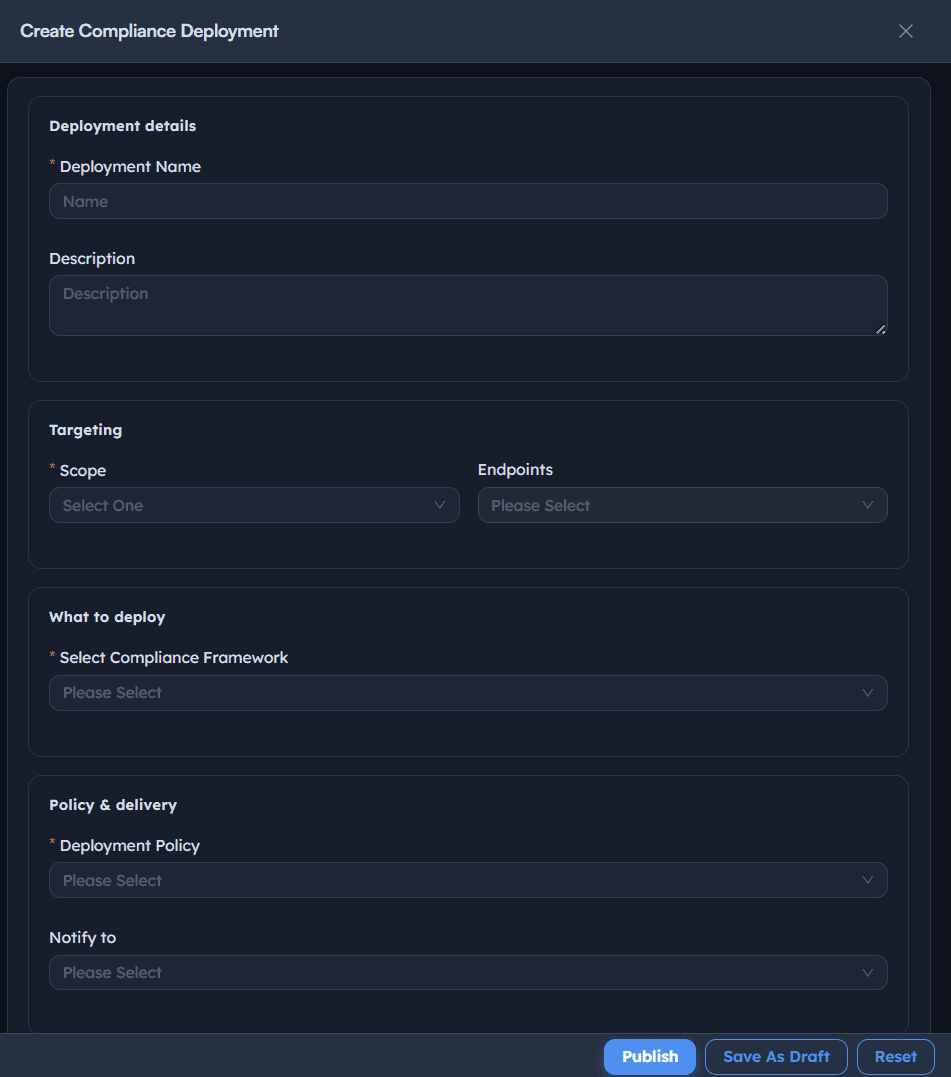
Instructions
- Go to Compliance Deployment → Create Compliance Deployment.
- Enter a Deployment Name describing the assessment, e.g. GDPR win 11.
- Set Scope Endpoints to
Specific Endpoints(or broader scope) and select the target device(s). - Under What to deploy, set Select Compliance Framework to the framework from Step 5 or 6, e.g. GDPR Technical Controls for Windows 11 Enterprise.
- Set Deployment Policy to an existing delivery policy, e.g.
OOB Instant deployment policy(type: Instant). - Optionally set Notify to for completion alerts.
- Select Publish (or Save as Draft).
Path: Console / Compliance / Compliance Deployment / Create Compliance Deployment
Console: deployment definition
| Field | Value |
|---|---|
| Deployment Name | GDPR win 11 |
| Scope | Specific Endpoints |
| Compliance Framework | GDPR Technical Controls for Windows 11 Enterprise |
| Deployment Policy | OOB Instant deployment policy (Instant) |
Result: A task is created and the deployment appears in Compliance Deployment with Stage initially showing Initiated.
Warning: Selecting the wrong OS-specific framework variant for the endpoint's actual OS produces a wave of INVALID results, not failures, since the audit logic won't apply cleanly. Match the framework to the endpoint's real OS before publishing.
Step 8: Monitor the deployment task
Track the deployment from initiation through completion before reading results.
Instructions
- Go to Compliance Deployment to see all deployments with their Stage (
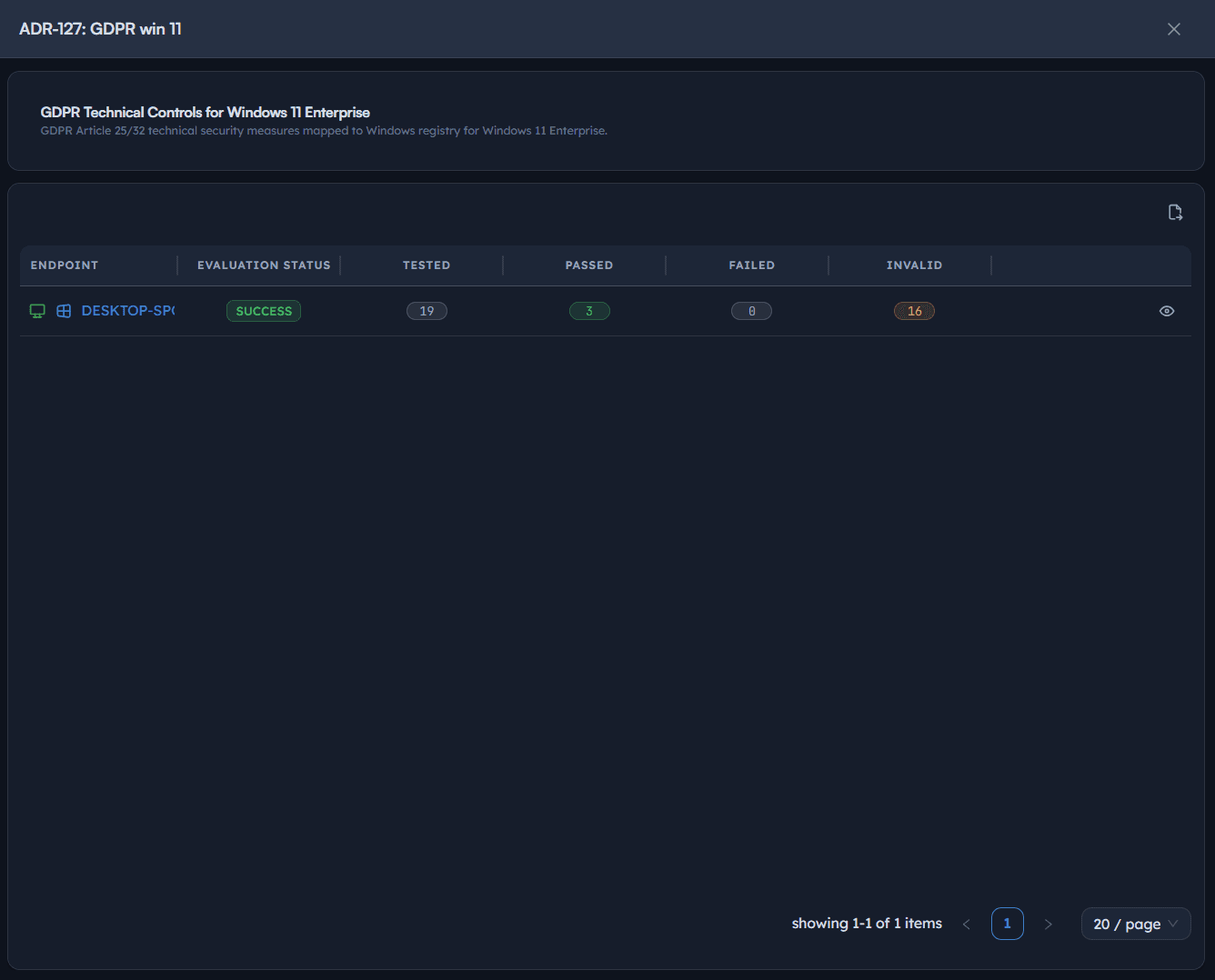
Initiated,Completed), Progress, and Policy. - Open the specific deployment task, e.g. ADR-127: GDPR win 11, to see its framework name and description.
- Review the per-endpoint summary: Evaluation Status, Tested, Passed, Failed, Invalid counts.
- Wait for Evaluation Status to move from in-progress to a completed state (e.g.
SUCCESS) before treating the results as final.
Path: Console / Compliance / Compliance Deployment
Console: task summary
| Endpoint | Evaluation Status | Tested | Passed | Failed | Invalid |
|---|---|---|---|---|---|
| <ENDPOINT-HOSTNAME> | SUCCESS | 19 | 3 | 0 | 16 |
Result: The deployment reports a completed evaluation with rule counts broken down by outcome, ready for detailed review.
Important: A high Invalid count alongside zero Failed is a signal about the rules or the binding, not necessarily about the endpoint's actual posture. Investigate Invalid results before reporting the pass rate as-is.
Step 9: Review the evaluation results
Drill into rule-by-rule results rather than reporting only the top-line pass rate.
Instructions
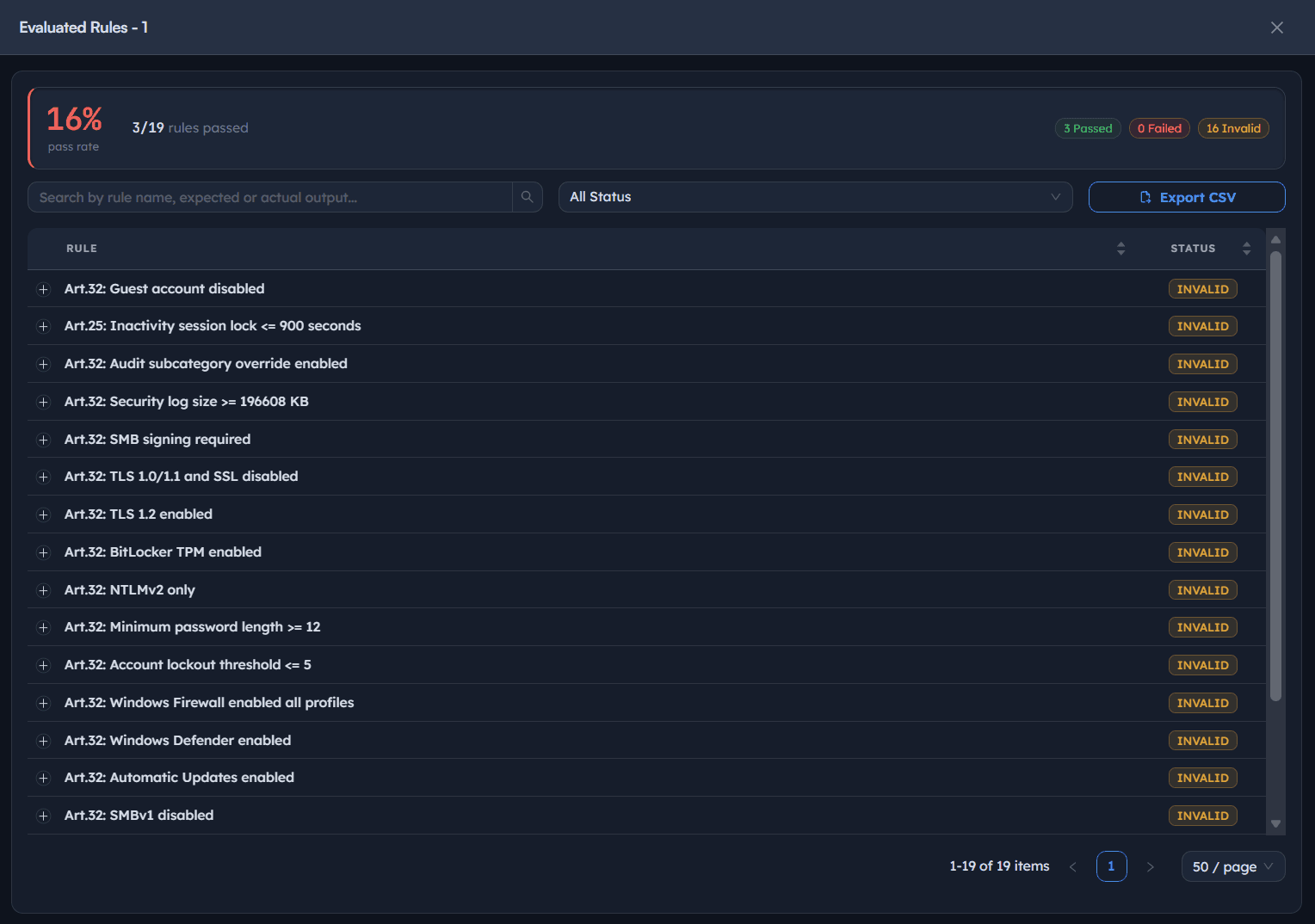
- Open Evaluated Rules for the completed deployment.
- Read the summary: pass rate percentage, and counts of Passed, Failed, Invalid.
- Review the rule list, each showing its name (often mapped to an article or control number, e.g. Art.32: SMB signing required) and its Status.
- Distinguish Failed (the audit ran and the check did not pass) from Invalid (the audit could not produce a determinate result, e.g. an unsupported command, a missing dependency, or a binding mismatch).
- Use Search by rule name, expected or actual output and the status filter to isolate a subset for investigation.
Path: Console / Compliance / Compliance Deployment / <Task> / Evaluated Rules
Result: A rule-level breakdown showing exactly what passed, what failed, and what couldn't be determined, the actual evidence behind the summary percentage.
Best practice: Treat a low pass rate driven mostly by Invalid results as a rule-authoring problem to fix first, not a posture problem to remediate first. Fixing the rules changes what the next evaluation actually proves.
Step 10: Remediate and re-evaluate
Close the loop: fix what the rules found, then confirm the fix with another evaluation rather than assuming it worked.
Instructions
- For each Failed rule, review its remediation script (defined back in Step 2) and confirm it's appropriate to run automatically, or run it manually if the rule has no attached remediation.
- For each Invalid rule, go back to Compliance Rule, open the rule, and re-test it live against the same endpoint (Step 4) to isolate whether the script, the binding, or the endpoint is the cause.
- Once corrected, re-publish the deployment or create a new deployment against the same scope and framework to re-evaluate.
- Compare the new pass rate against the previous run. A rising pass rate driven by falling Invalid counts confirms the rules themselves are now trustworthy; a rising pass rate driven by falling Failed counts confirms the endpoints are actually more compliant.
Path: Console / Compliance / Compliance Deployment / Create Compliance Deployment (re-run)
Result: A second evaluation that reflects genuine remediation rather than a single unexamined snapshot.
Warning: Don't re-run an evaluation as a way to make an Invalid result disappear without understanding why it was Invalid. The same rule, framework, or binding problem will resurface on every endpoint it's deployed to next.
Best practices for compliance assessments
| Practice | Why it matters | Recommended setting |
|---|---|---|
| Live-test every new rule | Catches a script that's syntactically valid but functionally wrong before it reaches a framework | Test against at least one real endpoint per OS binding |
| Separate audit and remediation intent | Keeps the rule's purpose legible independent of its executable script | Plain-language Audit/Remediation fields on every rule |
| Treat Invalid as a rule problem first | A framework full of Invalid results says more about rule/binding mismatch than endpoint posture | Investigate Invalid before reporting pass rate |
| Match framework OS variant to endpoint OS | Wrong variant produces Invalid results, not a real assessment | Confirm OS binding before publishing a deployment |
| Review AI-generated commands fully | Generated scripts are a draft, not a finished, trusted artifact | Manual review before attaching to any rule |
| Use built-in benchmarks where available | Avoids re-authoring well-established standards from scratch | CIS, GDPR, and other frameworks in the built-in library |
| Re-evaluate after remediation | Confirms a fix actually worked instead of assuming it did | New deployment against same scope and framework |
Troubleshooting: common issues and resolutions
| Issue | Cause | Resolution |
|---|---|---|
| Most rules report Invalid, not Failed | Framework's OS-specific variant doesn't match the endpoint's actual OS, or the rule's script has a dependency the endpoint lacks | Confirm the correct OS-specific framework was deployed; re-test the affected rules individually via Live test |
| A rule passes in Live test but fails in a full deployment | Test endpoint differs from deployment scope in configuration or OS build | Live-test against an endpoint representative of the actual deployment scope |
| AI-generated command doesn't match intent | The Command Description was too vague for the generator to infer scope correctly | Rewrite the description with the specific setting, service, or registry value involved |
| Framework shows 0 selected rules after editing | Rules were moved between the unselected/selected lists but the framework wasn't saved | Reconfirm the Compliance Rules selection and save the framework again |
| Deployment stuck at Initiated | Target endpoint is offline or the agent isn't reporting | Confirm agent health on the target endpoint before re-publishing |
| Pass rate drops after a rule edit | An edited audit script now evaluates differently, which may be the fix working correctly, or a new bug | Compare the specific rule's before/after status, not just the overall percentage |
Frequently asked questions
Failed means the audit script ran and the check did not meet the expected condition. Invalid means the audit script could not produce a determinate result at all, often due to an OS mismatch, a missing dependency, or a binding error. Treat Invalid as a rule or deployment problem to fix, not a posture finding.
No. Treat it as a first draft. Review the generated script fully and live-test it against a real endpoint before it becomes part of a framework used in production deployments.
Yes. CIS, GDPR, and other standard mappings are available pre-built for common Windows and Linux versions. You can deploy one as-is or combine built-in rules with your own custom rules in a single framework.
Not necessarily. If most of the failing count is Invalid rather than Failed, the low percentage is more likely telling you about a rule or binding mismatch than the endpoint's actual security posture.
Only if the rule has a remediation script attached and the deployment policy is configured to apply it. Rules without remediation logic report the failure only; someone has to act on it manually.
Re-run the deployment against the same scope and framework and compare the new evaluation to the previous one, rule by rule. A single snapshot never confirms a fix on its own.